Guides › Billing & your account
Add a card and read your bill
Put a card on file, and know exactly what next month's bill will be before it arrives. About three minutes.
The short version
Open Billing, click Add a card, and enter the card on our payment provider's own secure page; card numbers never touch Dayboard. You're billed monthly in arrears: the bill for a month arrives after that month, priced at $25 admin / $10 manager / $5 field worker, including GST. The billing page shows the current month building up, clearly labelled as an estimate.
-
Open Billing. Click Settings in the sidebar and pick the Billing tab; on a phone, Settings is under More. Only admins have it.
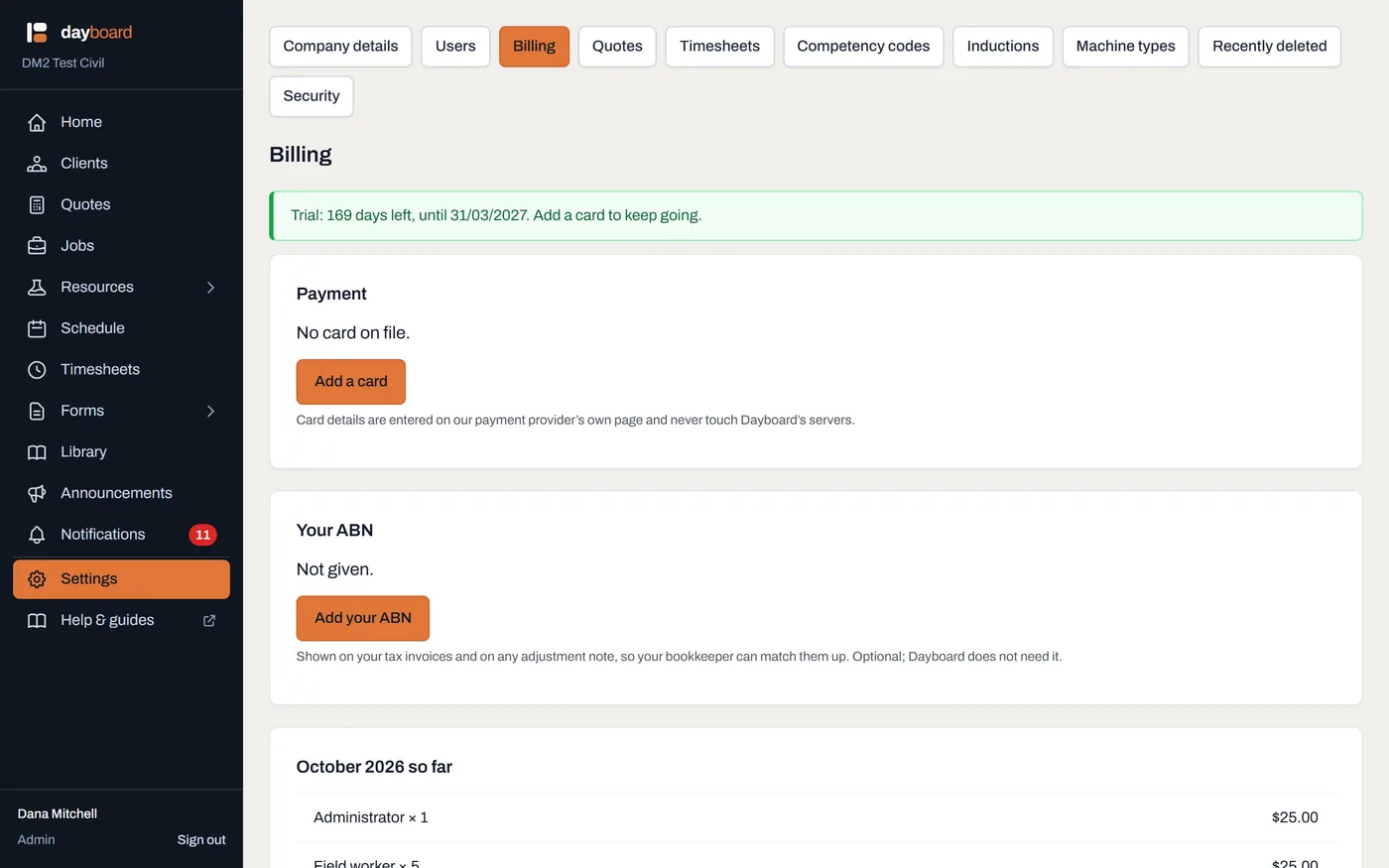
The whole money picture on one page: the card, the month building up, invoices, export and cancel, with nothing hidden behind a support ticket. -
Click Add a card in the Payment panel. You're taken to our payment provider's own page to type the card in.
- Card details are entered there and never touch Dayboard's servers. That's the design, not small print. We never see, store or handle a card number; we only ever learn the last four digits and the expiry.
-
Enter the card and you're brought straight back. A banner confirms it: Card saved. Thank you.
- If founding-offer slots are still open, your slot is claimed at this moment: it's the first card add that claims it, not starting the trial. First 20 companies, 30% off for life.
-
Read the month-so-far panel. It's named after the current month, say August 2026 so far, and shows a line per role (Administrator, Manager, Field worker, each × how many people), your Founding member, 30% off for life discount line if you have one, the Estimated total, and the GST included in it.
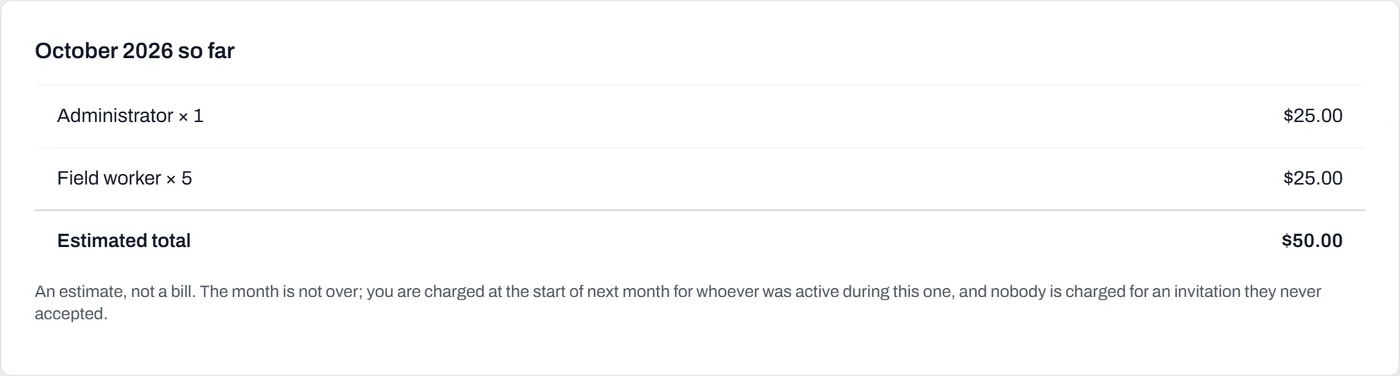
An estimate, not a bill; the page says so itself. The month isn't over, so the numbers can still move as people are added or deactivated. - Check the Payment panel shows your card. You'll see the brand and last four digits with an expiry, plus Replace card and Remove card buttons. That's it. The first charge comes at the next month boundary.
Worth knowing
- You pay behind, never ahead. Each invoice covers the month just finished, charged at the start of the next one. Add a card on the 28th and those last three days cost nothing, because billing starts at the next month boundary.
- An invitation costs nothing. A person you've invited who hasn't accepted yet isn't billed. A seat starts costing money when they activate, and the prices are shown again on the invite screen, so there are no surprise bills.
- A mid-month role change bills the higher role for that month. Simple, and there's no proration arithmetic anywhere you have to check.
- No minimum spend, no lock-in. Month to month; a one-person company pays $25 including GST and that's the whole bill. Full pricing is on the pricing section.
- The 14-day trial needs no card at all. If it lapses, nothing is deleted; add a card later and everything wakes up.