Guides › For your crew
Prestarts and alerts
Do your prestart on the phone, standing at the machine, and sign off on the safety notices that ask you to. A couple of minutes each.
The short version
Tap Forms; the forms themselves are right there. Tap the one you need, pick the machine or job it's about, hit Start, and answer. It saves as you go, so losing signal loses nothing. Sign with your finger, tap Submit, done. And when the Alerts tab shows a red number, something needs your Acknowledge. That's you signing that you've read it.
- Tap Forms, then tap the form. Forms is a tab at the bottom of the screen, and it opens on the forms themselves: one tap and you're in.
-
Pick the form, then what it's about. Choose under Form, say the plant prestart, then pick the Machine (or the Job, depending on the form). Tap Start.
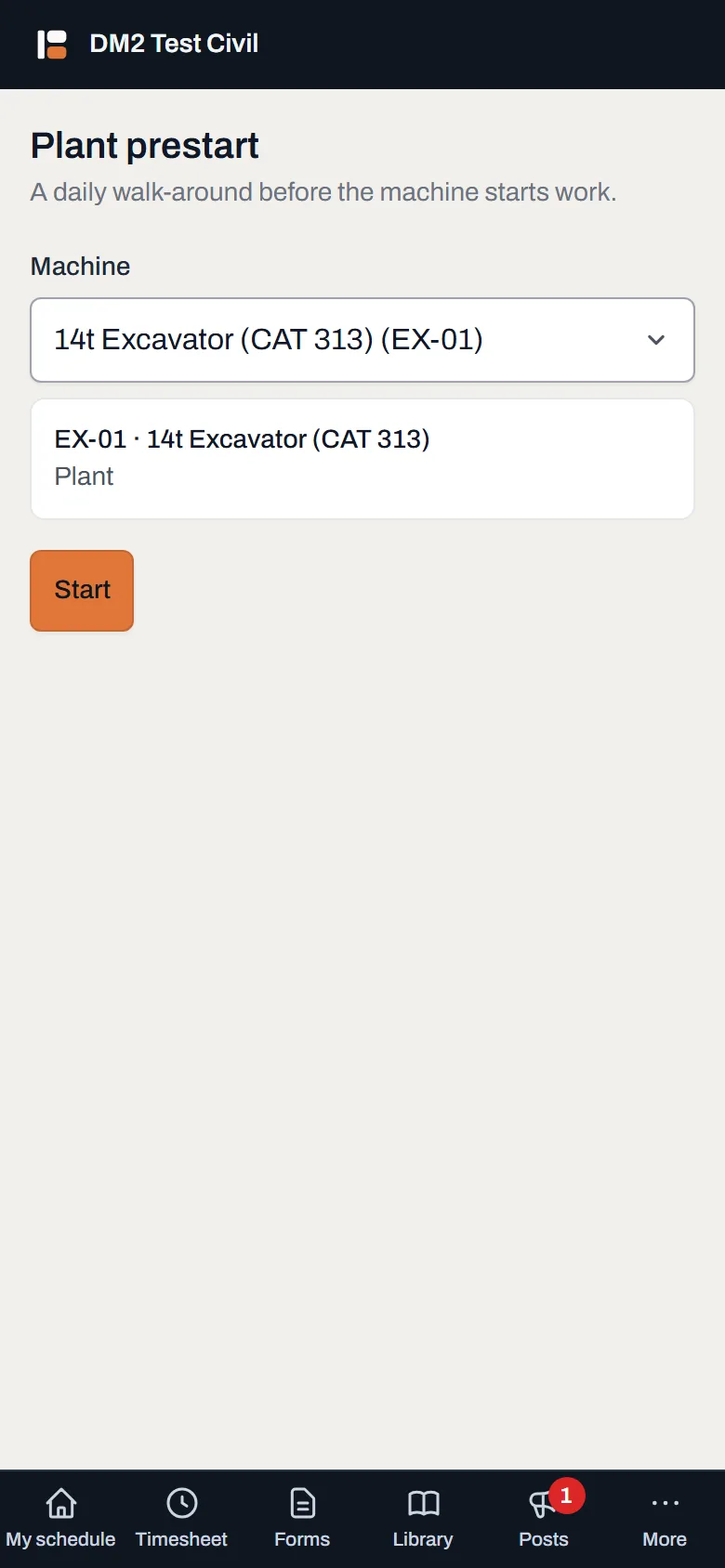
Form first, then the machine. The machine list is the ones you can actually pick, with no scrolling past the whole fleet. - Answer as you go. Tick the checks, type the readings. Watch the bottom of the screen: Saved as you go means exactly that: if your phone dies or the signal drops in a cutting, everything you've entered is already saved. Come back and it's all still there.
- Add photos and sign with your finger. A photo question opens the camera straight away. For the signature, draw it in the box and tap Use this signature, or Clear if it came out rubbish.
- Tap Submit. If you've missed a required question, nothing is lost: the app lists what's missing by name under Not finished yet. Answer those and tap Submit again.
-
Find your forms later under Submissions. Everything you've done is under Forms → Submissions: Completed ones to look back at, and Not finished ones that open right where you left off (the Forms tab lists those up front too).
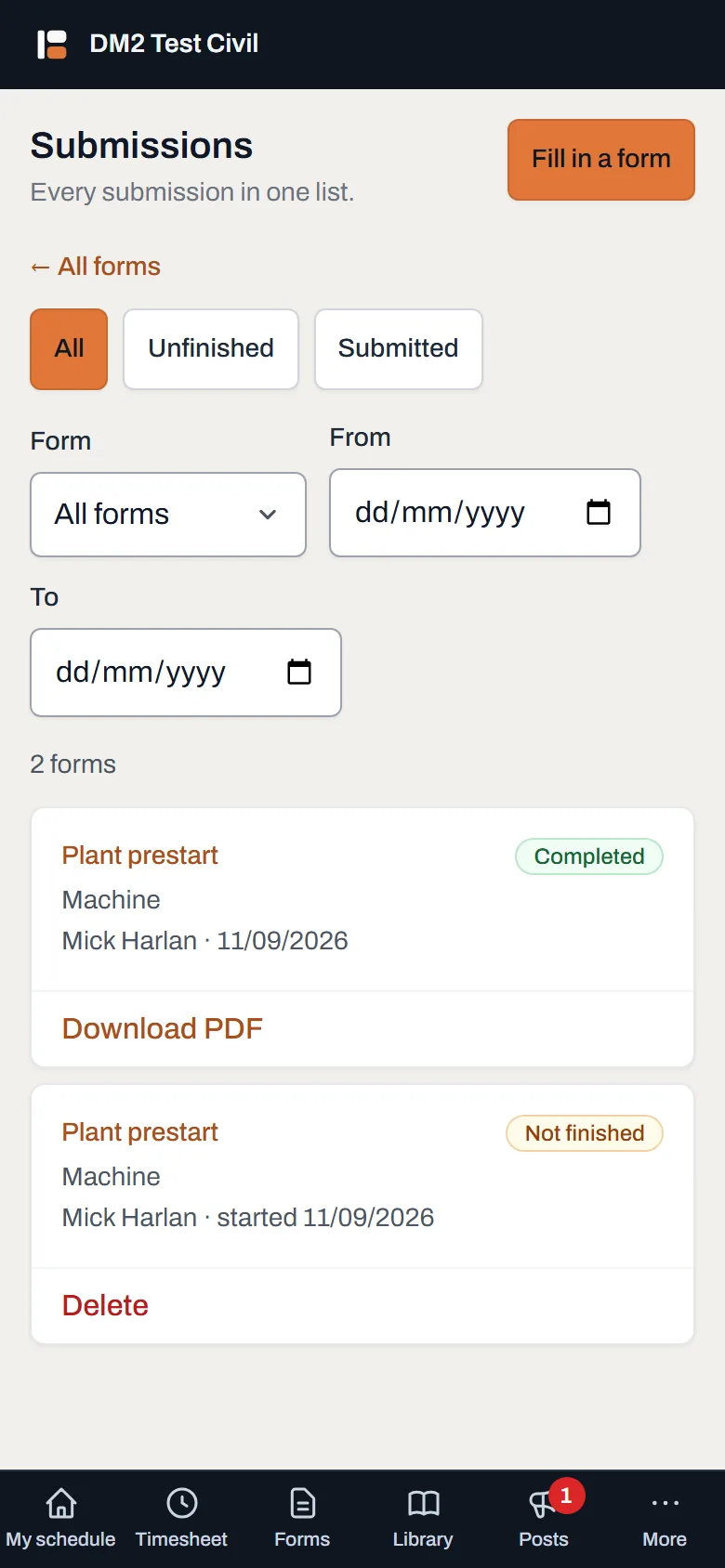
Your paper trail, without the paper. Tap one to see it exactly as it was signed. -
When the Alerts tab lights up, deal with it. A red number means a post is waiting on you; grey just means there's something you haven't read. Open the post, read it, and tap Acknowledge when it asks. That's you signing that you've read it, and the office sees your name and the time. If something's off, say the new rule won't work where you're standing, open the post and add a comment.
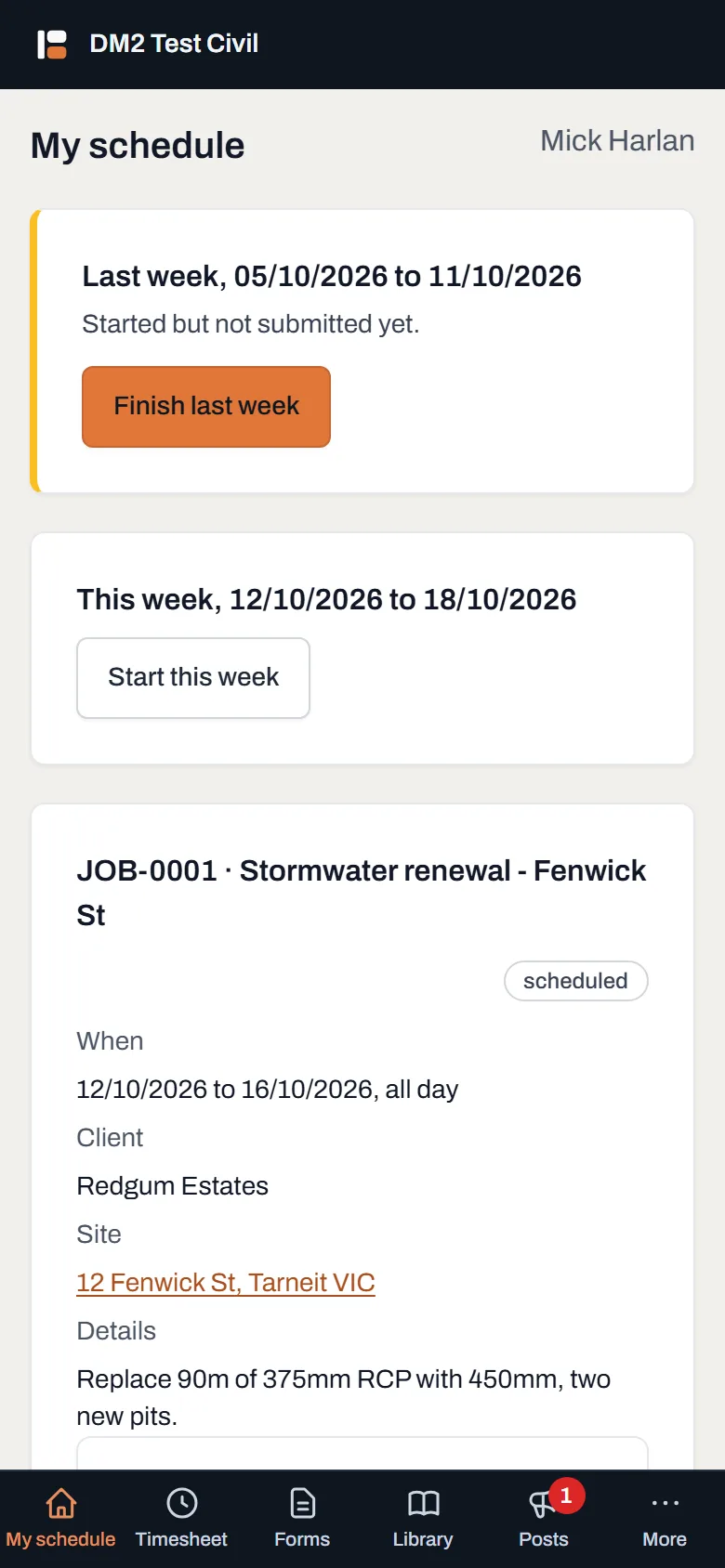
A post that needs your acknowledgement carries a red stripe and the button. One tap clears it, and goes on the record.
Worth knowing
- Acknowledge means acknowledged. It's a permanent record with your name and the time on it, the same as signing the sheet in the shed. There's no un-tap, so read the post first.
- Half-done forms keep. Start a prestart, get pulled onto something, come back after lunch, and it reopens exactly where you left it.
- Photos are shrunk before they're sent, so they go through on a bad signal.
- If the office updates a form while you're mid-fill, the app tells you: finish the one you're on (it's recorded against the questions you can see) and your next one uses the new version.