Guides › Forms
Build your first prestart
Turn the paper prestart into a form the crew fills in on a phone. About five minutes.
The short version
Open Forms › Templates, click New form, name it and choose what it's filled in against. Then build it: sections hold questions, and each question gets one of nine answer types: text, numbers, dates, checklists, photos, a signature, a meter reading, even a pick from your own machines, jobs, people or clients. Preview shows it as the crew will see it, and Save draft keeps it to yourself until you publish.
-
Open the form templates. Click Forms in the sidebar, then Templates underneath it. This is where the company's forms live: prestarts, checklists, incident reports, whatever the crew fills in.
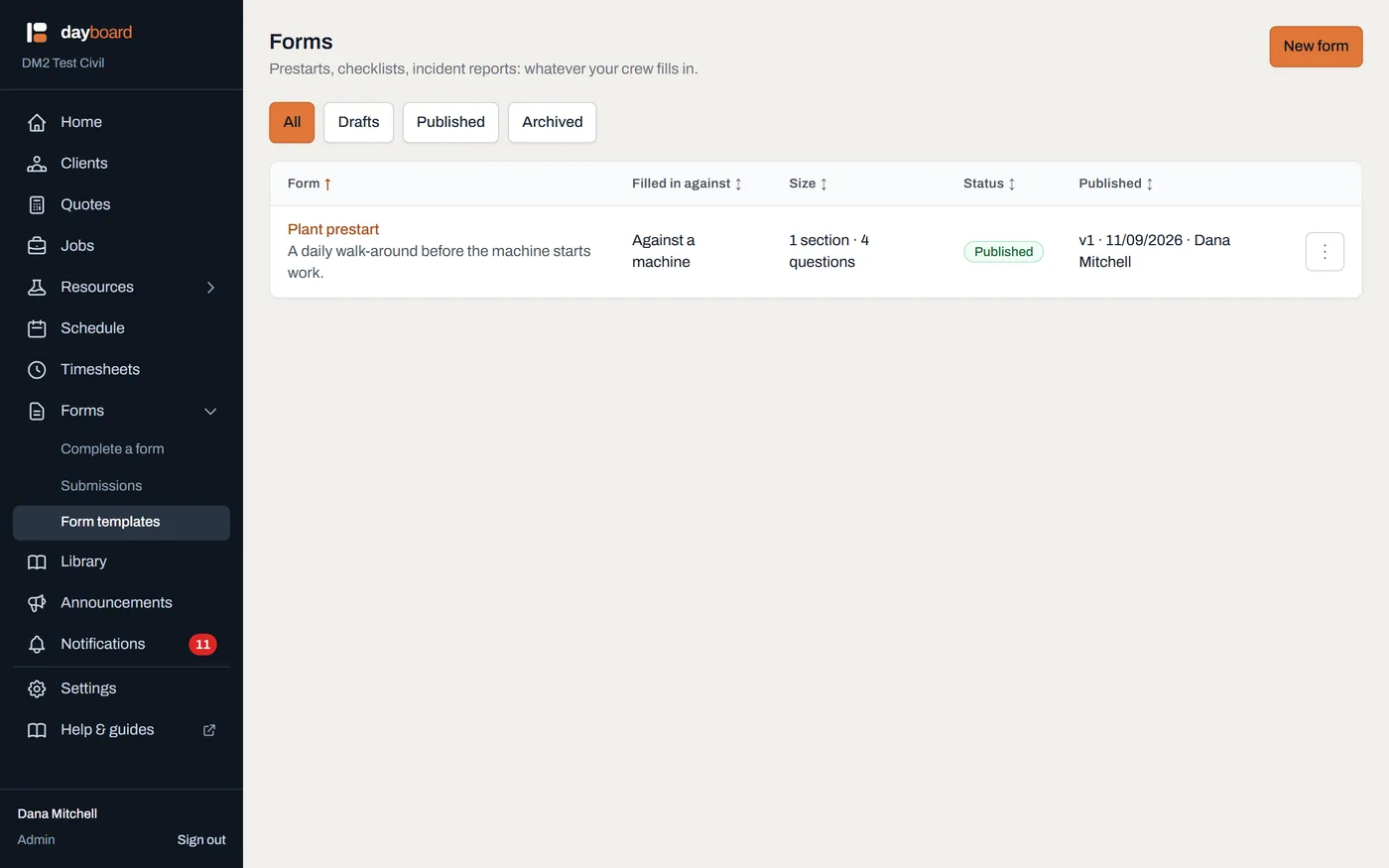
Each form shows whether it's Published or still a Draft, what it's filled in against, and which version the crew is on. -
Click New form. Give it a Name, say "Plant prestart", and a Description if you like; the description is shown to whoever is about to fill it in.
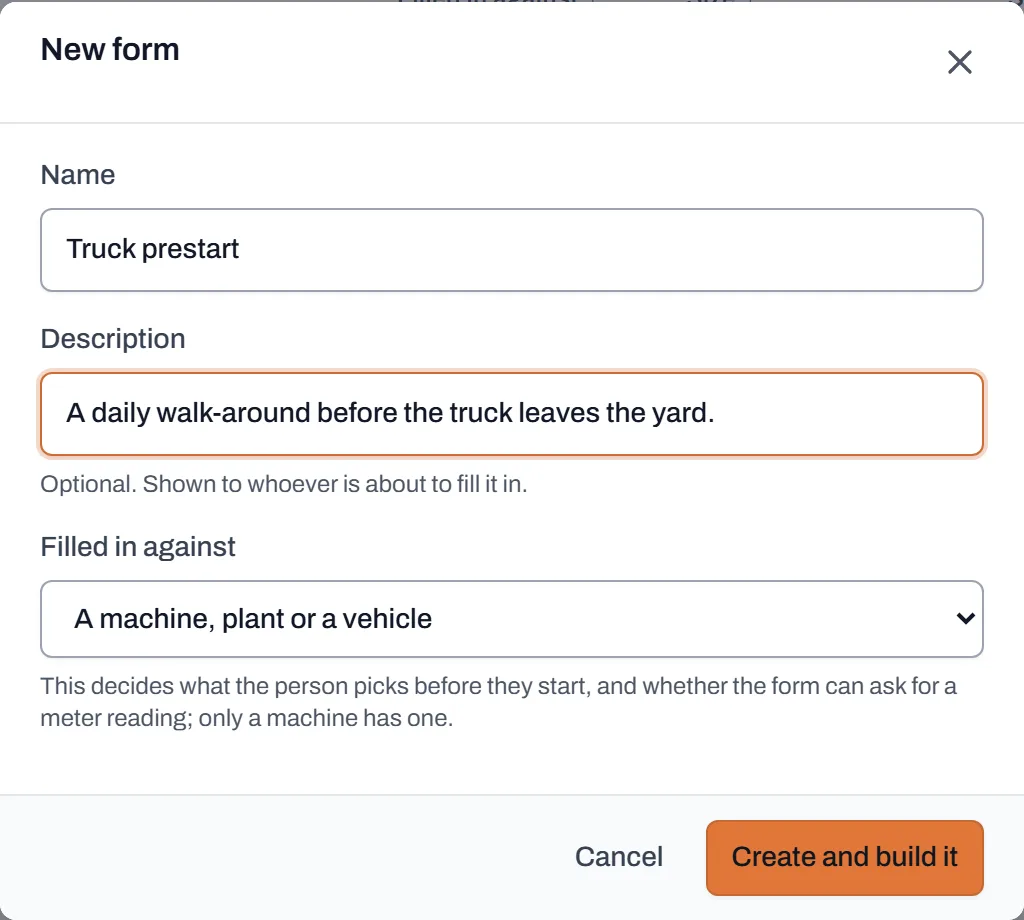
The one decision that matters here is Filled in against; it can't sensibly change once the answers start coming in. -
Choose what it's filled in against. The Filled in against dropdown offers three choices:
- A machine, plant or a vehicle: the person picks the machine before they start. This is the one for prestarts.
- A job: the person picks one of their jobs: site inductions, daily reports.
- Nothing in particular: a form that stands on its own, like a toolbox talk record.
- Say which machines it's for, if it matters. A machine form gets an Offered machines panel: tick a kind (plant, vehicles), tick machine types from your own list (Settings → Machine types), or leave everything unticked to offer every machine. An excavator prestart offered against the water cart is how the wrong form gets filled in; the tick boxes are how it doesn't.
- Add sections. Click Add section and give each one a Section title: "Walk-around", "Fluids and leaks", "Sign-off". A section left untitled just runs its questions together with the rest.
-
Add questions. Inside a section, click Add question and pick what kind of answer it takes; the new question opens ready for its wording ("Any visible damage?"). The kinds:
- Text: a written answer. Tick Room for a few lines for longer notes.
- Number: takes an optional Unit (litres, mm, %).
- Date: a single date.
- Choose one: one option from a list. New ones start as Yes / No / N/A (there's a button to get that back); type your own under Options, one per line.
- Checklist: any number of options from a list, same one-per-line box.
- Photos: taken on the phone, with How many photos at most to cap it.
- Signature: signed with a finger.
- Meter reading: the machine's hours or kilometres. Only offered on machine forms, and only one per form.
- Pick from the app: a dropdown of your own machines, jobs, people or clients. A day sheet names the operator and the machines used without anyone typing names, and the record keeps what they were called that day, even after a rename.
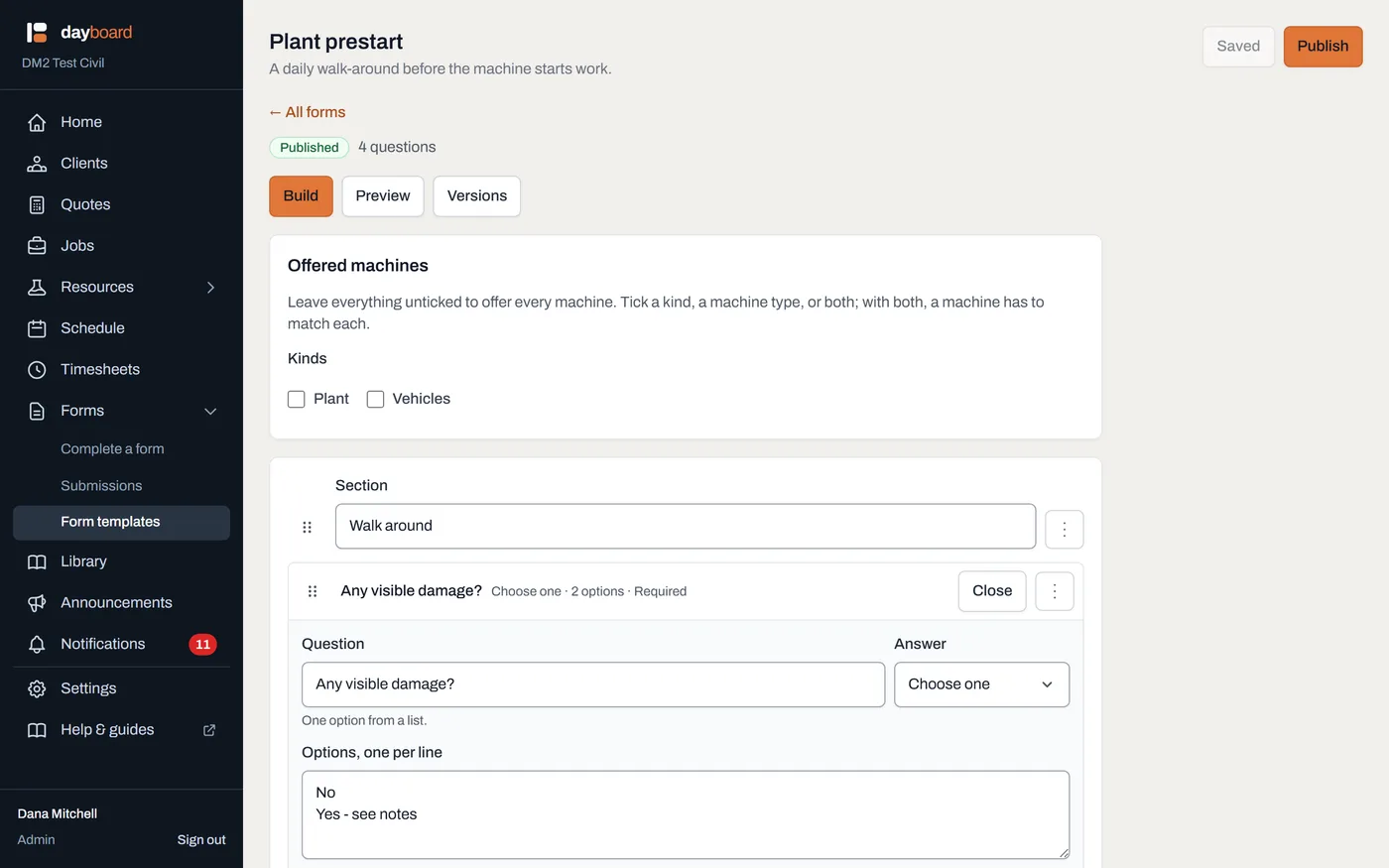
The Plant prestart built out: each row reads question, answer kind and Required at a glance, and one is open for editing. - Mark what can't be skipped, and put things in order. Tick Must be answered on anything the form is worthless without; the app refuses a submit until those are answered. Drag the handle beside a question (or a whole section) to reorder; the ⋮ menu on each row also has Move up, Move down, Move to section, Duplicate for a run of similar questions, and Remove.
- Check the Preview, then Save draft. The Preview tab shows the form exactly as the crew will see it, framed at phone width: same component, nothing saved by playing with it. Then Save draft: you'll see Saved as a draft, and that's all it is. The crew sees nothing until you publish it, so build it over smoko across three days if you want. An Unsaved changes pill in the header keeps you honest, and closing the tab with edits unsaved asks first.
Worth knowing
- One meter reading question covers every meter. If the machine has engine hours and an odometer, the one question asks for both, and a blank second meter is fine.
- Choose one shows every option, always. On a prestart, what was not picked is part of the record, so the options render as a visible list rather than a dropdown.
- Photos are capped, not unlimited. The default is 10 per photo question; set How many photos at most to whatever suits.
- Duplicate is the fast way to a second form. The row menu on the Templates list copies a form's working draft into a fresh draft; the copy starts its own history, nothing filled in yet.
- A pick is a mention, not a link. A machine named inside a day sheet shows on that machine's page under Mentioned in these forms, never in its main forms list, which stays for the forms filed against it. Four machines on one day sheet is one day sheet, not four prestart histories.
- Anyone on the crew can fill one in, including field workers. Building and publishing stays with managers and admins.