Guides › Forms
Publish it to the crew
Take the prestart you built from draft to live, so the crew can fill it in. Under a minute.
The short version
A form is invisible to the crew until you publish it. Open it under Forms › Templates and click Publish. Dayboard checks it over first and, if anything's wrong, reports every problem at once. Each publish gets a version number, and every submission records which version it was filled against.
- Open the form. Click Forms in the sidebar, then Templates, then the form. The badge next to it tells you where it stands: Draft means nobody but managers has ever seen it.
- Give it a last look. The builder shows the question count under the title, and each question's row says what kind of answer it collects. Anything marked Must be answered will block a submit until it's filled in.
- Click Publish. A dialog first says exactly what's about to happen: which version number this becomes, and that forms already filled in keep the version they answered. Then Dayboard checks the form before it goes anywhere. If it isn't ready, you get a red banner, This form is not ready to publish, listing every problem at once, not just the first: a question with no label, a Choose one with no options, a meter reading on a form that isn't against a machine. Fix the lot, publish once.
-
Check it worked. A green notice reads Published version 1. Your crew can fill it in now. Back on the list, the form shows Published with its version number, and it now appears on everyone's Forms page, one tap from being filled in.
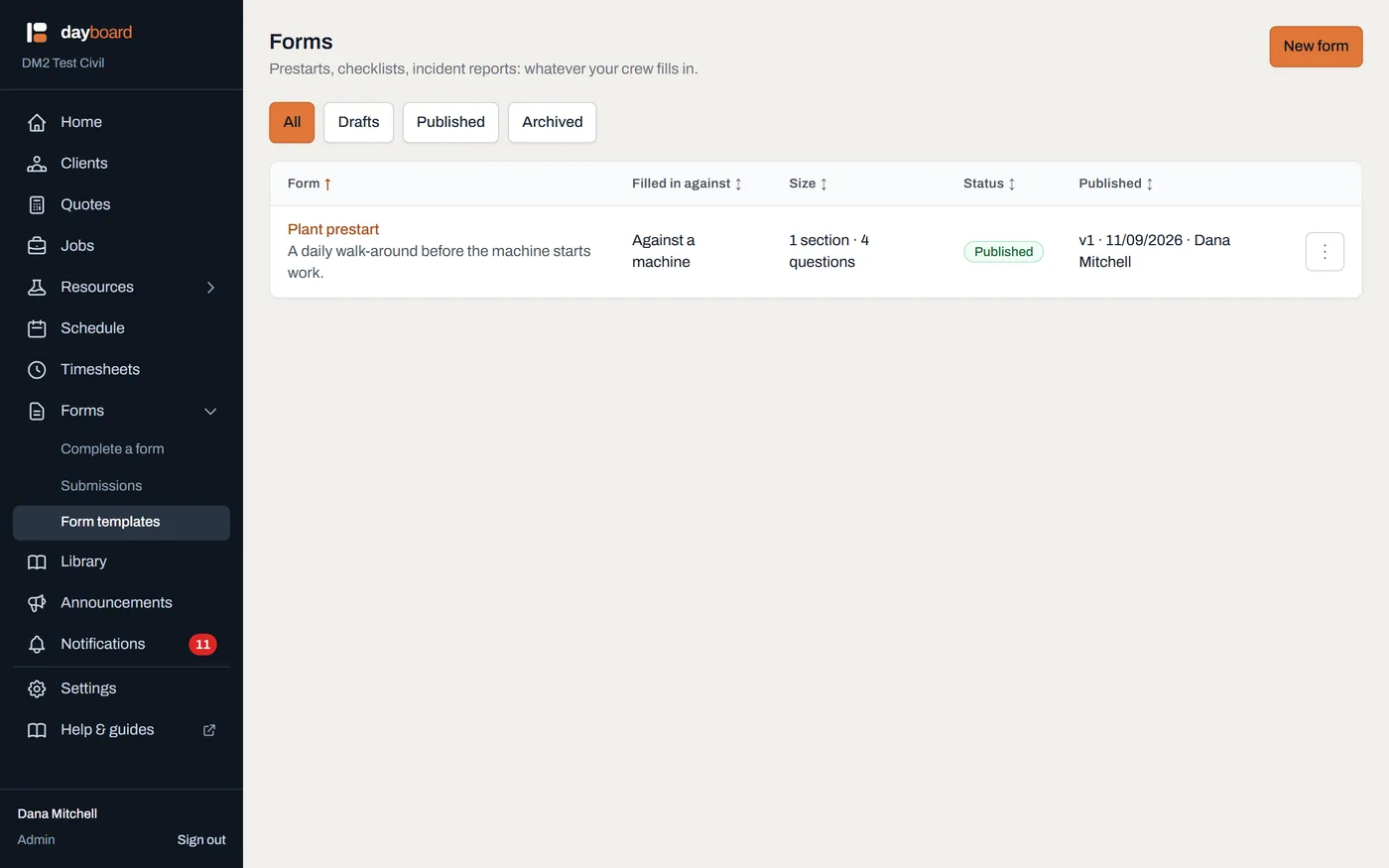
Published, with a version number. The crew's fill screen picks this up straight away.
What version numbers are for
Publishing freezes a copy of the form. That frozen copy is version 1, and it's what the crew fills in. When you later edit the form and publish again, the new copy becomes version 2, and every submission keeps a pin to the exact version it was answered against. Six months on, you can say precisely what an operator was asked the morning something went wrong, even if the form has changed five times since.
Worth knowing
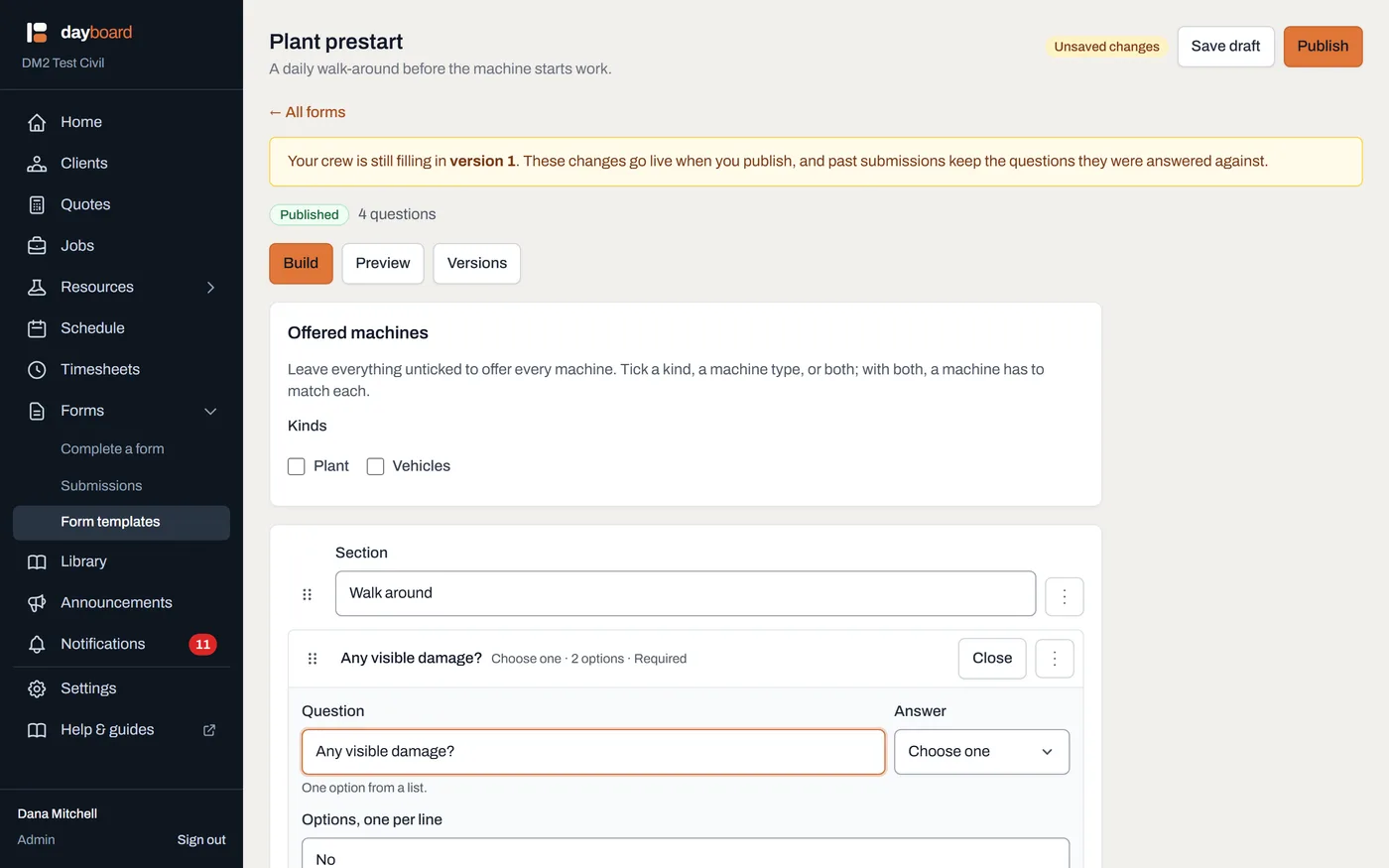
- Editing after publishing changes nothing, yet. Your edits sit in the draft, the amber banner says so, and the list shows an Unpublished changes badge until you publish again.
- Publishing identical changes does nothing. Open a form, change nothing, press Publish: no new version is created. Version numbers only climb when the form actually changed, so "which one were they filling in?" stays easy to answer.
- Every problem is reported at once. No fixing one error, publishing, and finding the next; the whole list comes back in one go.
- A published form is never deleted. The submissions filled in against it are permanent records, so the form they point at is kept too.