Guides › Plant & fleet
Sell or dispose of a machine
Record the sale, take the machine off the board, and keep every record it ever earned. Under a minute.
The short version
On the machine's page, click Mark as sold, put in the date and who bought it, and confirm. The machine is archived: it stops being offered for booking and drops off the yard walk, but nothing is deleted. The service history, the meter readings, the prestarts filed against it and its documents all stay, and so does the record of the sale itself.
-
Open the machine's page. Click Resources in the sidebar, pick Assets, and click the machine's name.
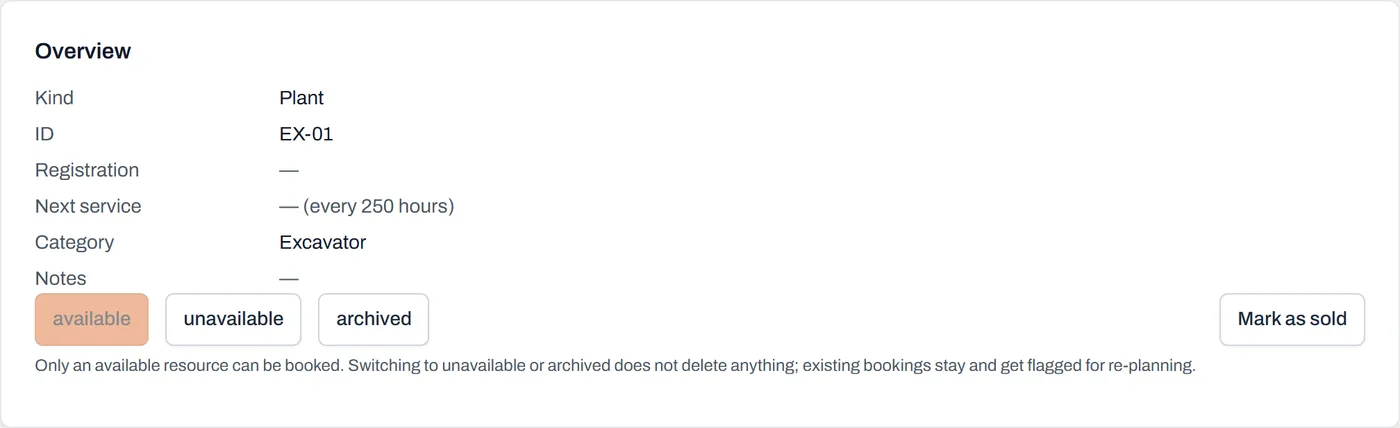
Mark as sold sits in the Overview panel, next to the status buttons; it's the one that means "leaving the fleet for good". -
Click Mark as sold. The dialog says exactly what's about to happen before you do it: the machine comes off the pickers and the yard walk, anything already booked on it gets flagged for re-planning, and nothing is deleted.
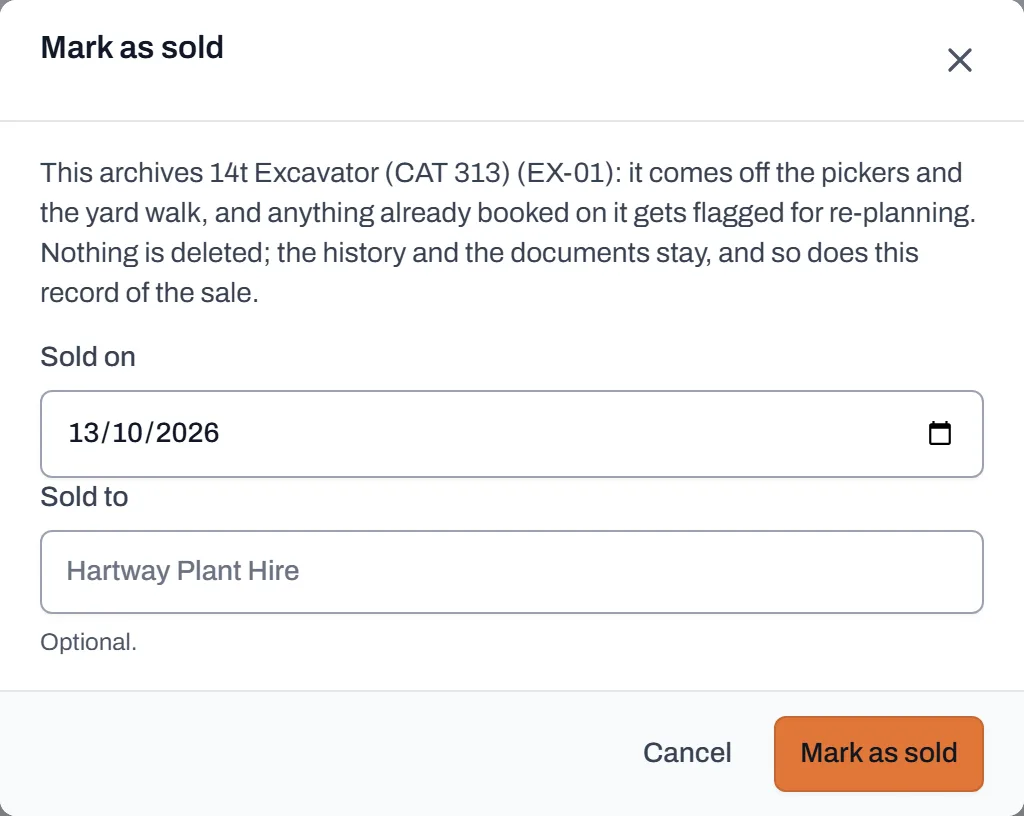
Read the small paragraph; it's the whole contract: archived, flagged, nothing deleted. - Fill in Sold on, and Sold to if you want it. The date defaults to today. The buyer is optional, but "Hartway Plant Hire" is worth having when someone asks about the machine in two years.
- Click Mark as sold to confirm. Dayboard answers "Recorded as sold, and archived."
- Check it took. The machine's Overview now shows the sale (Sold, the date, and the buyer), and on the Assets list it appears only when Show archived is ticked, marked "sold" next to its name. It's no longer offered when anyone makes a booking, and its rego stops appearing in Reminders; a sold truck doesn't nag its old owner.
Worth knowing
- Nothing is deleted. The service history, every meter reading, every prestart filed against the machine and every document stays exactly where it was. That's your paper trail for the buyer, the auditor, or the argument.
- The sold record is permanent. Once written, the sale date and buyer can't be wiped by an ordinary edit; the record of where a machine went outlives everything else on the row.
- Anything still booked on it gets flagged for re-planning rather than silently vanishing, the same rule as archiving anything else. See editing and releasing bookings.
- It's in your export too. The full history, sale included, comes out in your data export, because a record you can't take with you isn't really yours.