Guides › Getting started
Import and export your clients
Bring your client list across in one go, and take it with you any day. About two minutes.
The short version
On Clients, Export CSV downloads every client. An admin can Download template, fill it in (or use an export from Dayboard), and Import CSV. Archived clients have their own Archived tab.
-
Open Clients. The count under the heading says how many there are, and the table shows each one's contact, phone, email and ABN.
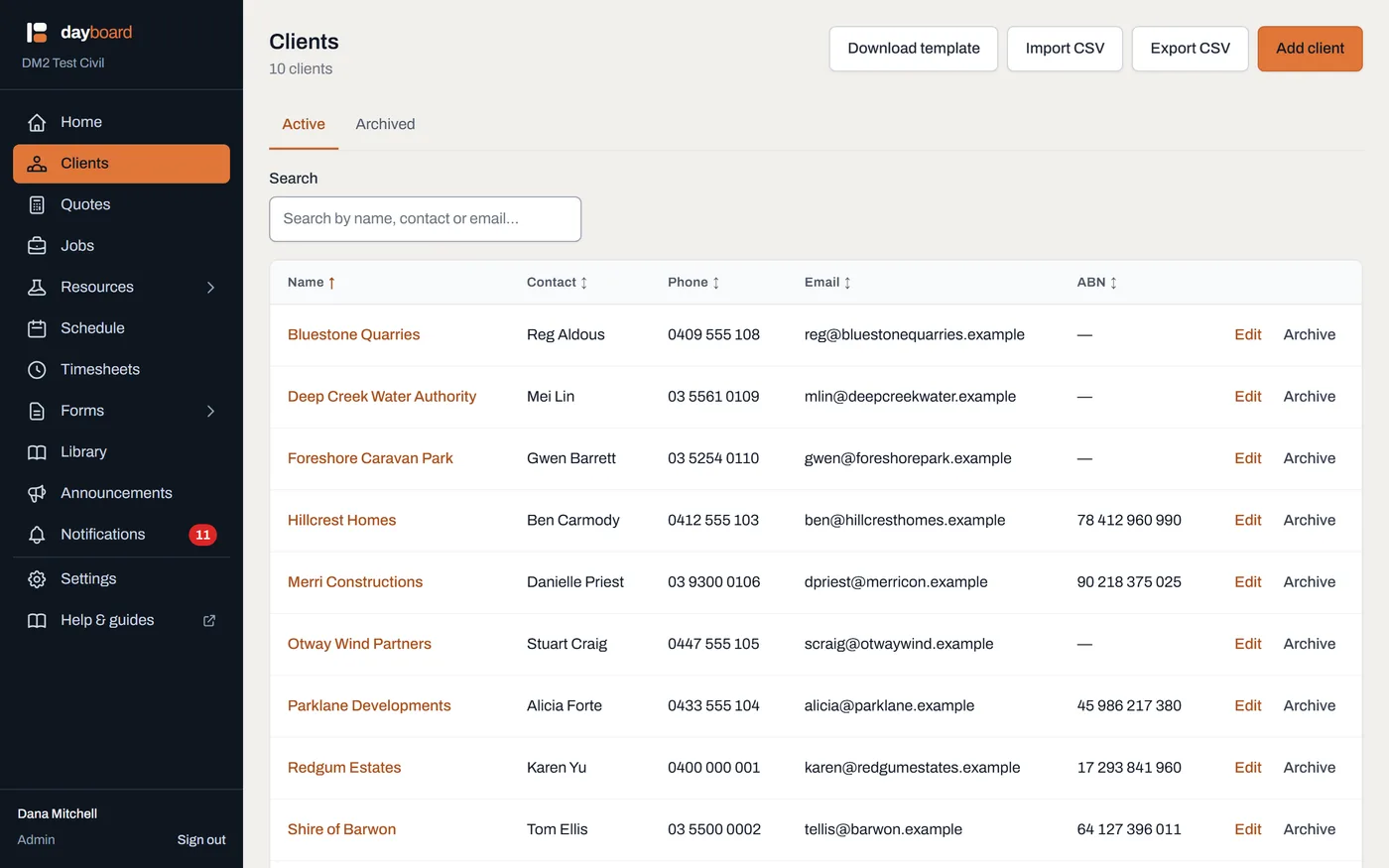
Export and Import sit beside Add client; Archived is its own tab. -
Export them any time. Export CSV downloads every client, archived ones marked, with the same columns as
clients.csvin the full data export. - Import a list. An admin clicks Download template for the columns, fills it in, then Import CSV (or drops the file on that button). Only Name is required. You see every row before anything is saved.
- Fix what it names. The import is all or nothing: if a row has a problem, such as an ABN that doesn't check out or a client you already have, nothing is added and each problem is named by its row and column.
Worth knowing
- An export imports straight back. The template's columns are the export's, so a file from Dayboard goes back in as it is. The Archived and ID columns are ignored on the way in.
- ABNs are checked. An ABN or ACN is check-digit validated on import, the same as when you type one in.
- Archived clients have their own tab. Archived lists only them, each with Restore; Active lists the rest.