Guides › Scheduling
Make your first booking
Put a person or a machine on a job, and see it on the board. About two minutes.
The short version
Open Schedule, click New booking, pick the job and tick the resources, pick the days, click Book it. Dayboard checks for clashes before it saves. If the machine is already committed somewhere, it tells you where.
-
Open the schedule. Click Schedule in the sidebar; on a phone it's the Schedule tab at the bottom.
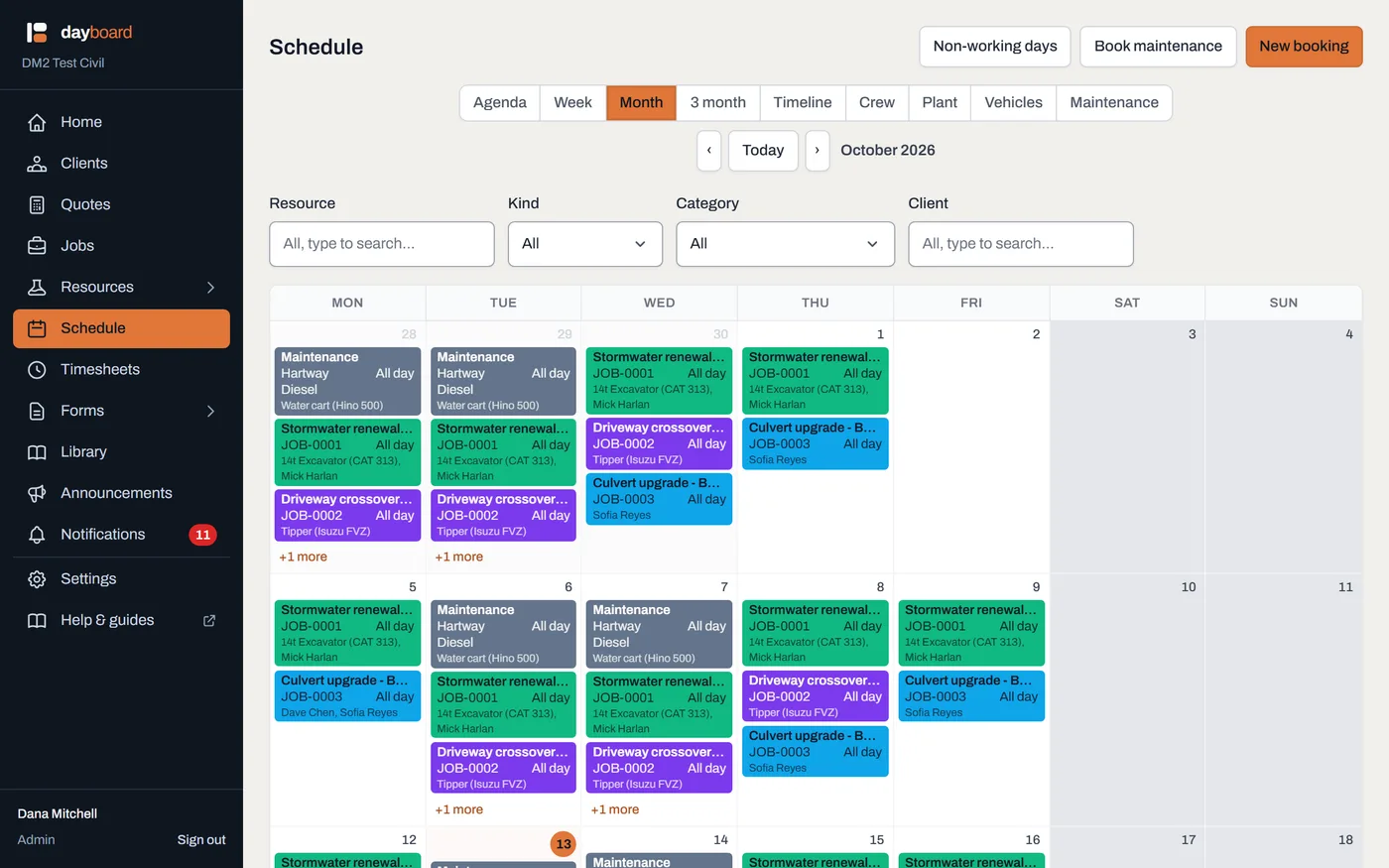
Month view. Every job keeps its own colour on every view, so you can follow one job across the board at a glance. -
Click New booking, the button at the top right.
- Shortcut: hover a day square and click the + that appears (on a grid view), and the date is filled in for you.
-
Pick the job, then tick the resources. The job is a dropdown; the resources are a searchable list of tick boxes, so one visit to this dialog can put the operator, the excavator and the truck on the job together. The list only offers people and machines that are marked available; anything archived or out of action isn't there to pick.
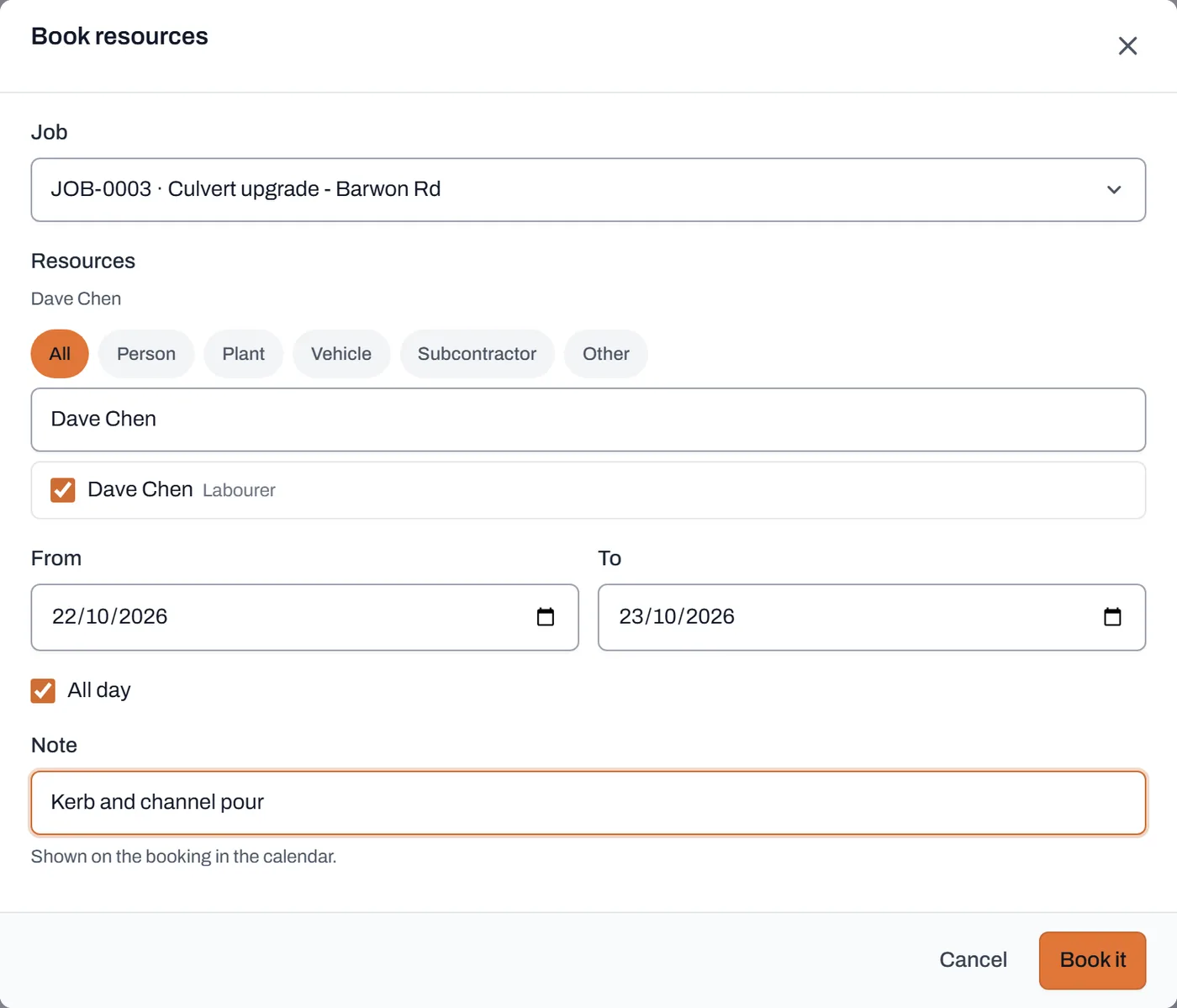
Ready to go: job, resource, days, and a note the crew will see. -
Pick the days. From and To are the first and last day of the booking.
- Leave All day ticked for a normal booking.
- Untick it to set a Start and Finish time, say a half-day pour. The times apply to each booked day, not one continuous run.
- Add a note if the crew should see one. "Kerb and channel pour", "bring the compactor". It shows on the booking in the calendar and on the worker's own schedule.
-
Click Book it. The booking appears on every view straight away. If Dayboard says no instead, it names exactly what's in the way:
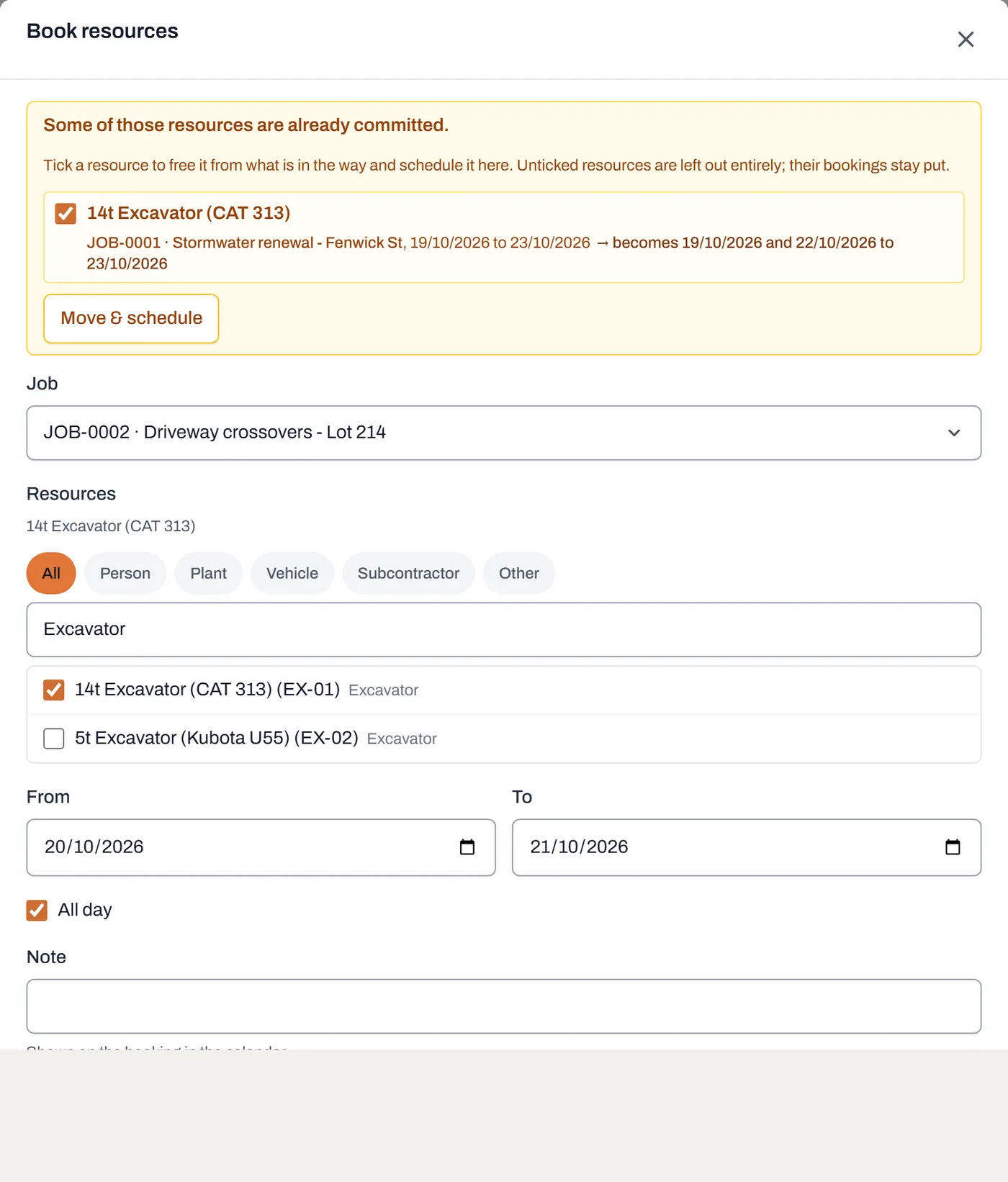
No double-bookings, no overrides: change the dates, pick another resource, or release the booking in the way. There's a whole guide on reading this panel.
Worth knowing
- Back-to-back is fine. A booking that ends where another starts is not a clash; only an overlap is.
- Each resource keeps its own dates. Booking three people on the same job is three bookings, even ticked together, so the operator can start Monday and the truck can turn up Wednesday, and moving one never drags the others.
- Booked the wrong thing? Click the booking and change it, or click Release to free the resource up; there's a guide on editing and releasing.
- The view you choose is remembered on that device, so the office can live in Month while a phone stays on Agenda.