Guides › Jobs
Create a job and attach the drawings
Set up a job with everything the crew needs on site: drawings, BYDA plans, SWMS. About three minutes.
The short version
Open Jobs, click New job, give it a title and a site address, click Create job. Then open the job and upload the paperwork under Documents and site photos. PDFs and images open in the app on any phone. That's what the crew sees when they get there.
-
Open Jobs. Click Jobs in the sidebar; on a phone it's the Jobs tab at the bottom.
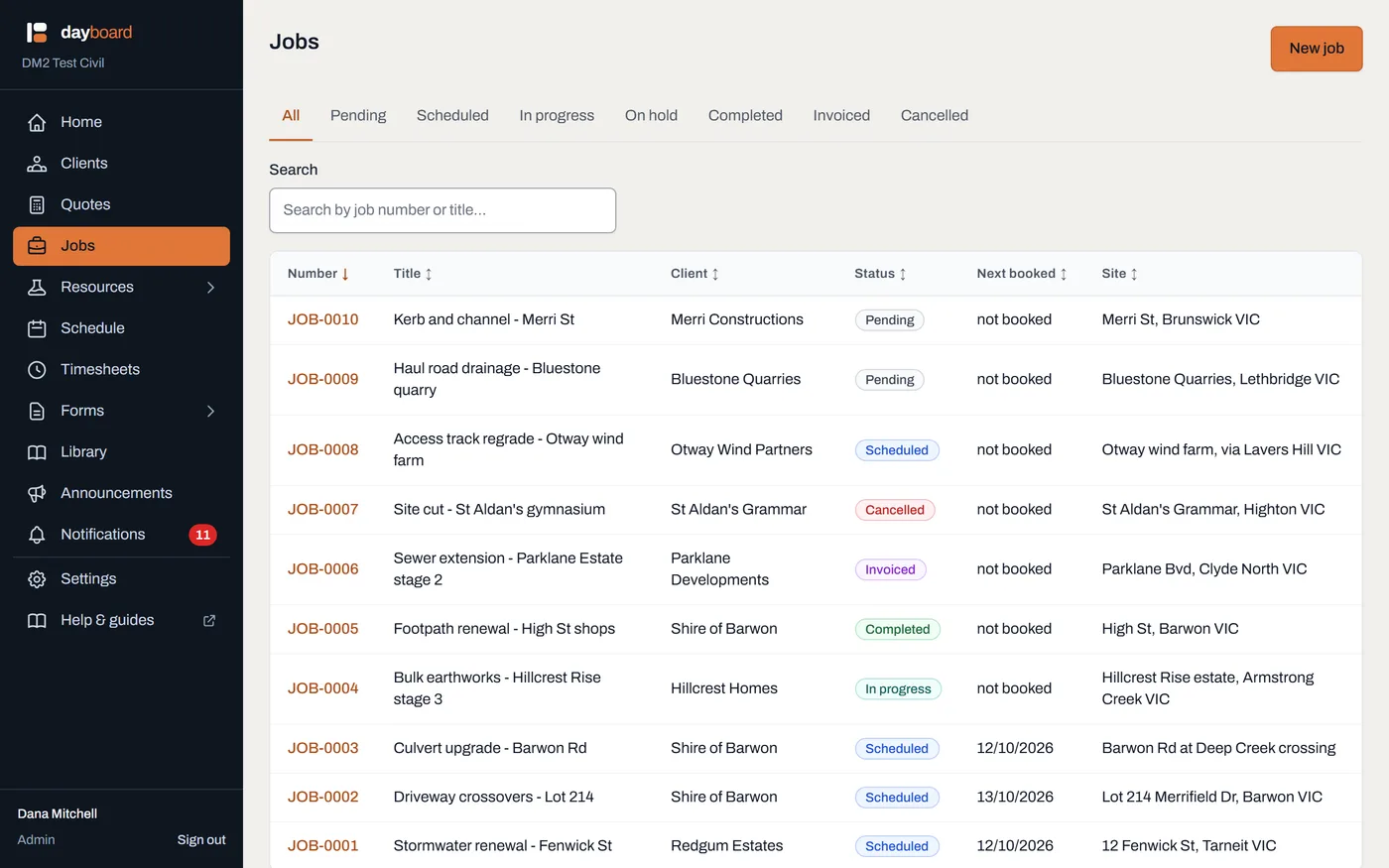
Every job on one list: its number, its status, and when it's next booked, so "what's on" is one glance, not a phone call. - Click New job. The form opens at the top of the list.
-
Give it a title, and pick the client.
- Title is the only thing required: short and recognisable, like "Smith St drainage".
- Client defaults to None (internal work). Clients only exist to group jobs; workshop days and yard maintenance don't need one.
- No client on the list yet? Add them on the Clients page first; Add client takes a Name plus optional Contact person, Phone, Email and Address, and takes seconds.
-
Add the site address and a description, then click Create job. The Site address is where the crew is actually going. On their phone it becomes a tap-to-navigate map link. Dayboard assigns the job number for you, in order.
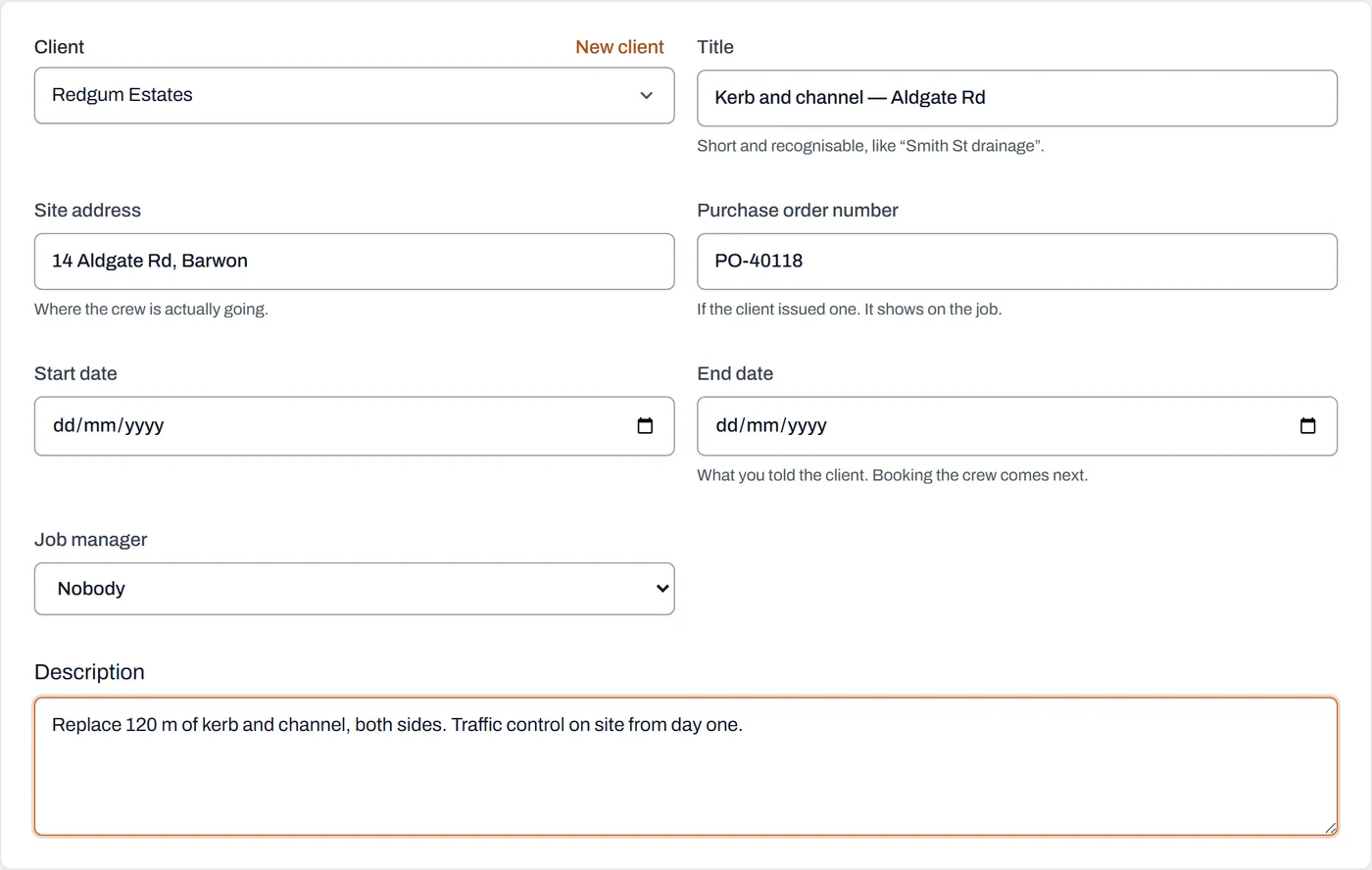
Title, client, site address, description. The job number is assigned automatically when you click Create job. -
Open the job and upload the paperwork. Click the new job on the list, then scroll to Documents and site photos and click Choose files.
- PDF, images, Word and Excel: the drawings, the BYDA plan, the SWMS, the traffic management plan.
- You can pick several files at once; each keeps its filename as its title.
- Uploading one file at a time? Give it a plain-English Title (optional) first: "Site plan" beats "FenwickSt_rev3_FINAL(2).pdf".
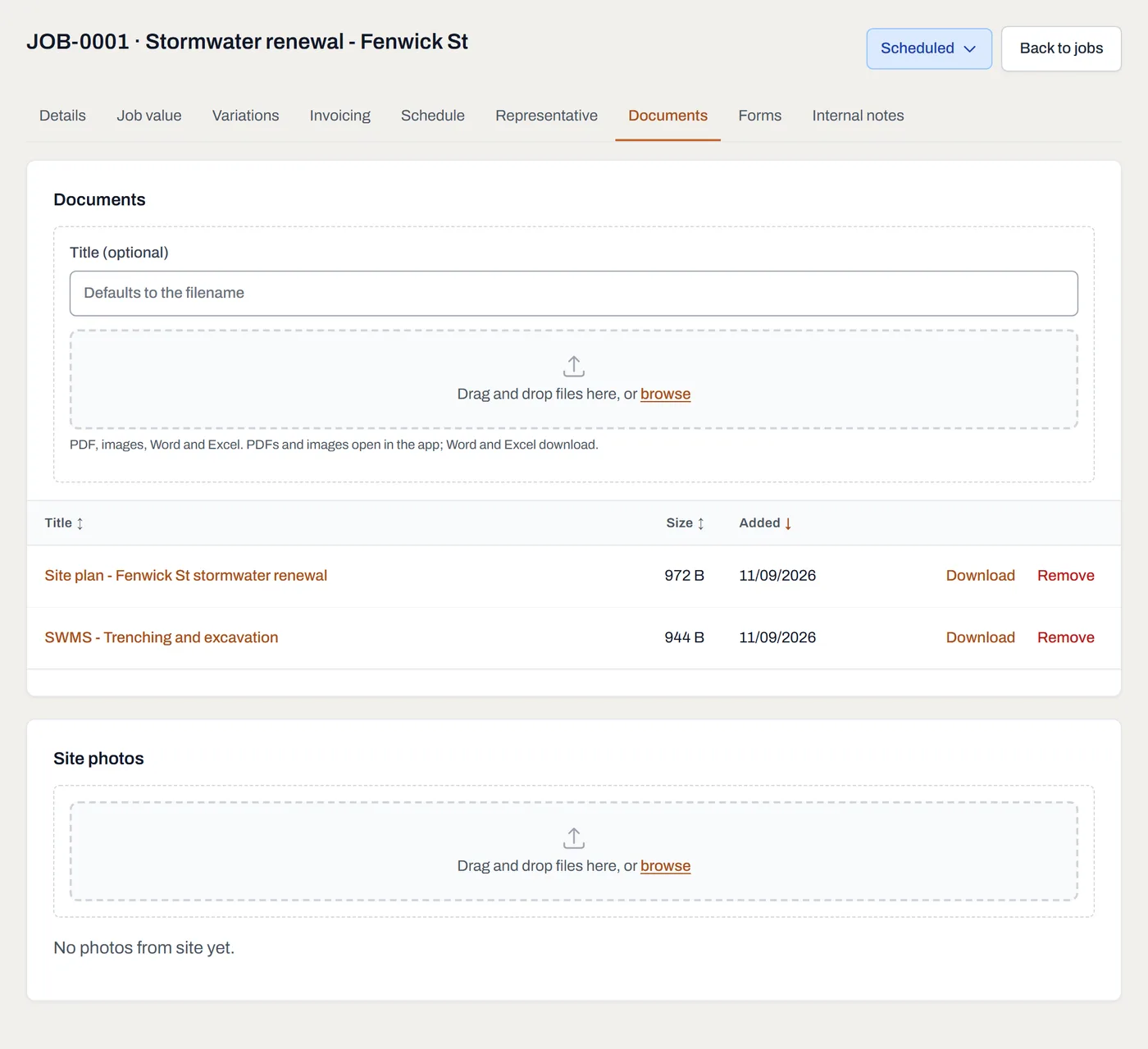
The job's paperwork in one place. PDFs and images open in the app; Word and Excel download. -
Check what the crew will see. Anyone booked on the job finds these same documents under the job on My schedule, and they open in-app on any phone. No printing, no email attachments, no "I'll send it to you tonight".
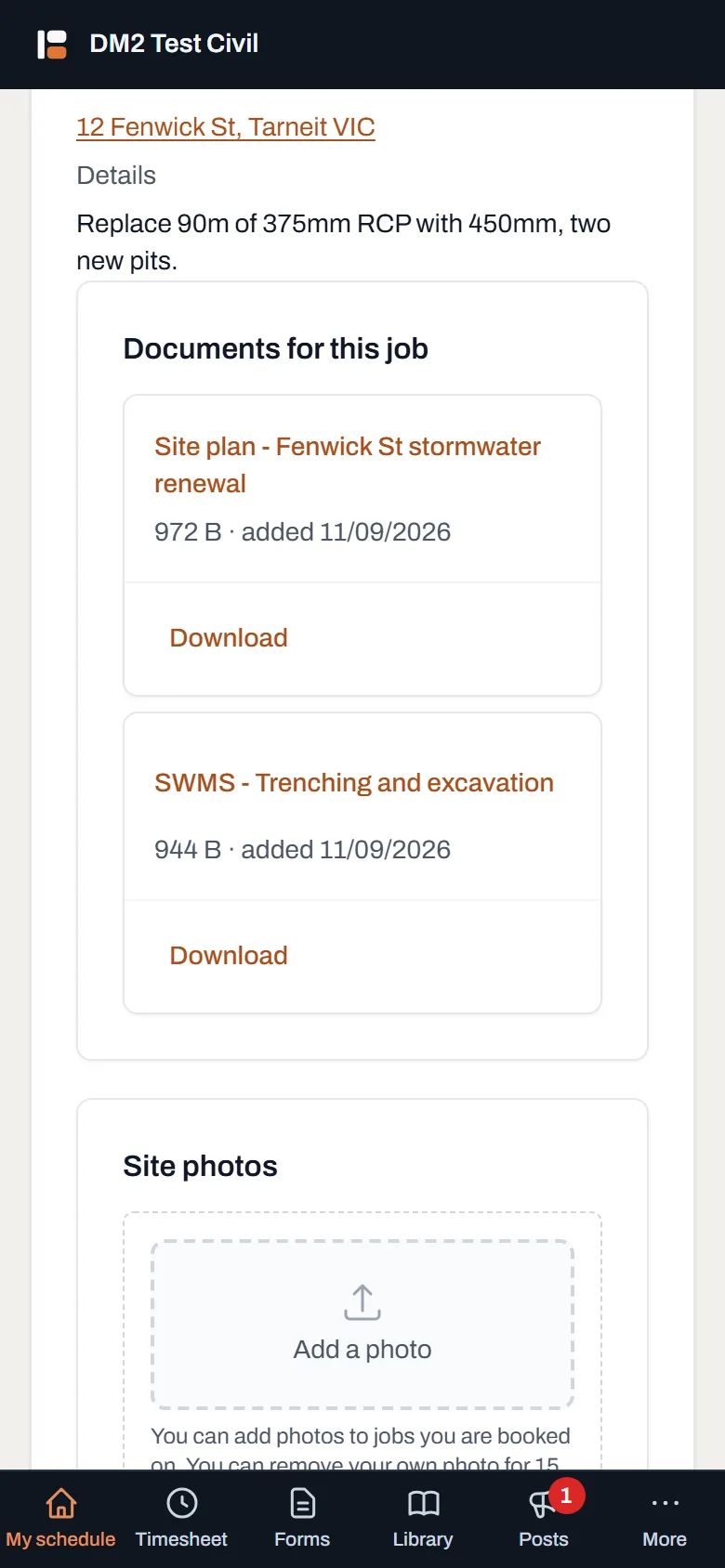
The crew's view. The drawings are on the phone before the ute leaves the yard.
Worth knowing
- The job number is automatic. Sequential, assigned at creation, not editable per job, so there's never an argument about what the next number is.
- New jobs start as Pending and flip to Scheduled by themselves once something is booked. There's a guide on what each status means.
- PDFs and images open in the app; Word and Excel download and open in the phone's own viewer.
- Removed a document by mistake? An admin can get it back for 30 days.
- Paperwork can arrive late. Documents can still be added after a job is completed, so the as-built drawings have a home.