Guides › Jobs
Job statuses, explained
Seven statuses, one of which looks after itself. Two minutes and you'll never wonder which button to press.
The short version
A job runs Pending → Scheduled → In progress → Completed → Invoiced, with On hold for a job that's parked and Cancelled reachable from anywhere. Scheduled changes by itself when the job gets its first booking; everything else is a button on the job's page. Statuses can go backwards too, because crews get rained out.
- Create a job and it starts as Pending. Pending means real but not on the schedule yet: the "quoted, waiting, someday" pile. The Jobs list shows every job's status as a badge, so the pile is easy to scan.
-
Book it, and it becomes Scheduled by itself. The moment a job has a booking, its status flips to Scheduled, and if every booking is released, it drops back to Pending on its own.
- That's why Scheduled isn't in the status menu on the job page: a status someone has to remember to set goes stale. This one can't.
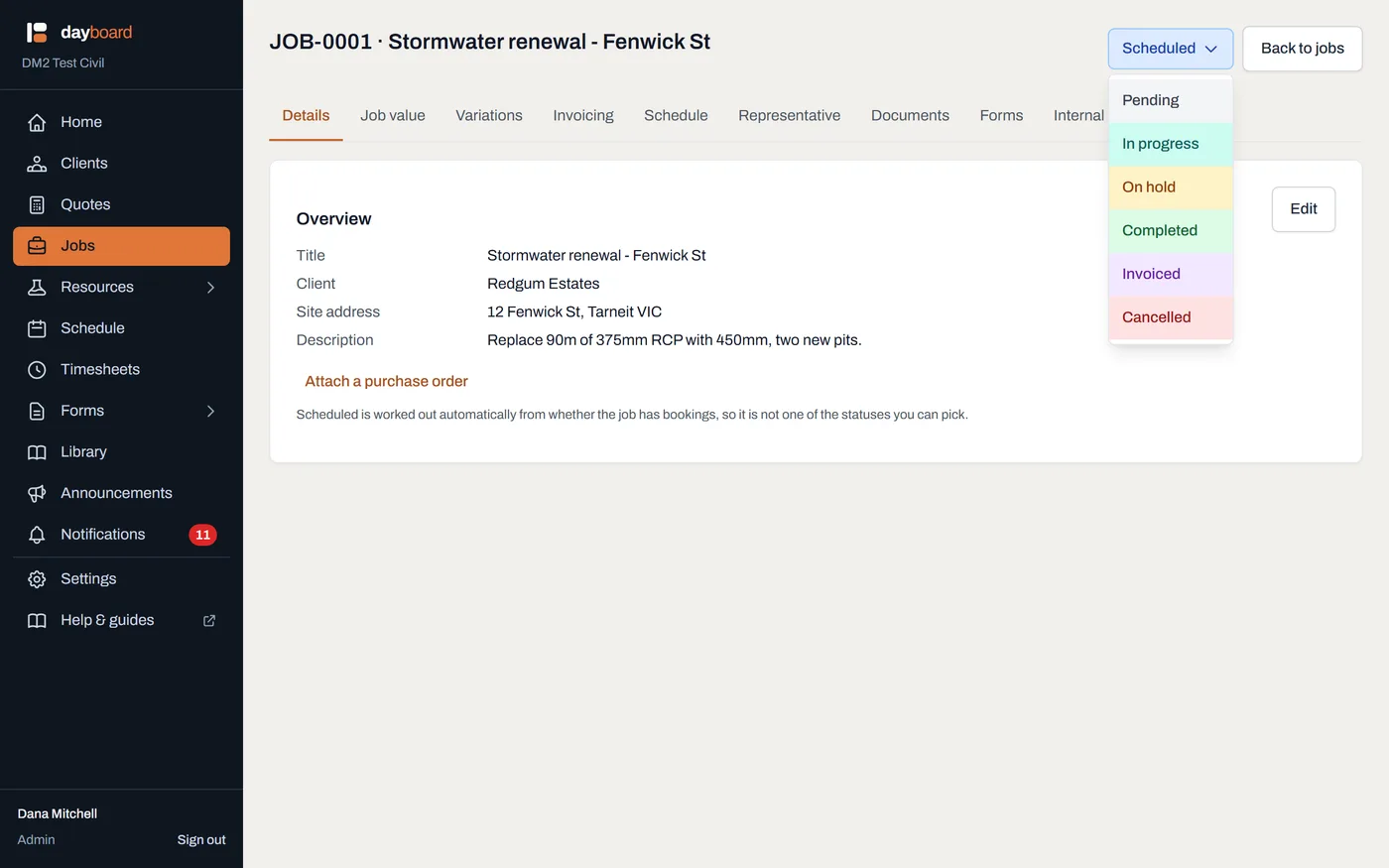
The status button sits at the top of the job's page. Click it and the statuses you can pick drop down. Scheduled isn't among them: it is worked out from whether the job has bookings. - Click In progress when work starts. Open the job, click the status button at the top of the page and pick In progress. This one is your call: Dayboard knows what's booked, not what actually happened on the ground.
- Click On hold when a job is parked. Waiting on a permit, a BYDA response or the client: On hold says so, in amber, and keeps the job open. Its details still change, the crew can still fill in forms against it, and it stays in your work in progress. It asks whether to release bookings still to come, with nothing ticked unless you choose.
- Click Completed when it's done, or Cancelled if it won't happen. Both ask you what to do with any bookings still to come, and cancelling takes an optional reason. The details are in Finish or cancel a job.
-
Check the Jobs list. The tabs above it show All, Pending, Scheduled, In progress, On hold, Completed, Invoiced or Cancelled, so "what's still open" or "what did we knock over this month" is one tap.
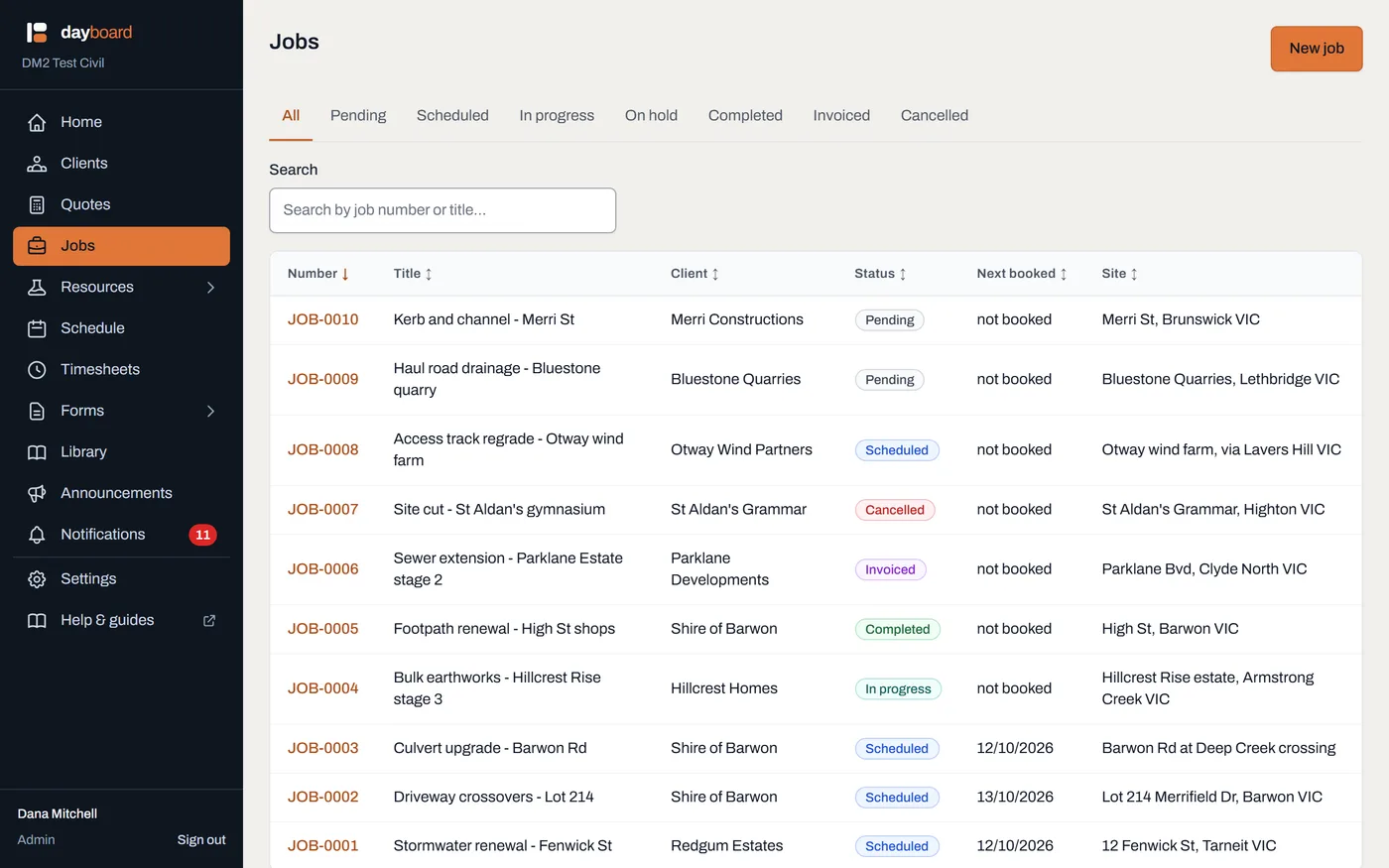
Status badges down the list, and a filter above it. The crew sees the same status label on their own schedule.
Worth knowing
- Statuses go backwards without ceremony. Rained out mid-job? Click Pending or straight back to In progress later. No unlock ritual, no support ticket.
- The status never moves bookings. Completing or cancelling asks about future bookings and only releases them if you say so; past days always stay on the record.
- The crew sees the status, but can't change it. A field worker's job card shows the label; the buttons are manager-and-up.
- Cancelled keeps the record. The job, its booking history, its documents and the reason all stay. A cancelled job is history, not a deletion.
- Completed, Invoiced and Cancelled lock the details. The Edit button disappears; documents still upload, because paperwork arrives late.
- Invoiced is yours to set. Recording an invoice on the job's Invoicing tab doesn't change the status, because one job is often billed in parts. Set Invoiced once the last bill has gone, so the Jobs list and Home's Needs invoicing card can tell you which finished work is still waiting. See Track a job's value and invoices.