Guides › For your crew
Add photos to your job
Get what's on the ground into the job record, from your phone, while you're standing there. Under a minute per photo.
The short version
Open your job on My schedule, scroll to Documents for this job, and tap Add a photo. Take the shot or pick one from your gallery, and it lands on the job under Site photos, where the office sees it. Took a dud? You can Remove your own photo for 15 minutes. After that, ask the office.
-
Open your job on My schedule. It's your home screen; tap the first tab at the bottom if you're somewhere else.
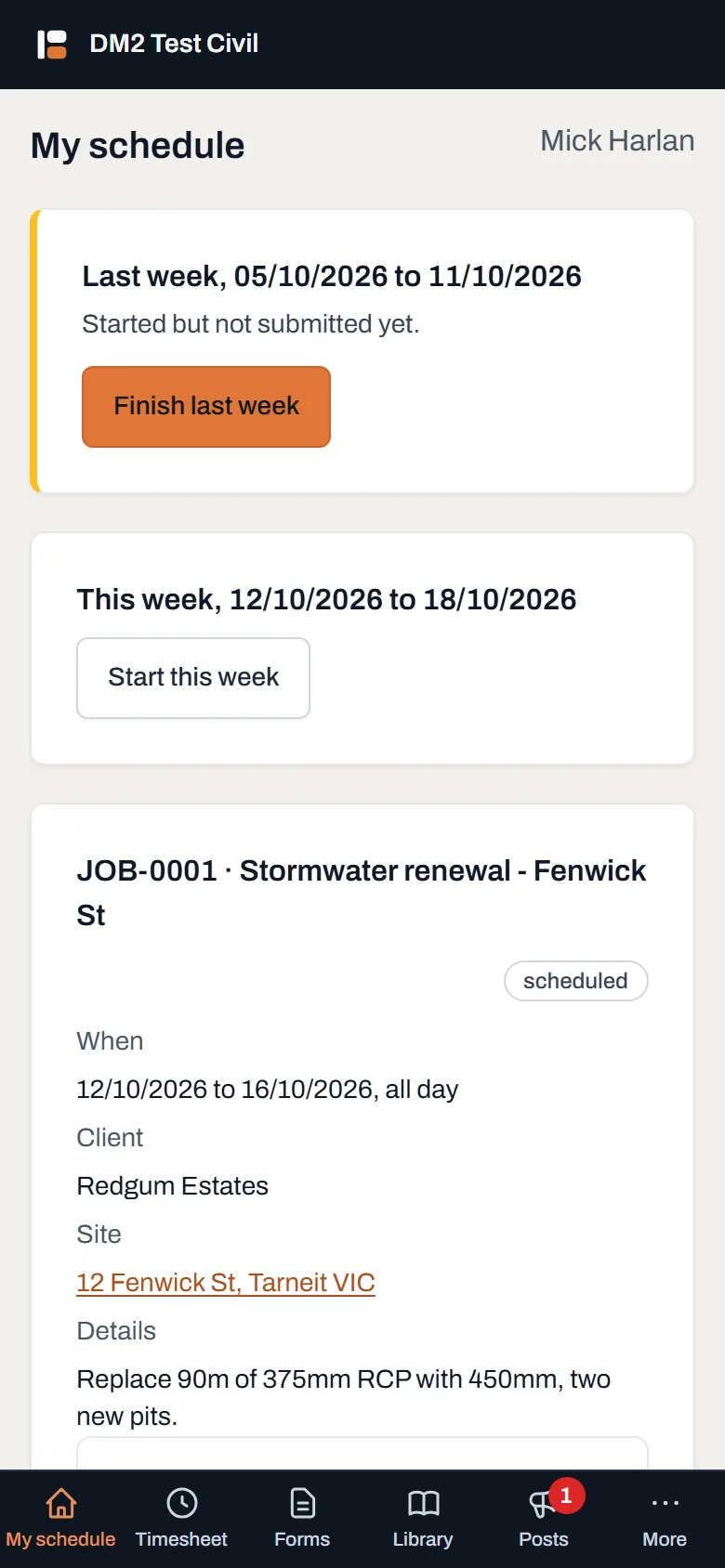
Your jobs. Photos go on the job you're booked on; that's the only place the app lets you put them. -
Scroll to Documents for this job and find Add a photo.
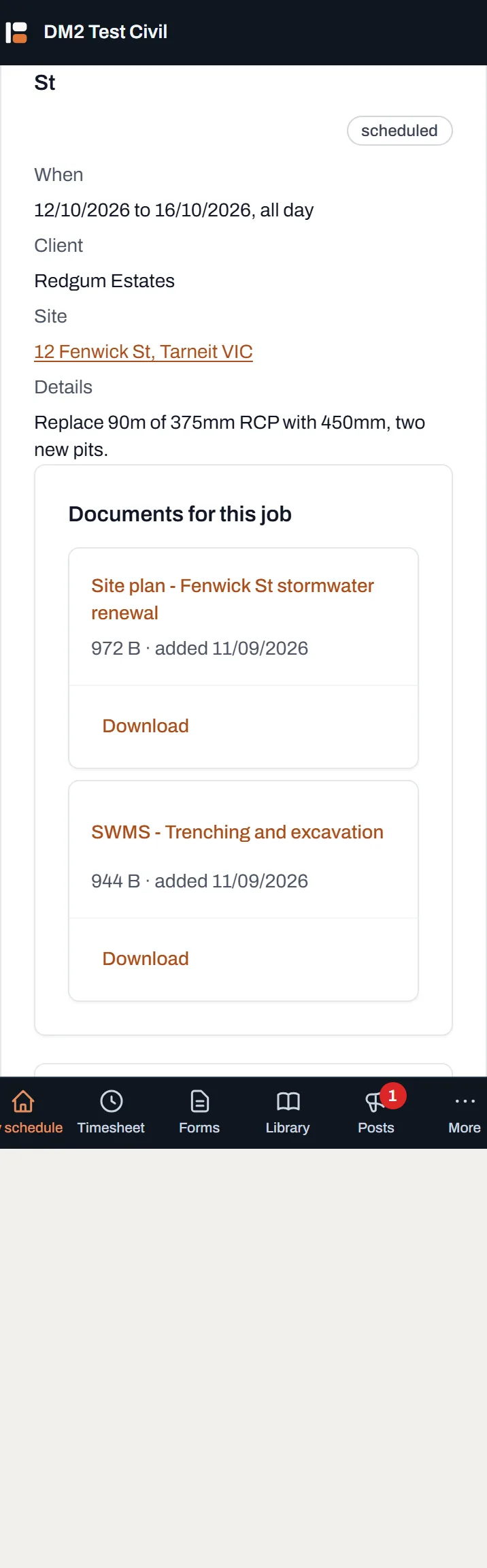
The Add a photo control, with Site photos below it; that's where yours will appear. - Tap it and take the shot. Your phone offers the camera, or your photo gallery if you already took it. The screen shows Uploading… with a percentage while it goes up.
- Check it landed under Site photos. Your photo appears in the grid with today's date. That's it: the office can see it now, on the job, next to the drawings.
- Took a dud? Remove it within 15 minutes. Tap Remove under your photo. After 15 minutes it's part of the job record, so if the wrong shot got through, ask the office to take it down.
Worth knowing
- Only jobs you're booked on. If a job isn't on your My schedule, you can't put photos on it.
- Photos only. Drawings, SWMS and other paperwork are added by the office; your job is the evidence of what's actually on the ground.
- Why the 15 minutes? Long enough to pull back a blurry one or a shot of your boot, short enough that the job record stays a record. The office can remove any photo, any time, and an admin can get a removed one back for 30 days.
- Bad signal? It still works. The upload shows its progress, and a photo that fails just tells you. Take it again or send it when you're back in range.