Guides › For your crew
Your day on My schedule
Open the app and know where you're going, when, and with what paperwork, before you leave the yard. Under a minute.
The short version
Open the app. My schedule is your home screen: the next four weeks of your work, newest first. Each job shows the dates and times, the job number and name, the site address (tap it for Maps), what the job's about, any note from the office, and every document on the job. That's the whole trick: no morning phone call needed.
-
Open the app. You land on My schedule; it's also the first tab at the bottom of the screen. It shows everything you're booked on for the next four weeks.
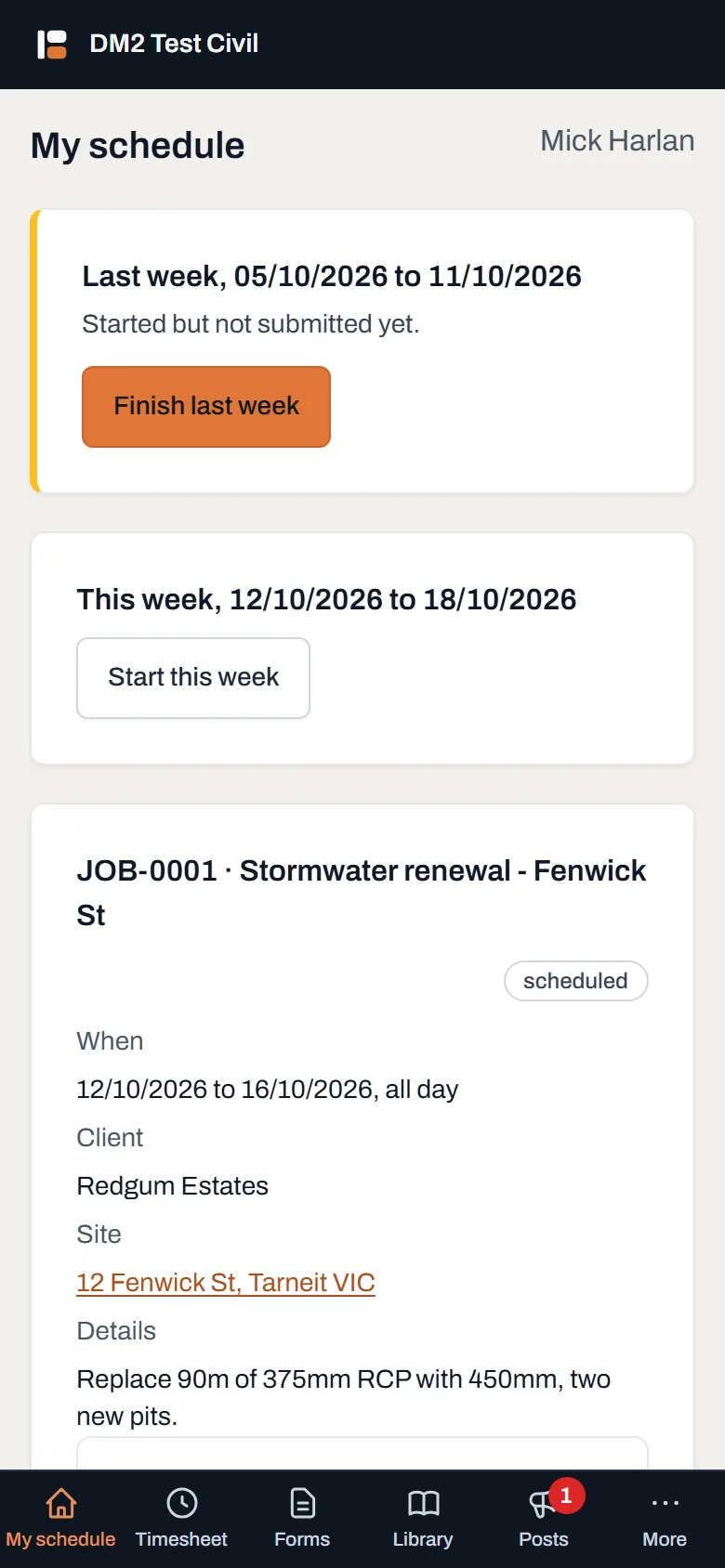
Your next four weeks, one card per job. The name at the top right is you, as the office has you on the board. -
Read the card for your next job. Top to bottom:
- The job number and name, say "JOB-1 · Stormwater renewal - Fenwick St".
- When: the dates, and either the start and finish times or all day.
- Client, Site and Details: who it's for, where it is, what it's about.
- Note: anything the office wrote on your booking, like "bring the compactor".
- Tap the site address to navigate. It opens straight in Google Maps. No typing an address off a text message at 6am.
-
Open the paperwork under Documents for this job. Drawings, SWMS, traffic plans: tap a name and it opens right on your phone. Every document the office put on the job is there before you get to the gate.
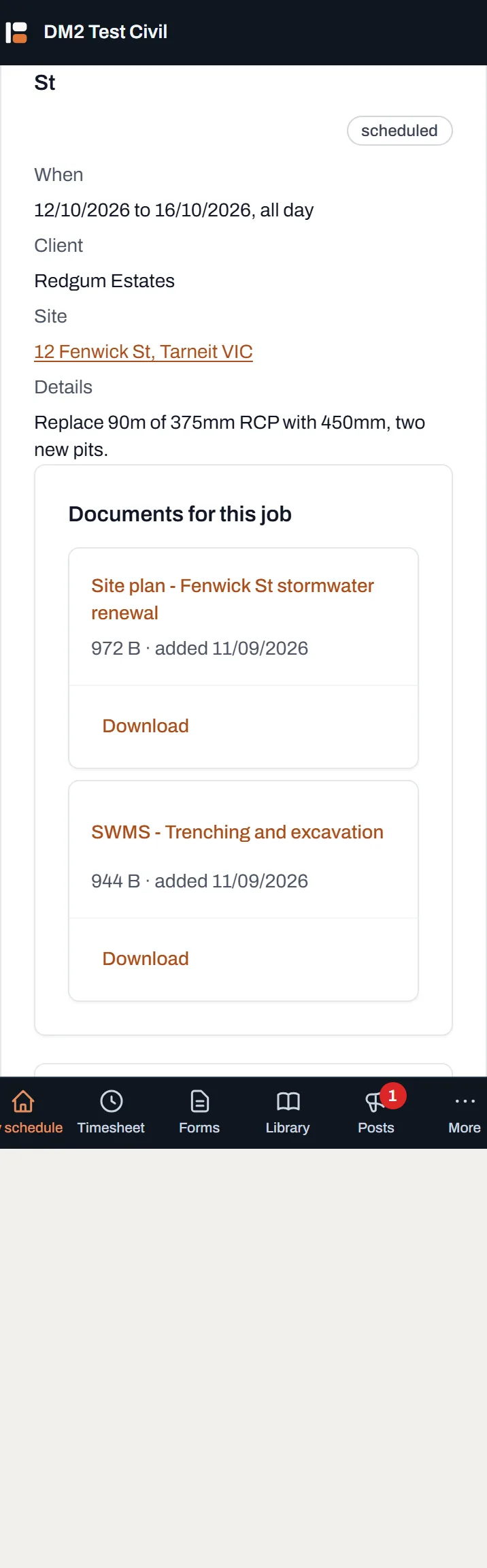
The job's documents, on site, on your phone. This panel is also where your photos go. - Nothing showing? Ask the office. If it says "Nothing booked in the next four weeks" and you know that's wrong, or it says your account is not linked to a resource yet, that's the office's button, not yours. They may not have connected your login to your name on the board; it takes them a moment.
Worth knowing
- It's always the next four weeks, from today. Yesterday's job drops off the top; anything the office books shows up as soon as they book it.
- Add it to your home screen. In your phone browser, choose "Add to Home Screen" and Dayboard opens like an app, full screen, one tap.
- Times are per day. If a card says 07:00 to 15:30 across three days, that's each day, not one long run.
- You can add photos to your jobs; there's a short guide on it.