Guides › Scheduling
Move, edit and release bookings
Plans change. Move a booking, swap the resource, or release the work that's off, in about three minutes.
The short version
Click any booking, on any view, to open it. Change the dates, resource, times or note and click Save changes; the clash check runs again before anything saves. Click Release to free the resource from today onward; days already worked stay on the record.
-
Click the booking. Every view draws the same bookings, and clicking one (a chip on the Month grid, a bar on the Crew board, a row on Agenda) opens the same Edit booking dialog.
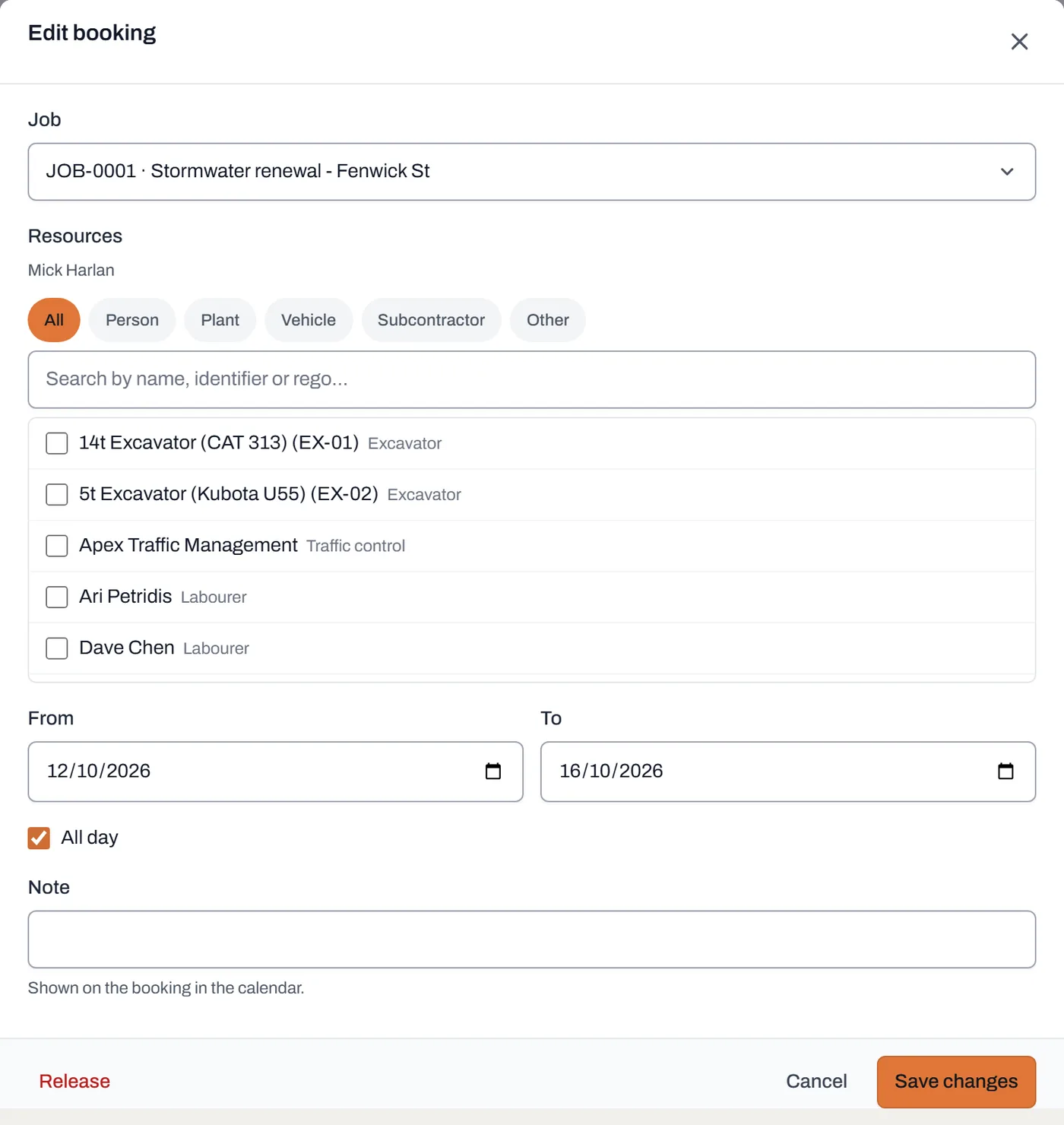
The same form as a new booking, plus Release down in the corner. -
Change what needs changing, then click Save changes. Job, resource, From and To, All day or the Start and Finish times, the note: all editable.
- Dayboard re-checks for clashes on the new dates before saving, and a booking never clashes with its own old self; stretching it by a day only checks the new day.
- Moving one resource never drags the others on the same job. Each booking keeps its own dates, so the operator can slip a day while the truck stays put.
-
Click Release when the work is off. Release frees the resource from today onward.
- A booking that hasn't started yet disappears from the board entirely.
- A booking that already started is truncated, not deleted. The app tells you the days already worked stay on the record, and what the new end date is. History is history.
-
Work a whole day from the Day panel. On the Month, Week or 3 month grid, click the day's number. The panel shows everything on that day, grouped by job the way you actually think about it: "who's on Fenwick St?".
- Each row has an Edit button, so you can rework a day booking by booking without hunting the board.
- Away lists who's on leave that day; Still free lists everyone not yet committed, your answer when a job needs one more pair of hands.
- Book something starts a new booking with that date already filled in.
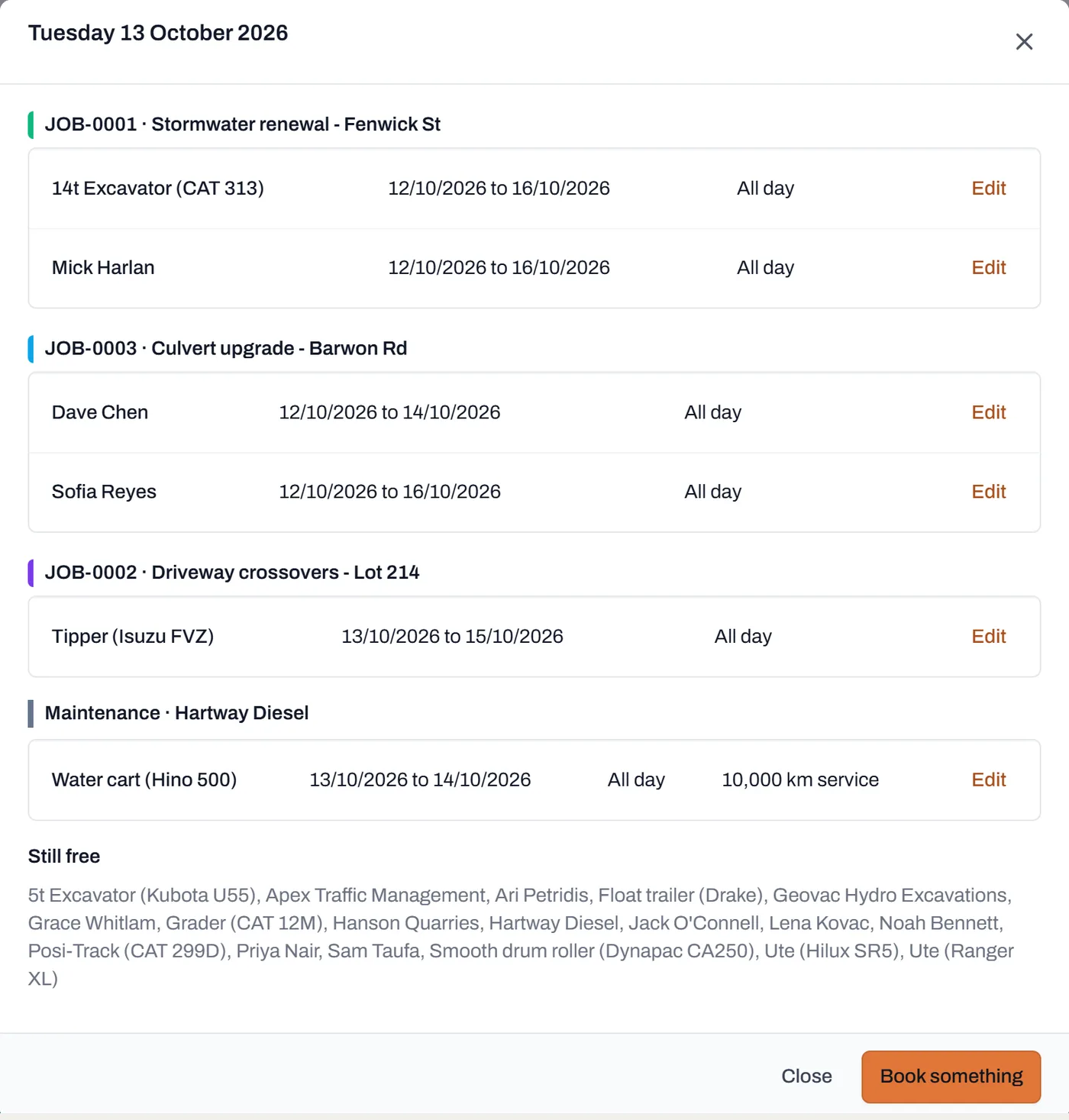
One day, the whole story: every booking by job, who's away, and who's still free. -
Clear the "needs re-planning" panel when it appears. If leave or a breakdown lands on top of existing bookings, those bookings aren't cancelled. They're flagged, and a red panel above the board lists them until you deal with them.
- Click Sort it out on a row to open that booking, then move it, release it, or remove the unavailability. See marking someone away for how the flag gets set.
Worth knowing
- A stray click can't lose your changes. Clicking outside the dialog does nothing; only Cancel, the × or Escape closes it, so half-finished edits don't vanish under a slipped mouse.
- Releasing a booking doesn't touch the job. The job, its documents and its other bookings all stay; only this resource is freed.
- Release, don't delete. There is no delete button on a started booking, deliberately: the record of who worked where is worth keeping, and releasing gives you the same practical result.
- If the new dates clash, you'll be told exactly why. Same refusal, same detail as a new booking; see when Dayboard says no.