Guides › Scheduling
When Dayboard says no
Read the conflict panel, work out exactly what's in the way, and clear it. About three minutes.
The short version
If a booking would double-book a resource, Dayboard refuses and shows a panel headed Some of those resources are already committed., with the job and the dates, resource by resource. There's no override button, on purpose. Change the dates, pick another resource, or release whatever's in the way. The panel can do that release for you: tick a resource and it's freed from the clash and booked here in one step, with the outcome spelled out before you confirm.
-
Make the booking as normal. If the window is free, it saves. If it isn't, nothing is written and the panel appears instead, listing everything in the way. Each entry is one of four kinds; the next steps cover what each one means.
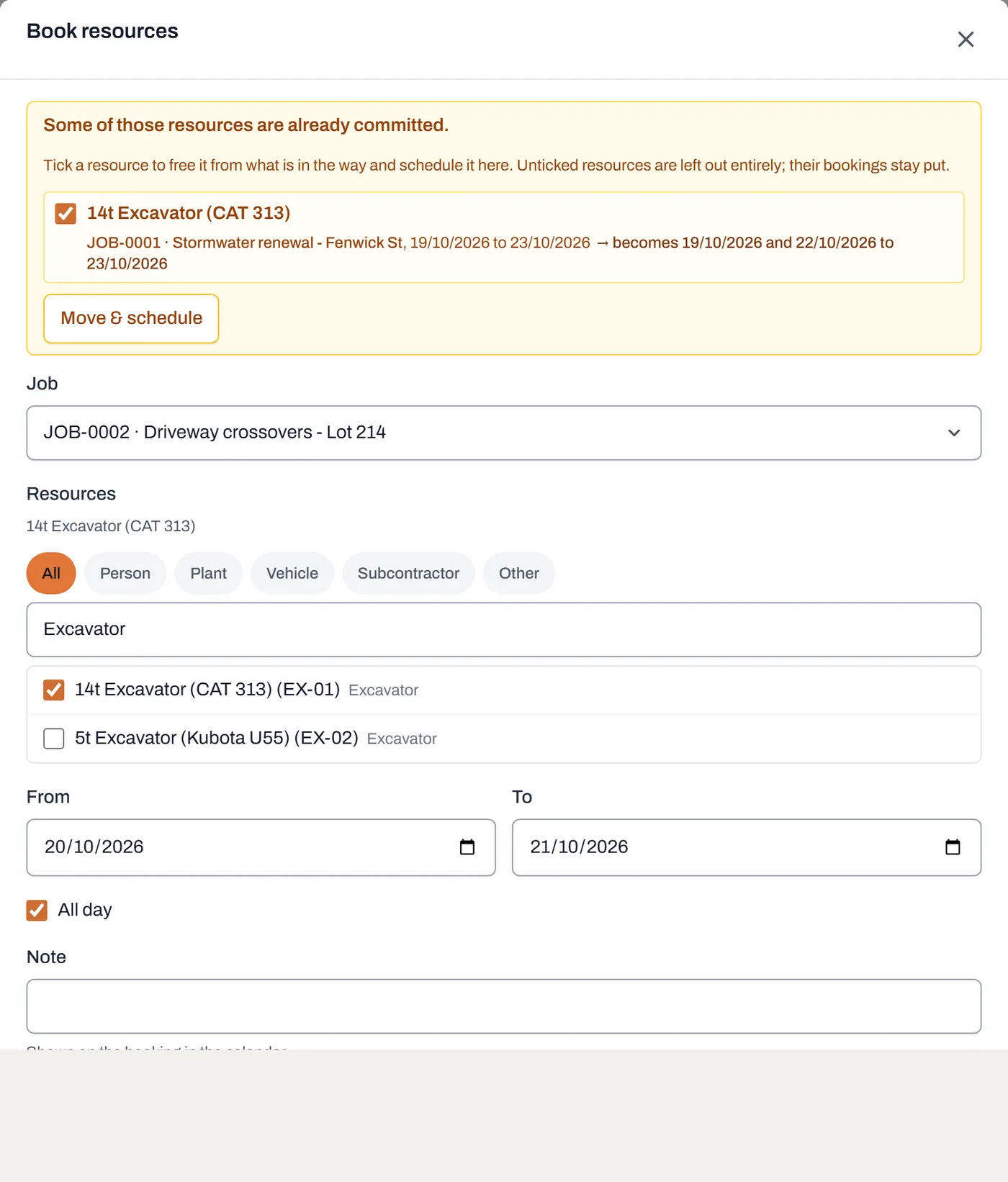
A refusal names its reasons. The last line is the fix: change the dates, pick another resource, or release the booking that is in the way. -
A job booking in the way: the panel names the job. You'll see the job number and title in bold, the dates, and the times if it's a timed booking.
- If your work matters more, tick the resource in the panel. That frees it from the clashing booking and books it here in one go, and the line under the clash says exactly what happens to the old booking (trimmed, split, or removed) before you confirm. You can also click the clashing booking on the board and Release it yourself; there's a guide on editing and releasing.
- If it doesn't, shift your dates or pick another resource; an unticked resource is simply left out, and its bookings stay put.
-
A maintenance booking: the panel names the supplier. Maintenance with Hartway Diesel means the machine is at the mechanic those days, and Hartway Diesel is who has it.
- Book around it, use another machine, or ring the supplier and ask if the service can move.
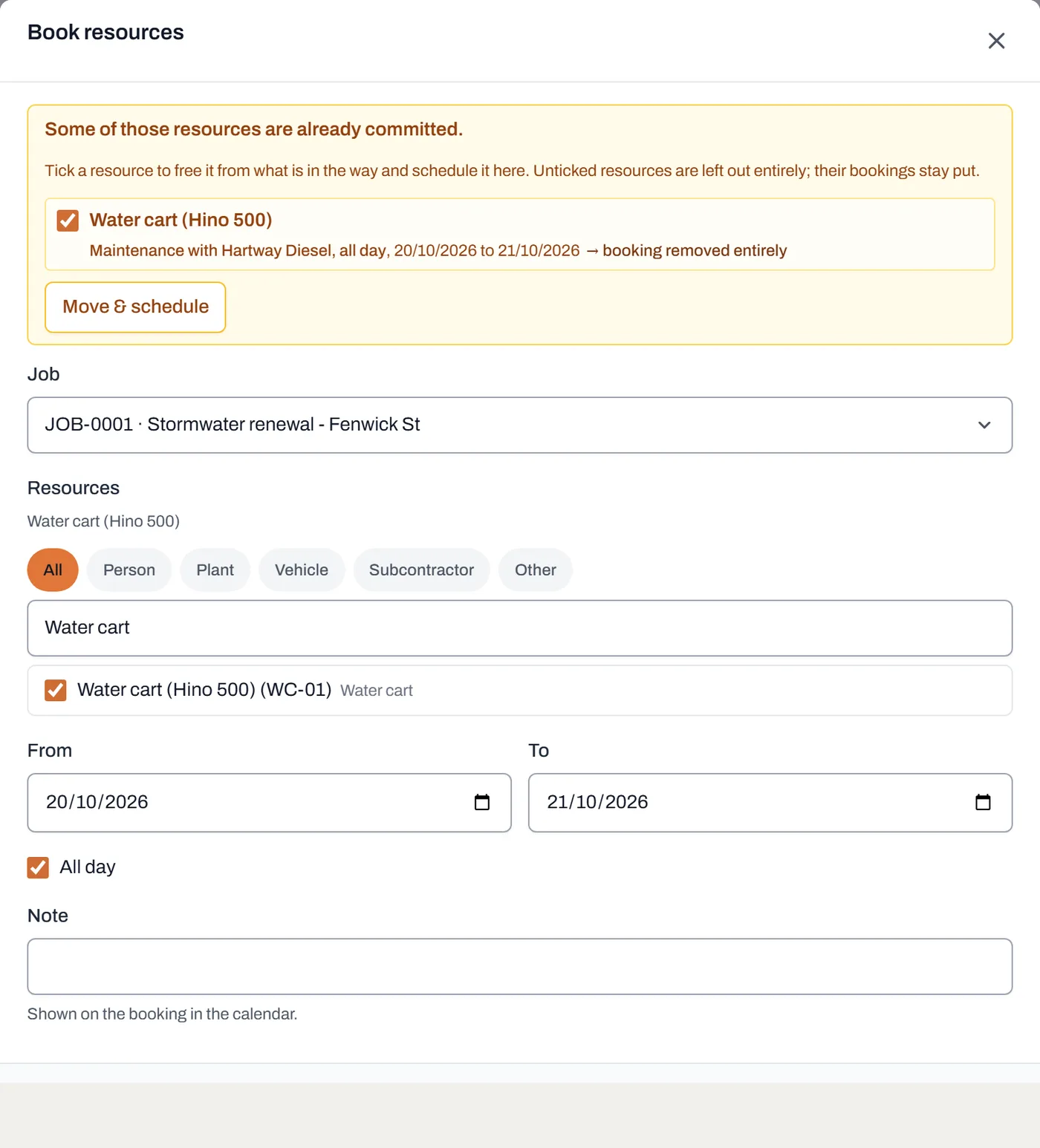
A maintenance clash names who has the machine, so the person to ring is right there in the refusal. -
An away entry: the panel names the reason. Away: Annual leave, with the dates. Being away can't be "released" from here, so that resource is left out of the booking entirely.
- Pick different days or a different person. If the leave itself is wrong, remove it on the resource's page; see marking someone away.
-
An unavailable resource: the panel says so outright. Something like Water cart is unavailable, followed by Only an available resource can be booked. No date change will fix this one: the resource's status is switched off.
- If it's back in action, open the resource's page and set it to available again.
- Watch for the early warning. When you pick a resource that's away for some of the days you've chosen, the form warns you before you even submit: the resource's name, the reason and the dates, in a banner above the fields. Read it and adjust; it saves you the refusal.
Worth knowing
- There is no override button, and that's deliberate. An override is a double-booking wearing a nicer name, and a clash on the board costs a real crew a real morning. The panel's tick is not an override: it releases the clashing booking, out loud, so the board never lies.
- Back-to-back is not a clash. A booking ending Wednesday and one starting Thursday sit side by side, and so do timed bookings that touch: 7:00 to 12:00 and 12:00 to 15:30 on the same day are fine. Only an overlap is refused.
- All-day means all day. An all-day booking occupies the whole day, so a timed booking can't squeeze in beside it.
- Editing never clashes with itself. Stretching a booking by two days only checks the new days; the booking's own old dates don't count against it.
- Maintenance gets the same treatment. Booking a machine in at the mechanic runs the same check and shows the same panel; see booking maintenance.