Guides › Scheduling
Mark someone away
Record leave, a breakdown or any downtime, and let the schedule work around it. About two minutes.
The short version
Away time lives on the resource itself. Open the person or machine under Resources, find the Away panel, and add From, To and a Reason. The schedule shades those days, blocks new bookings over them, and flags any existing bookings for re-planning rather than cancelling them.
-
Open the resource. Click Resources in the sidebar, pick the group (People for crew) and click the person's name.
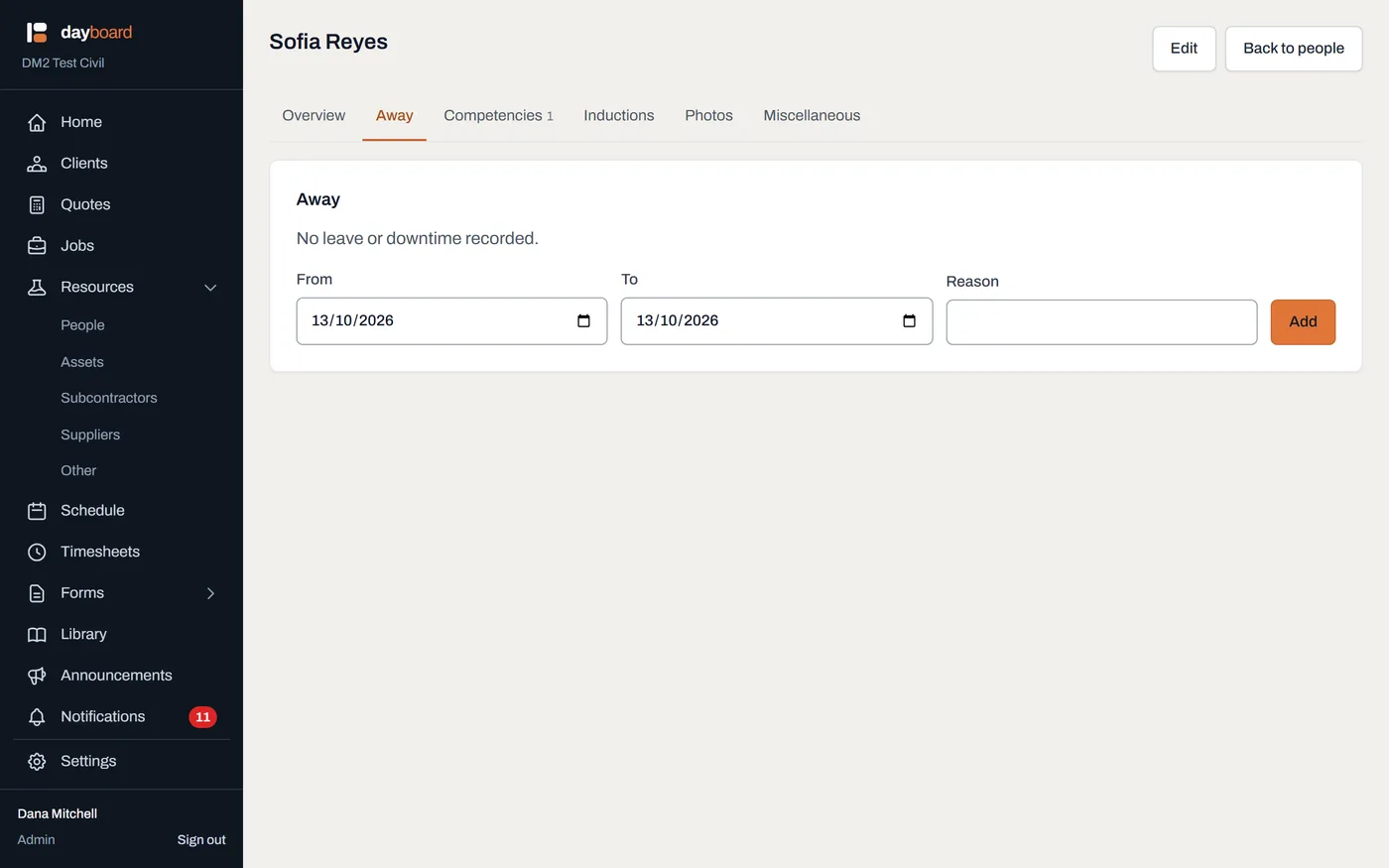
Everything about one resource on one page. The Away panel is where leave and downtime are recorded. - Scroll to the Away panel. It lists every recorded entry with its Dates and Reason, or No leave or downtime recorded. if there's nothing yet.
-
Fill in From, To and Reason, then click Add. The dates are inclusive and whole days; there are no times on leave.
- The reason is free text: "Annual leave", "Windscreen replacement", "RDO", whatever the crew would recognise on the board.

Dates and a reason; that's the whole form. -
If it lands on existing bookings, that's allowed, so read the message. Dayboard saves the leave and tells you exactly which bookings it landed on: they now need re-planning.
- This is deliberate. The leave is a fact; the bookings are the problem to solve. Nothing is cancelled behind your back: the affected bookings are flagged and listed in the red panel on the schedule until you move them, release them, or remove the entry. See editing and releasing.
- Check the schedule. Away days are shaded on the person's row on the Crew board, listed by reason on Agenda and in the day panel, and any attempt to book over them is refused; the conflict panel reads Away: with your reason and the dates. See when Dayboard says no.
- Remove the entry if plans change. Click Remove on its row in the Away panel. Any bookings it had flagged go back to normal.
Worth knowing
- Machines can be away too. A breakdown or an off-hire works exactly the same way, but a machine going to the mechanic is better recorded as a maintenance booking, which also names the supplier and shows on the Maintenance view.
- Away is dates; status is open-ended. The available / unavailable / archived buttons at the top of the page switch the resource off with no end date. Use them for "gone until further notice", and the Away panel for anything with a return date. Both block new bookings and flag existing ones the same way.
- The early warning works for you here. When someone picks an away resource in the booking form, they're warned with your reason before they even submit, so a clear reason saves a phone call.