Guides › Forms
Fill one in on a phone
Do the prestart standing at the machine, phone in hand, and have it saved before you're in the cab. A few minutes.
The short version
Tap Forms; it lists the forms themselves. Tap the one you need, pick the machine, tap Start, and work down the questions. Every answer is saved as you go, so a dropped signal or a phone call loses nothing. Photos open the camera, the signature signs with a finger, and Submit tells you by name if you've missed anything.
-
Tap Forms. On a phone it's a tab at the bottom of the screen, and it opens on the forms themselves, so the prestart is one tap away.
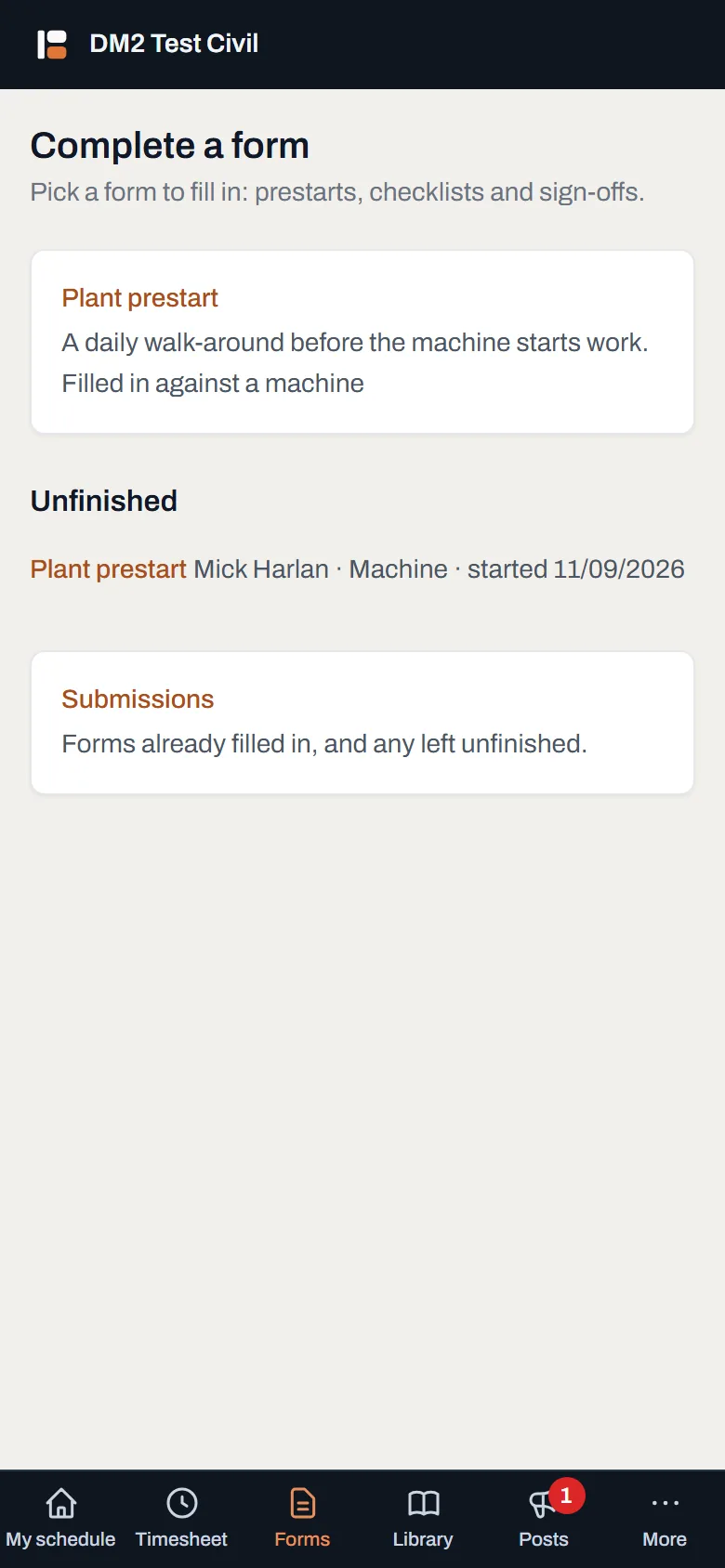
The Forms tab is the forms. Anything you left half-done sits under Unfinished, one tap from where you stopped. -
Tap the form, then pick what it's about. The description on the row tells you what each form is for. Then pick the Machine (or the Job, if that's what the form is against) and tap Start. Came from a machine's own page? The machine is already picked for you.
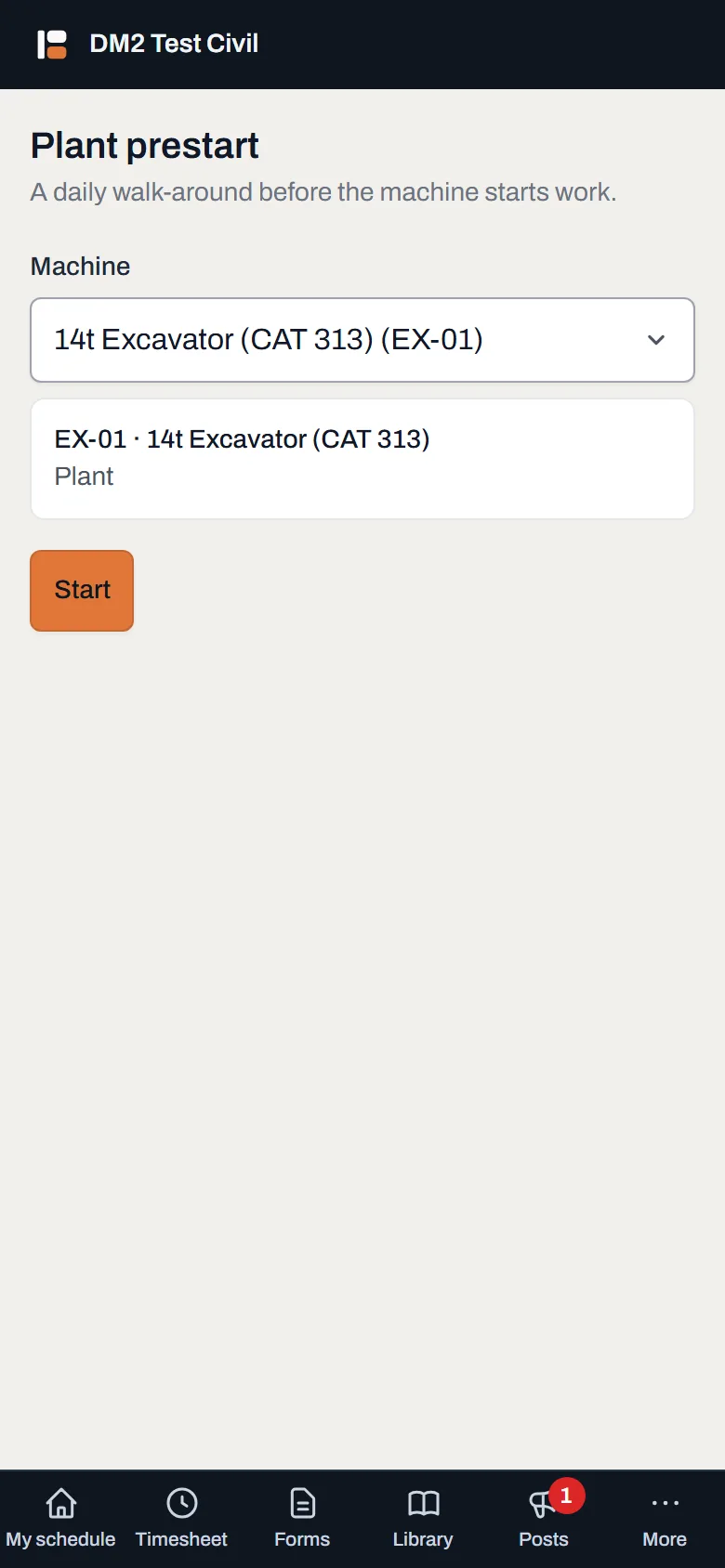
Form first, then the machine, and only the machines this form is for. The picked one reads back as a card, rego and all, so a mis-tap is caught before the questions, not after. -
Work down the questions. The footer stays at the bottom of the screen and reads Saved as you go, and that's literal. It also counts what's left: 2 required to go means the form won't submit yet, and if you try anyway the app marks the gaps and takes you to the first one. Every answer is saved the moment you give it, so backgrounding the browser to take a call, walking out of signal, or the phone dying mid-form loses nothing. Come back to Forms, tap the row under Unfinished, and you're exactly where you left off.
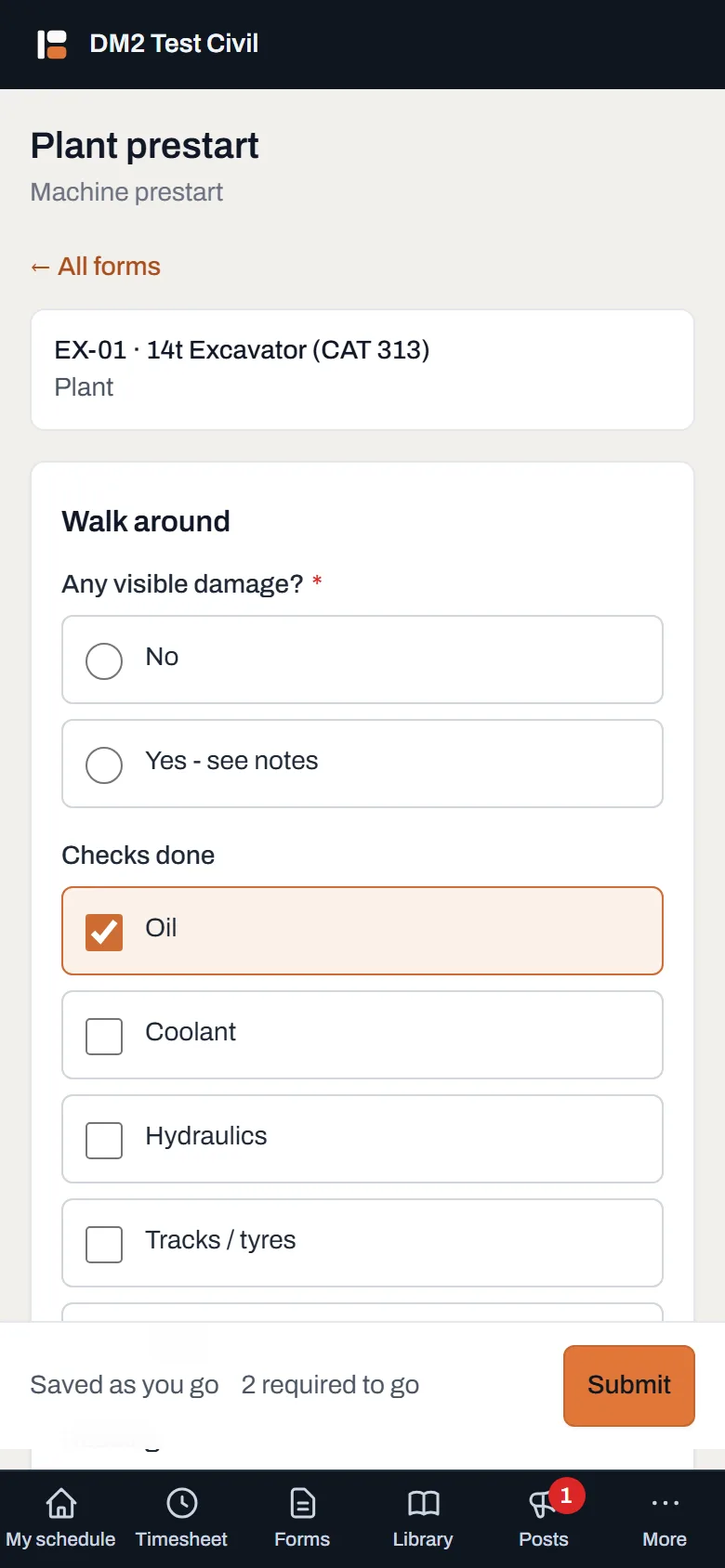
Half-done and safe. The Saved as you go footer is what tells you it's fine to put the phone in your pocket. - Add photos where the form asks. Tapping a photo question opens the camera straight away, no digging through the gallery. The counter under it reads 0 of 10 (or whatever the cap is), and photos are shrunk before they're sent, so they go through on a bad signal.
- Sign it. Sign in the box with your finger. Made a mess of it? Clear and go again, then tap Use this signature when it looks right.
- Enter the meter readings. A meter question lists every meter the machine has, and each box shows the last recorded reading, Last: 4,520, so a fat-fingered extra digit is obvious on the spot. If you can only see one meter, leave the other blank.
- Tap Submit. If anything marked required is missing, nothing is lost: a banner reading Not finished yet lists every missed question by name. Answer them and submit again. Done: the form lands in your submissions with a PDF to go with it.
Worth knowing
- A reload reopens the same draft. The half-finished form has its own address, so refreshing the page, or opening the link tomorrow, continues the same prestart rather than starting a new one.
- No signal? Keep going. Open Dayboard once with signal and your forms, machines and jobs are kept on the phone. In a dead spot you can still start a form, answer it, take photos, sign and tap Submit. The footer reads Saved on this phone. Waiting for signal., and Forms lists it under On this phone until it goes. It sends by itself the next time Dayboard is open with signal, and the record shows both when you filled it in and when it arrived.
- On an iPhone, add Dayboard to your Home Screen. Safari can clear a website's saved data if you haven't opened it for about a week, and an app on the Home Screen keeps it. In Safari, tap Share, then Add to Home Screen.
- A flaky save retries itself. If a save doesn't get through, your answers stay on the phone and go again by themselves. No red banners for every dropout.
- Every option stays visible. A Choose one question shows all its options, because what you didn't pick is part of the record.
- Changed your mind? Delete it. An unfinished form has a Delete this form link. It takes everything typed and every photo with it, and asks first. A submitted form is a record and is never deleted.
- Anyone can fill one in, field workers included. It's the same screen for everyone, phone or desktop.