Guides › Forms
Submissions and PDFs
Find any prestart ever done, read it exactly as it was answered, and send the PDF to whoever's asking. A couple of minutes.
The short version
Everything filled in lives under Forms → Submissions. It opens as one row per form (how many submitted, how many unfinished) and drills into each; tabs, a date range and Download PDF do the finding. A field worker sees their own forms, managers see everyone's, and a submitted form is a permanent record that nobody can quietly change.
-
Open Forms → Submissions. It opens as one row per form: how many submitted, how many left unfinished, and when the last one landed. Tap a row for that form's own list, or View every submission in one list at the bottom for the lot. You see what you're allowed to see: a field worker only the forms they filled in themselves, managers and admins the whole company's. That's decided by the server, not by the screen.
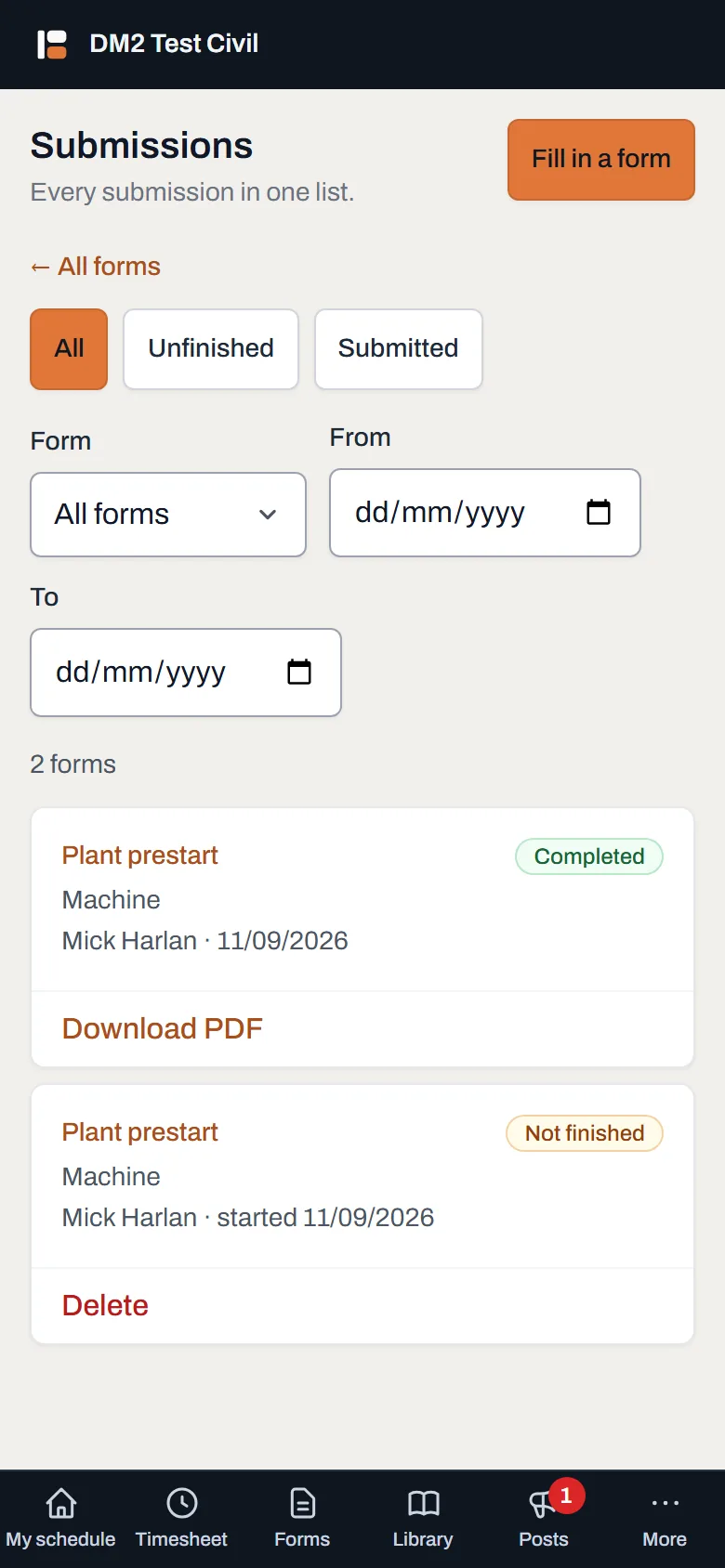
A field worker's view: their own prestarts, who signed them and when. -
Read the badges, and narrow the list. Completed means submitted and locked in. Not finished is a draft: tap the row and the fill screen reopens exactly where it was left, every answer intact; Delete on the row abandons it for good (it asks first). The tabs split the two, the From and To boxes narrow to a date range, and long lists page 50 at a time.
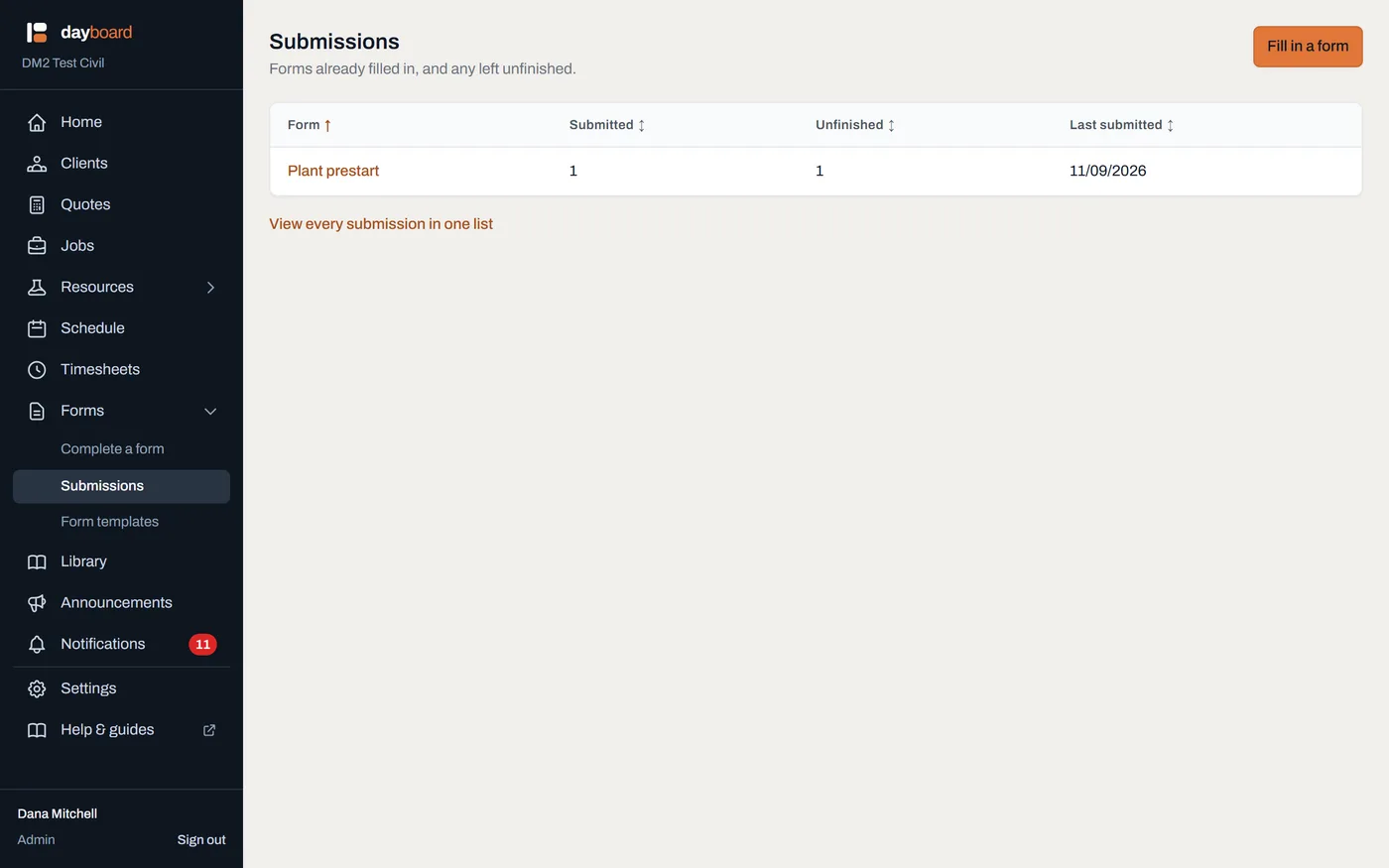
The office view: every submission across the crew in one list, newest first. -
Open a completed one. You get the answers exactly as they were given: every checklist option including the ones not ticked, the photos, the meter readings, the signature. Same layout the person filling it in saw, so nothing reads differently after the fact.
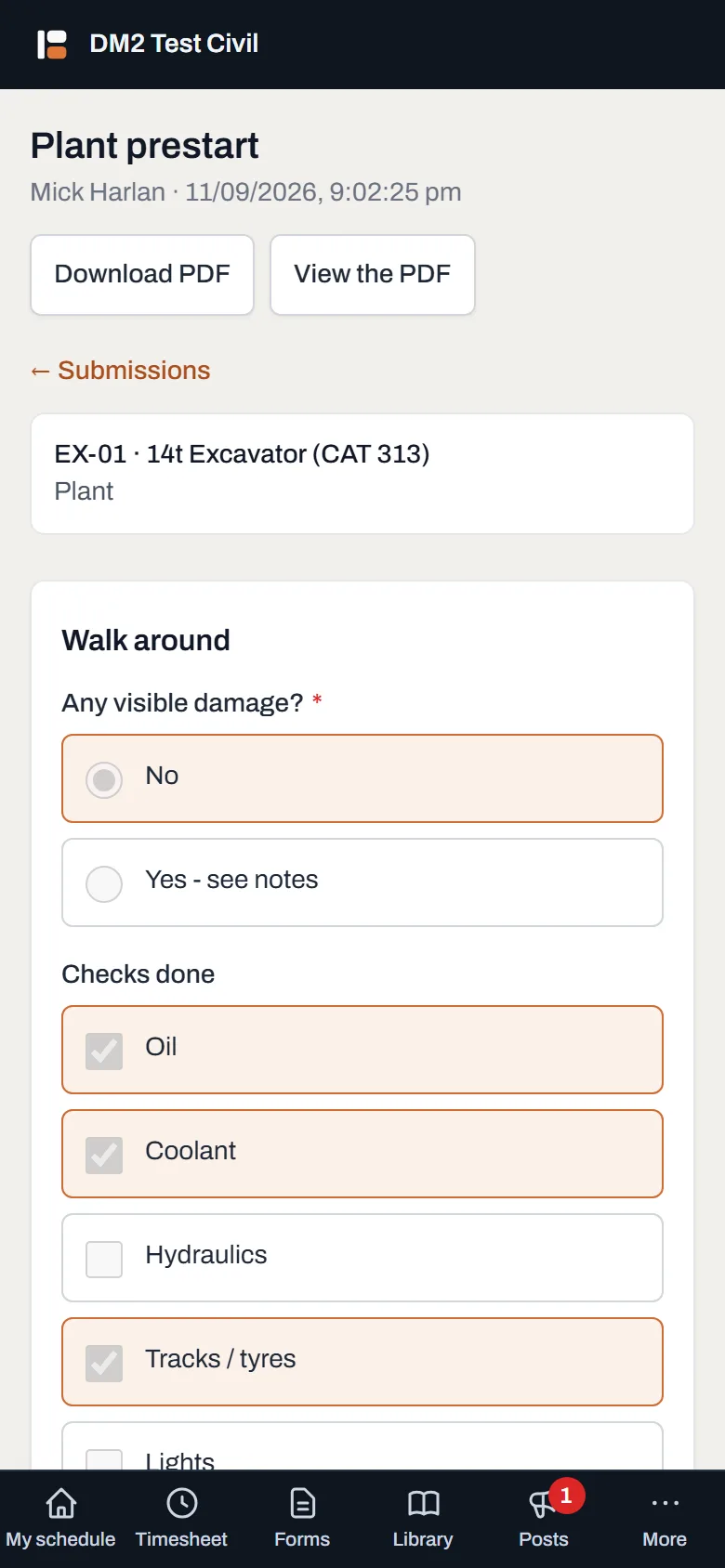
The record: what was asked, what was answered, and the signature, on the version of the form that was live that morning. -
Click View the PDF. The completed form renders as a PDF right there on the page, phones included, no app or download needed just to look at it.
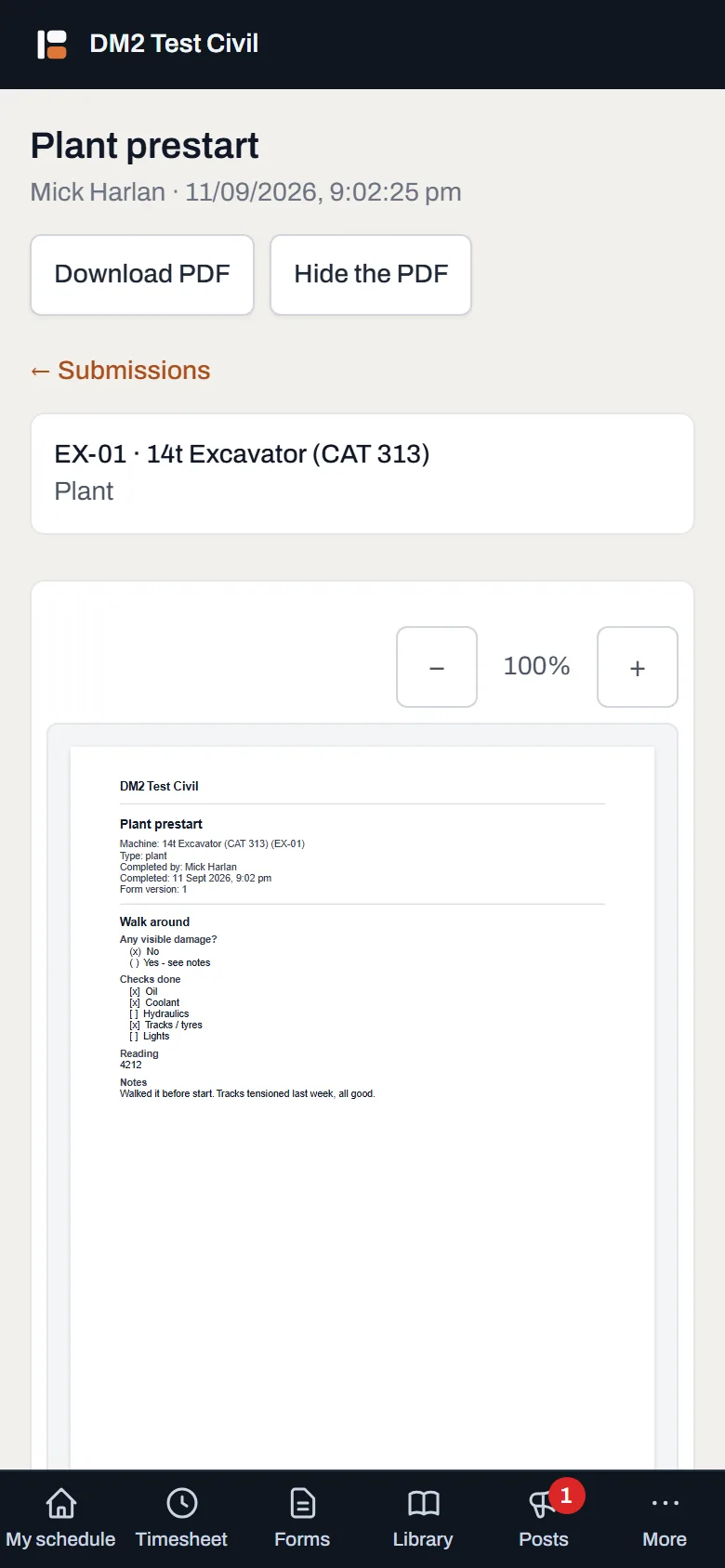
The same record as a PDF, viewed in the page. Hide the PDF flips back to the answers. - Send it on when someone asks. A principal contractor wants this morning's prestart? Download PDF, on the row or on the open record, saves it already named, form, machine, date, who signed it, ready to attach to an email without renaming anything.
Worth knowing
- Submissions are permanent records. Once submitted, a form is never edited or deleted, by anyone. That's what makes it worth showing an auditor.
- Each one pins the form version it answered. The questions you see when you open it are the questions that were asked that day, even if the form has changed since.
- The PDF carries your letterhead on every page. Your company name (with your logo and contact details if you've added them under Settings → Company details) sits at the top of every page, and the bottom of every page names the form, its version, the date it was submitted and Page 1 of 3. A sheet that comes out of the printer on its own still says what it is and who issued it, which is what an auditor is looking for. Nothing to fill in: a company that adds none of it just gets its name, as before.
- A deleted job doesn't blank the history. A form filled in against a job keeps the job number on the row, even if the job is later removed.
- A renamed machine doesn't rewrite it either. The record keeps the machine as it read the day the form was started (name, rego and type) beside whatever the machine is called now. Both are correct.
- Machines and jobs know which forms mention them. A form that names something in a Pick from the app answer shows on that thing's page under Mentioned in these forms: its own group, apart from the forms filed against it.
- The list is where drafts live too. There's no separate drafts screen; a Not finished row is the way back into a half-done form, and the Forms tab's Unfinished strip is the shortcut.
- The date range reads the submitted date. Unfinished forms have no submitted date, so a date range never matches them, and the screen says so rather than showing a puzzling empty list.