Guides › Timesheets
Fill in your timesheet
Put your hours in on your phone as the week goes, then sign it with your finger and send it to the office. A couple of minutes a week.
The short version
Tap Timesheet at the bottom of the screen, then Start this week. For each day, put in your start, your finish and your unpaid break; the job is already there from the schedule. At the end of the week tap Sign and submit, sign with your finger, and tap Submit timesheet.
-
Tap Timesheet. It is a tab at the bottom of the screen, and this week's sheet is at the top of My schedule too. If last week is not in yet, it comes first, in its own box: Start last week or Finish last week.
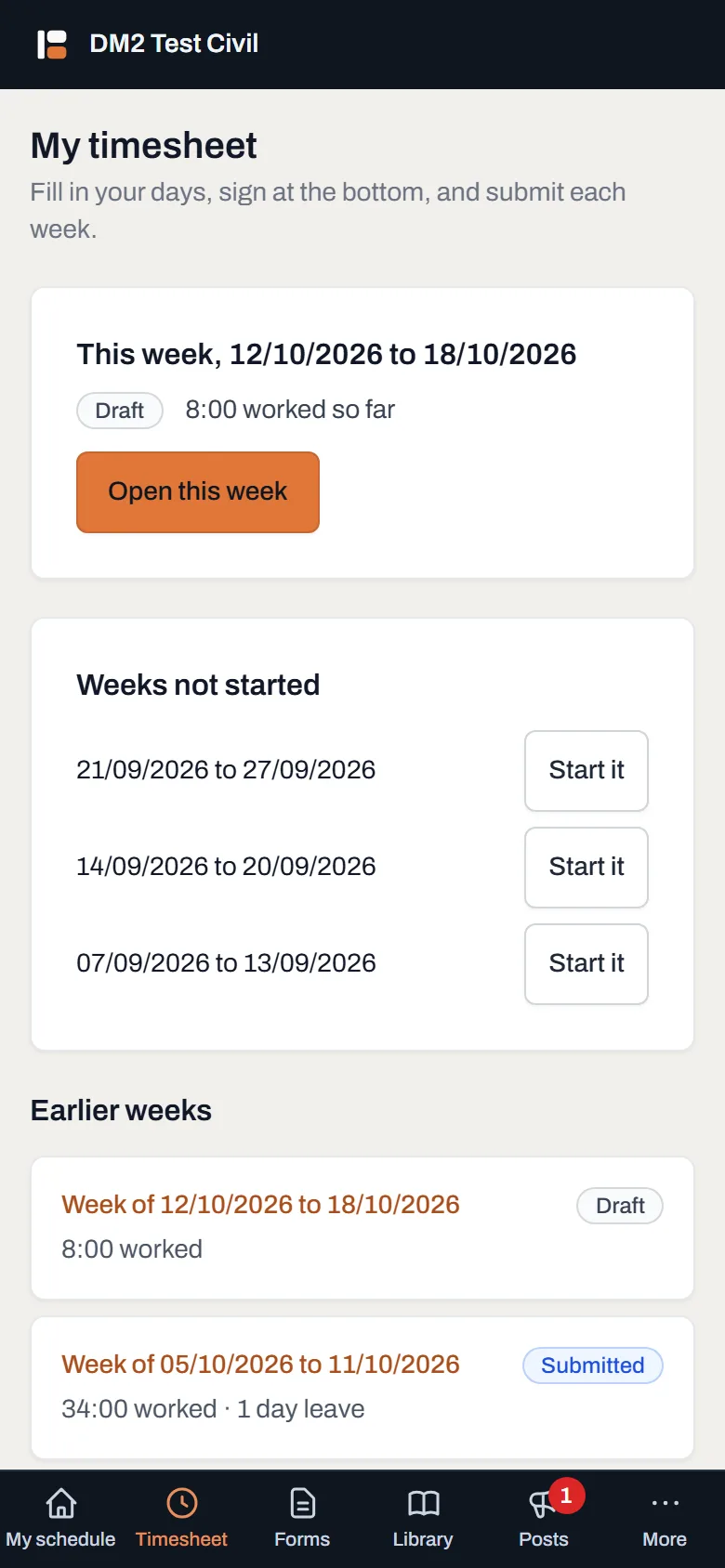
This week first, and the Timesheet tab at the bottom of the screen. - Tap Start this week. Each day already names the job you were booked on, when the schedule had just one that day. Days you do not normally work stay folded away until you tap Add Saturday (or whichever day it is).
-
Put in your start, your finish and your unpaid break. The hours add up as you type, at the bottom of the screen. A finish earlier than the start means the next morning: 19:00 to 05:00 is ten hours, counted on the day the shift started.
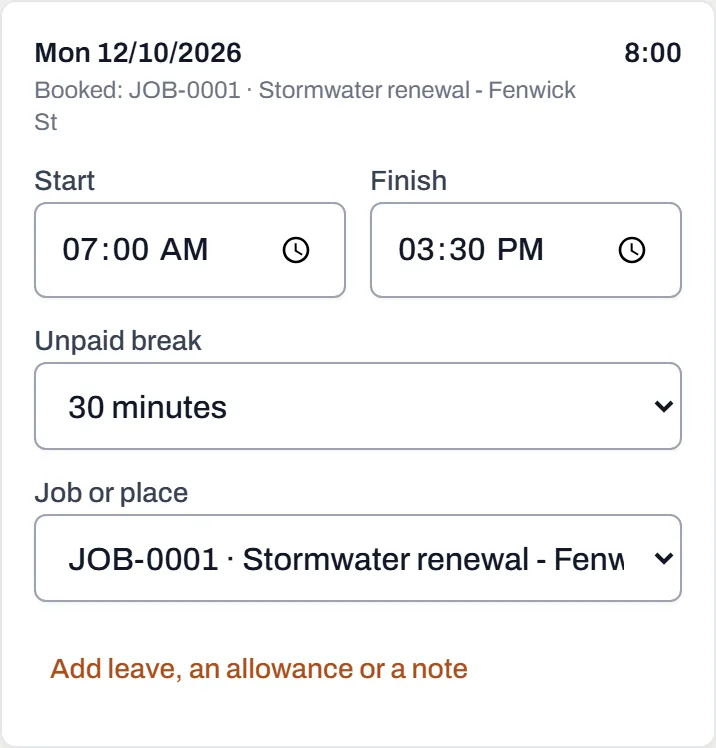
The job comes from the schedule; the day's hours show top right. - Change the job if it was different. Job or place lists the jobs you were booked on that day first, then your other jobs. Pick Somewhere else… for the yard or a training course and type where.
- Add leave, an allowance or a note. Tap Add leave, an allowance or a note under the day. Leave with no hours is a whole day off; beside hours worked, say how many hours of leave. Same as the day before copies the day above, and Copy last week's times fills the empty days from last week (times, breaks and allowances, never the job or leave).
- Got a doctor's certificate? Add it on the Documents tab, as a PDF or a photo. Only you and the office can see it.
-
Sign and submit. Tap Sign and submit. The dialog says your total hours, then the declaration that they are a true record. Sign in the box with your finger and tap Submit timesheet.
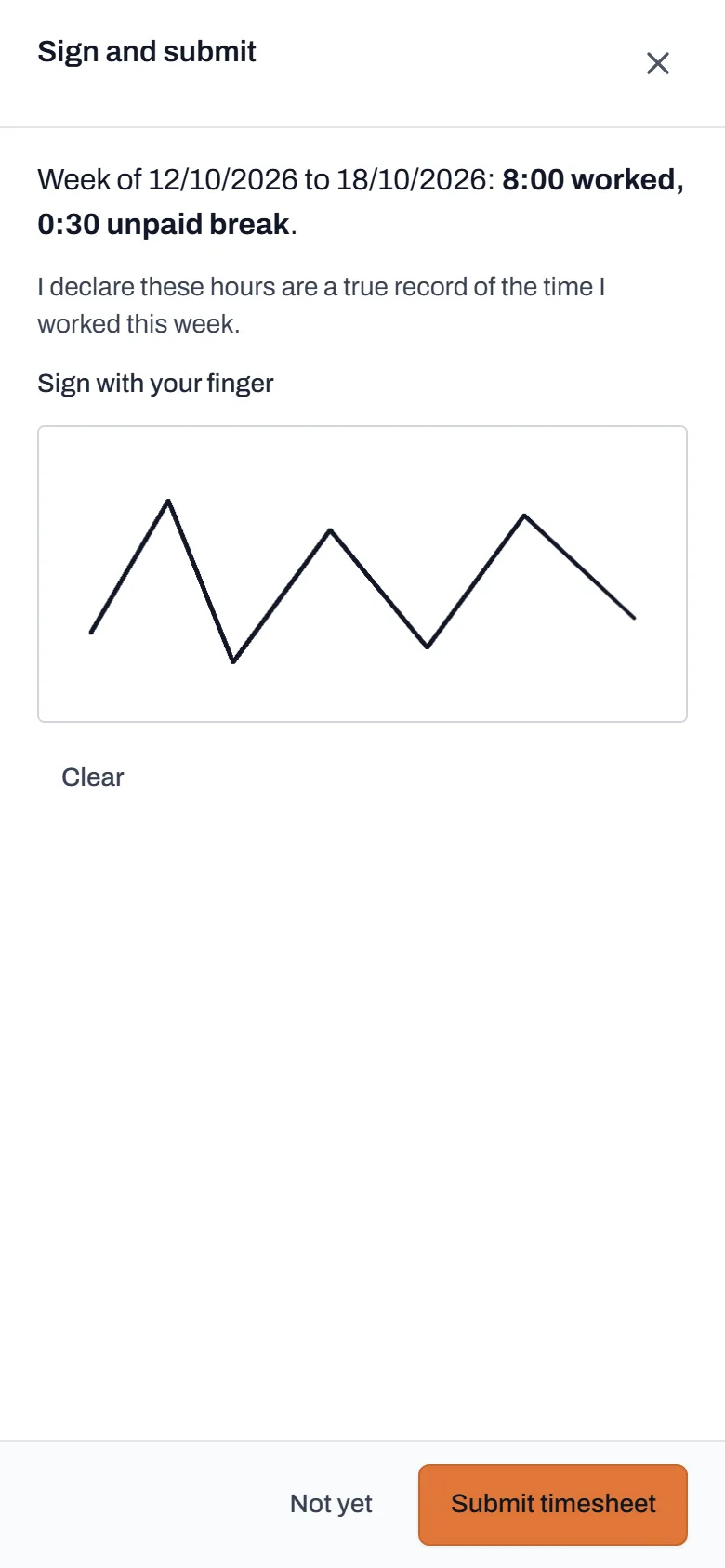
What you are signing is on the screen while you sign it.
Worth knowing
- It saves as you go, while you have signal. Timesheets need a connection to save (forms are the part of Dayboard that works with none), so if you are out of range, fill the day in when you are back in it.
- Once it is in, it is with the office. If something needs changing, ask them to send it back to you.
- Sent back? You get an email saying what to fix, and the week waits at the top of your timesheet with the office's words on it. Fix it, sign it and submit it again.
- Approved? You get an email for that too. You can open any week you have submitted and download it as a PDF.
- You see every change. If the office corrects your week, the History tab shows what it was and what it became. If they entered a week for you, it says so, and you can read it but not change it.
- Forgot? At 7am the morning after a week ends, you get one email if yours is not in.