Guides › Timesheets
Approve, send back or correct timesheets
Run through last week's timesheets, approve the right ones, and sort out the rest. A few minutes for a crew.
The short version
Open Timesheets. It opens on last week, everyone on one list. Click Approve on a submitted week that looks right, or open it and click Send back with what needs fixing. Edit corrects a week yourself, and every change is kept on the record.
-
Open Timesheets. It opens on last week, the one you do the pays for: everybody who fills one in, with their hours, their leave, whether they signed, and where their week is. The chips across the top show just the Missing, Submitted, Sent back and so on; ‹ Earlier and Later › move a week. If another week has timesheets waiting, a line under the dates says so.
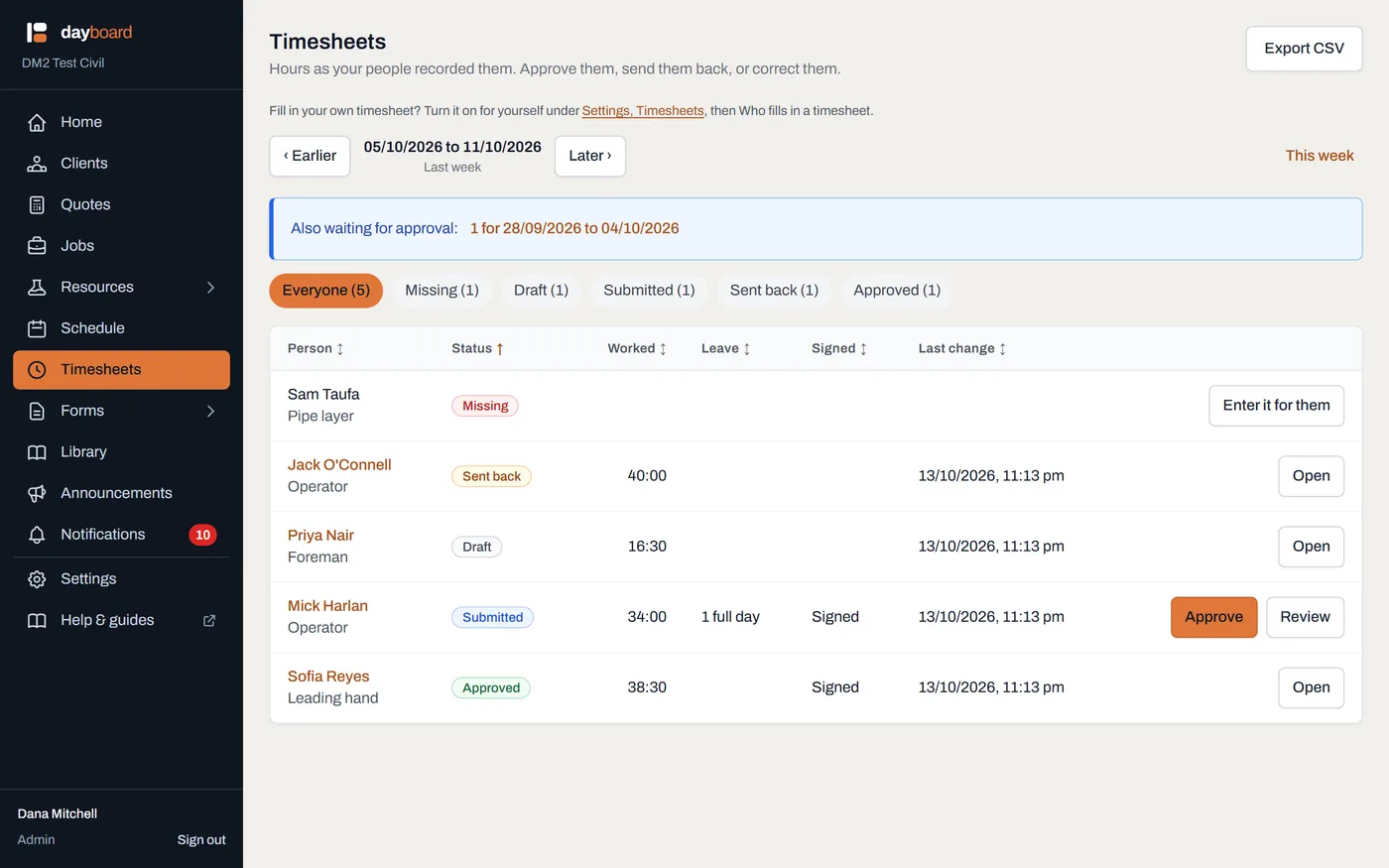
Last week, everybody on one list, with Approve on the week waiting for it. - Approve from the list. A submitted week has Approve on its row, for when the hours on the list are what you check. The person is emailed.
-
Or open it to check day by day. Review opens the week: each day's job, times, break, leave, allowances and note, the totals, and who signed it and when. A certificate is on the Documents tab. Approve is at the top.
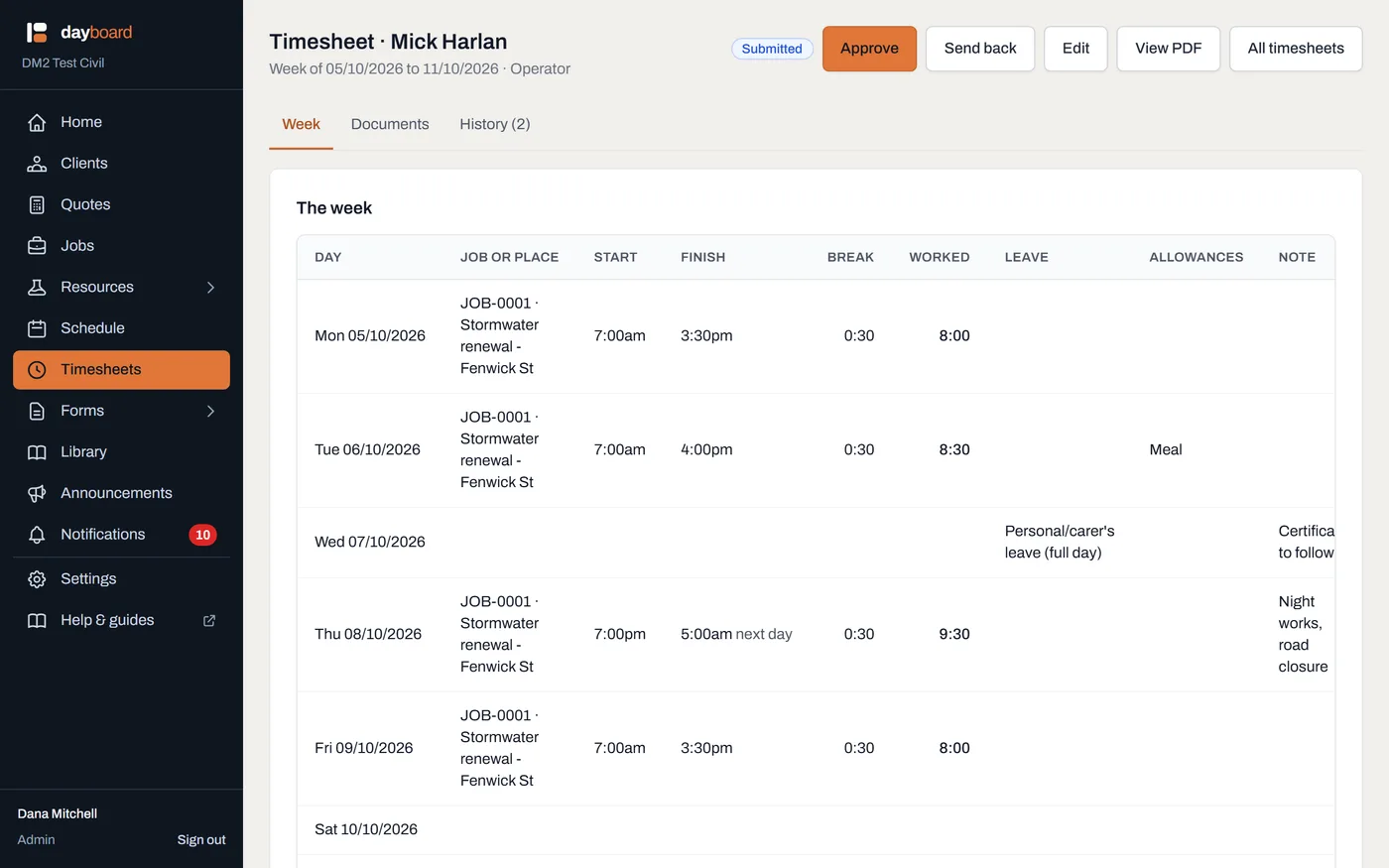
A night shift shows "next day" and counts on the day it started. -
Send it back with a reason. Click Send back and write what needs fixing. The person is emailed your words, fixes the week and signs it again. An approved week can be sent back too, which takes back the approval.
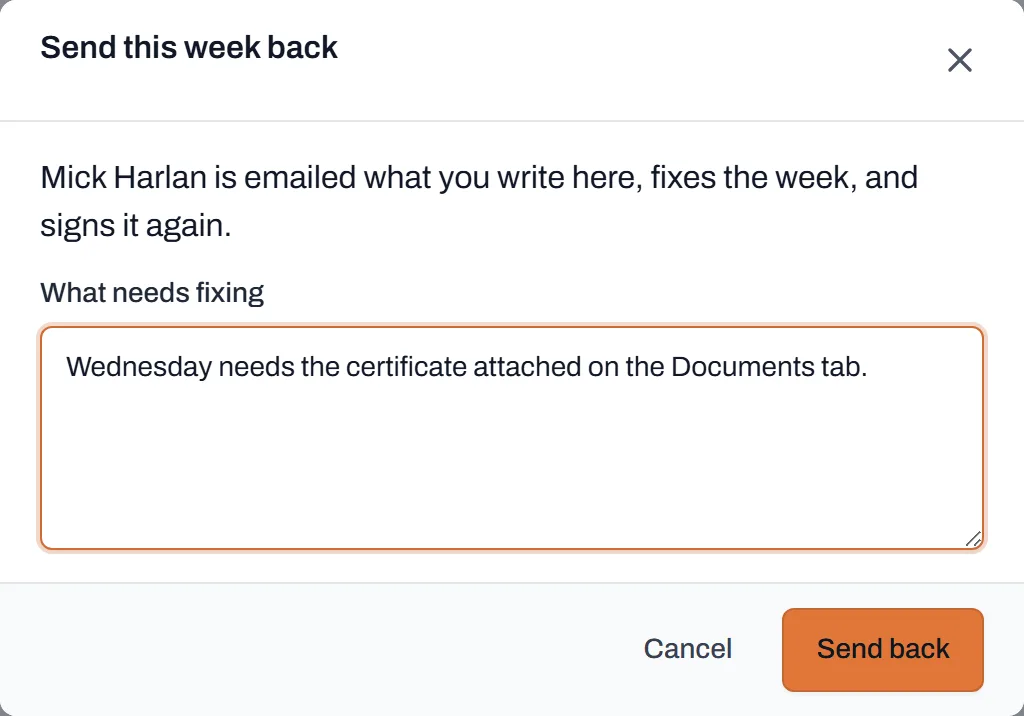
Your words go to the person by email, and sit on top of their week until it is fixed. - Or correct it yourself. Click Edit, change what is wrong, and click Save changes. Every change is logged with what it was before, and the person can see it on the History tab.
- Someone missing? A missing row has Enter it for them, for a paper holdout or somebody off sick. Fill the week in and click Submit for their name. It goes in unsigned and says entered by the office on the screen, the PDF and the export.
Worth knowing
- Nobody approves their own week, or sends it back, except an admin.
- Every submitted week has a PDF. Download PDF gives your letterhead, all seven days with the totals, the signature, and every change made after it was first submitted. Correct the week and the PDF is redrawn to match.
- Home keeps count. Weeks waiting for approval and people not in for last week show on Home and under Notifications, each a link straight to them.
- Two people, one week. If someone else changed a week while you had it open, Dayboard tells you and asks you to reload, rather than quietly writing over their change.
- A week never submitted can be deleted by an admin, from the menu on the week. Nothing else is ever deleted.