Guides › Timesheets
Set up timesheets for your company
Match the week to your pay week and check the lists your crew picks from. About five minutes, once.
The short version
A new company starts with timesheets on. An admin opens Settings, Timesheets (and clicks Turn timesheets on if they are off). Choose the day your week starts, check the kinds of leave and the allowances, and say who fills one in. Field workers do unless you say otherwise.
- Open Settings, then Timesheets. This page is for admins.
-
Check timesheets are on. A new company starts with them on; if the button reads Turn timesheets on, click it. Field workers see My timesheet in their menu, and a Timesheet tab at the bottom of their phone. Managers and admins see Timesheets, with everybody's week on it.
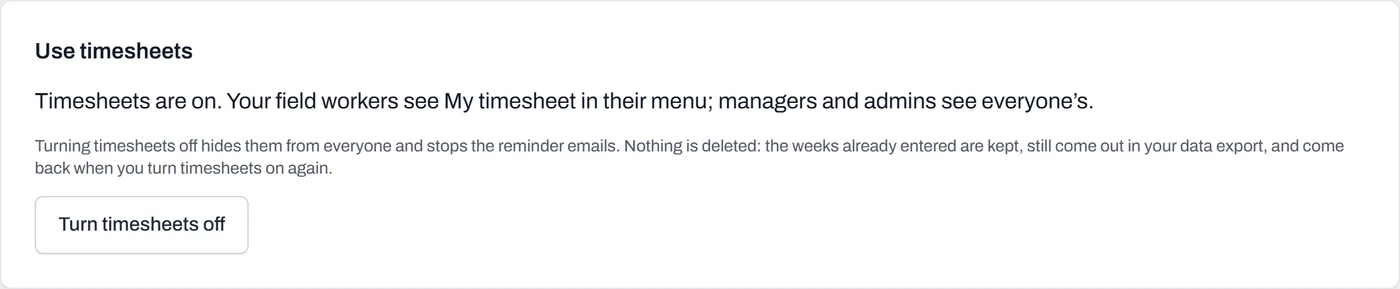
One switch. Turning it off later hides timesheets and deletes nothing. - Choose the day your week starts. Match it to your pay week. A change applies to weeks not started yet; a week already under way keeps its dates.
- Check the kinds of leave and the allowances. Dayboard starts you with the usual ones: annual leave, personal/carer's leave, public holiday, RDO, long service, compassionate and unpaid leave, and travel, meal and living-away-from-home allowances. Type a name under Add one and click Add for your own; Rename or Archive the rest. These are names only: what each one is worth is set in your payroll software, which reads the names from the export.
-
Say who fills one in. Under Who fills in a timesheet, field workers do and managers and admins do not, by default. Change anyone either way: a working foreman who is a manager can fill one in, and a subbie on a field worker login can be left out. Somebody switched off is not reminded and never shows as missing.
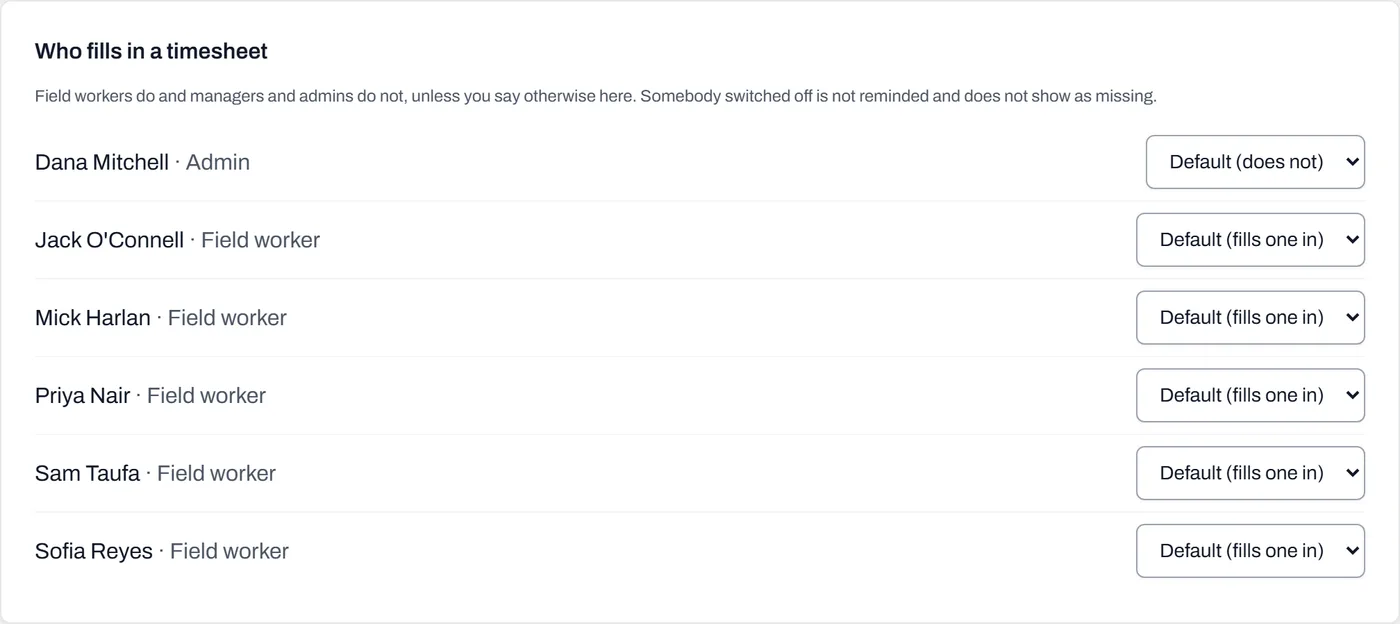
Everyone starts on the default for their role; change anyone either way.
Worth knowing
- Hours only. Dayboard records and approves hours. It holds no pay rates, applies no award and splits no overtime: your bookkeeper does that from the export.
- Reminders go out by themselves. At 7am the morning after a week ends, anyone whose week is not in gets one email. The office sees who is waiting for approval and who is not in on Home and under Notifications.
- A doctor's certificate is private. One attached to a week is seen by that worker and the office, and by no other worker. The privacy policy says how it is kept.
- Turning timesheets off hides them; it deletes nothing. The reminders stop, the weeks already entered stay in your data export, and they come back when you turn timesheets on again.