Guides › Jobs
Finish or cancel a job
Close a job out, free up whoever's still booked on it, and keep the history straight. About two minutes.
The short version
Open the job, click the status button at the top of the page and pick Completed or Cancelled. Dayboard lists any bookings still to come and offers to release them, all of them or none of them, with days already worked staying on the record either way. Cancelling takes an optional reason. Click Confirm and it's done.
- Open the job. Click Jobs, then the job's number on the list.
-
Click Completed, or Cancelled. Both are in the status menu at the top of the job's page. A dialog opens; nothing changes until you press Confirm.
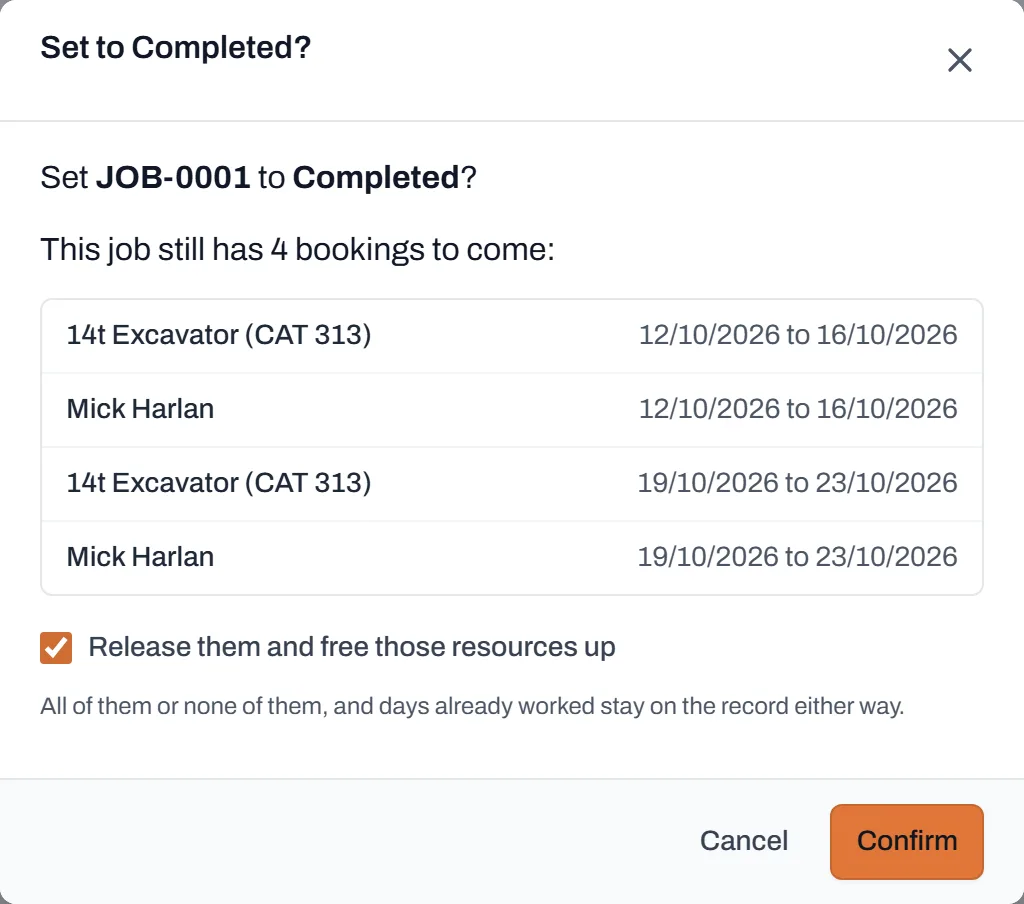
Dayboard shows you exactly what's still booked before anything changes: names and dates, not a row count. -
If you're cancelling, say why. Reason (optional) takes a line: "client postponed", "washed out". It shows on the job afterwards as Cancelled because, which saves the archaeology in six months.
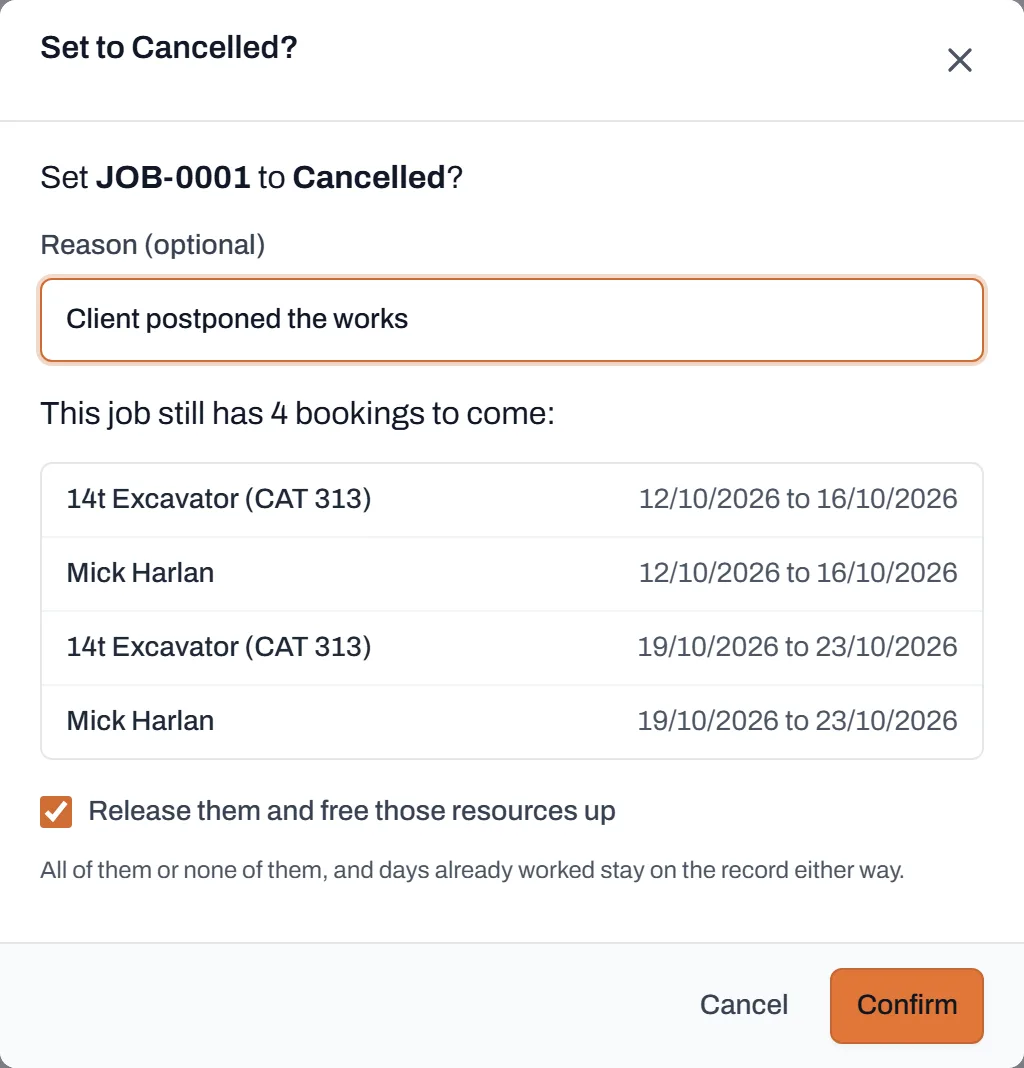
Cancelling, with the reason filled in. The reason stays on the job's record. -
Decide about the bookings still to come. If the job has future bookings, they're listed, each resource and its dates, with a tick box: Release them and free those resources up.
- It's all of them or none of them. Releasing frees every listed resource for other work immediately.
- Days already worked stay on the record either way; releasing only touches today onward.
- Leave the box unticked if the crew's staying out there to demobilise and you'll tidy the schedule later.
- Click Confirm. The status changes, and if you ticked the box, the released crew and machines are free to book elsewhere straight away.
- Check the job. The badge now reads Completed or Cancelled, the Edit button is gone, and the booking history is untouched. Documents still upload, so the as-builts and final paperwork have a home.
Worth knowing
- Cancelled jobs keep their record. The job, its bookings, its documents and the reason all stay on the books. Cancelling is history, not deletion.
- Closing a job locks its details. Title, address and description can't be edited while it's Completed or Cancelled. Need to fix something? Set it back to an open status first; statuses go backwards.
- Documents are the one exception. A closed job still accepts uploads, because paperwork arrives late.
- Changed your mind entirely? Reopen the job by clicking another status. Released bookings don't come back, though; rebook what you need on the schedule.