Guides › Quotes
Create and price a quote
Price a job for a client, line by line, and track it from draft to won or lost. About five minutes.
The short version
Open Quotes, click New quote, choose the client and give it a title, then click Create quote. On the Pricing tab, add a line for each part of the work with a quantity and a rate excluding GST, and click Save prices. When it has gone to the client, set its status to Sent.
-
Open Quotes. Click Quotes in the sidebar. If it is not there, an admin turns quotes on under Settings, Quotes; there is a guide on setting quotes up.
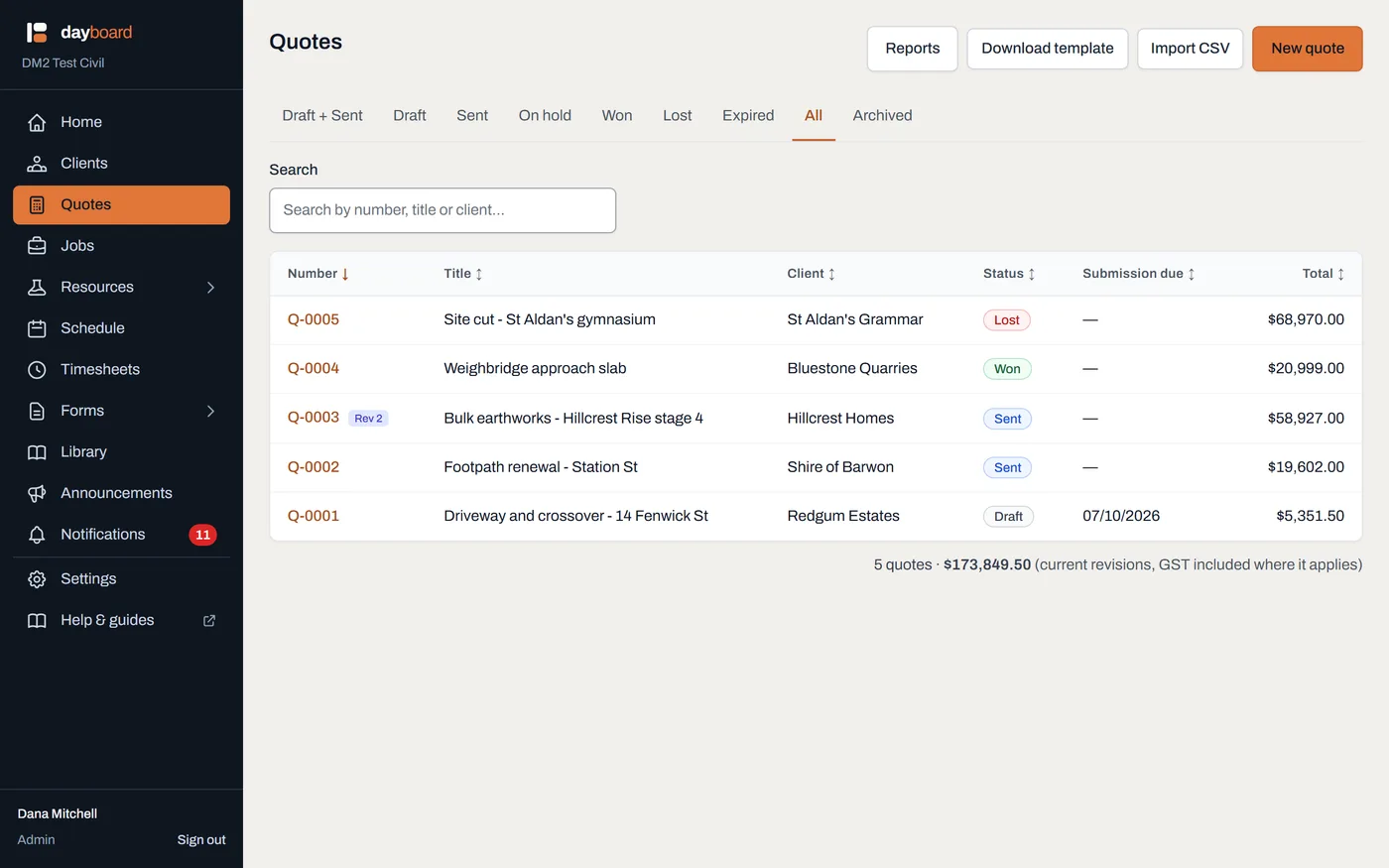
Every quote on one list, with the total of everything the tab shows underneath. -
Click New quote, choose the client and give it a title. A quote is always for somebody, so the client is required. Add the site address, the client's deadline under Submission due if they gave one, and who is chasing it under Quote manager. Click Create quote.
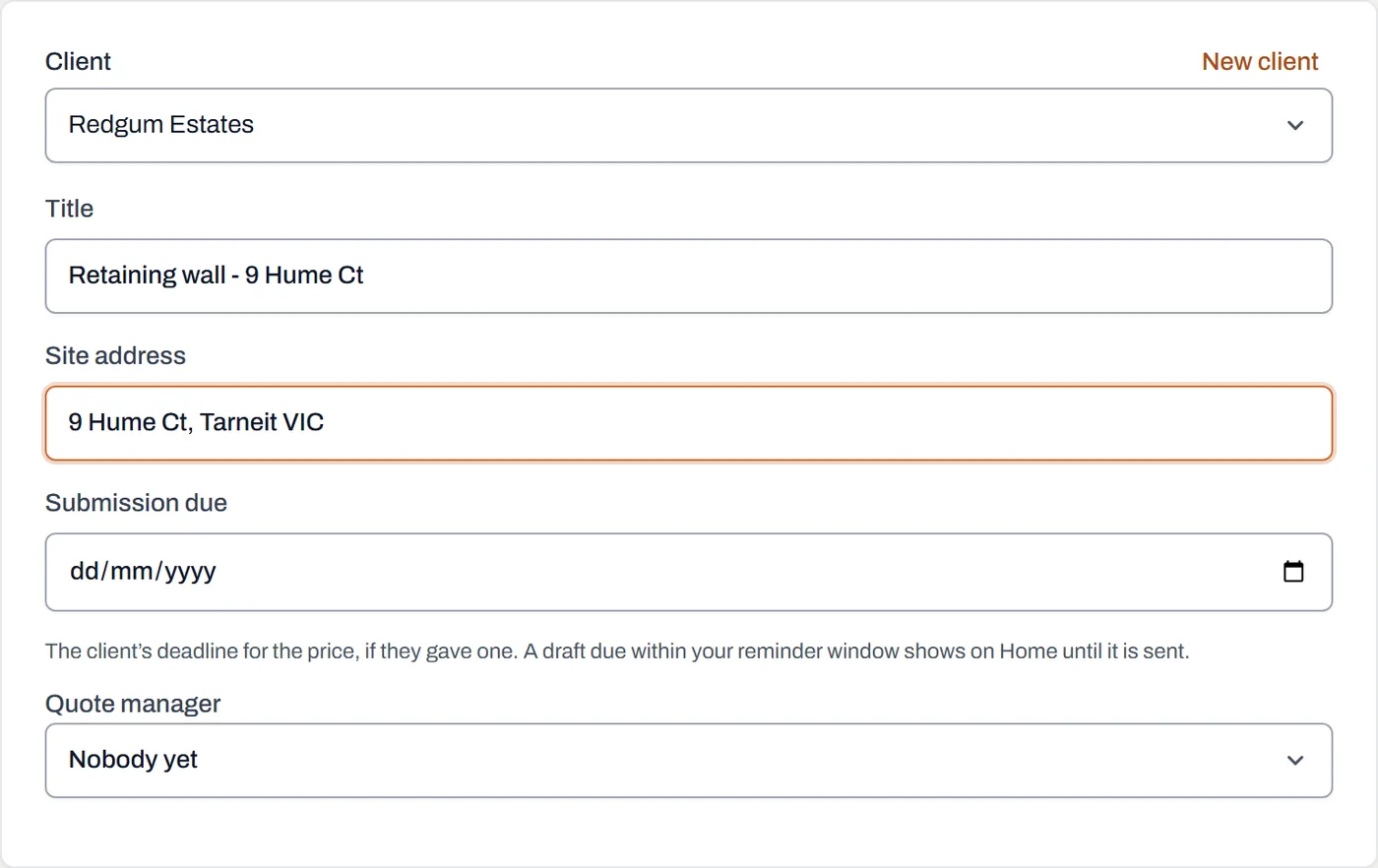
The client and a title are all a quote needs to start. New client adds one without leaving the form. - Price it on the Pricing tab. One row per part of the work, like a spreadsheet: Line, Description, Quantity, Unit (m, hr, ea), Rate excluding GST, and the Amount, worked out as you type. Add line under the last row adds another, and pressing Enter on the last rate does the same; each row's menu moves it up or down or removes it.
-
Click Save prices. The subtotal, GST and total are worked out on the server, once, to the cent. A company that is not registered for GST sees no GST line at all.
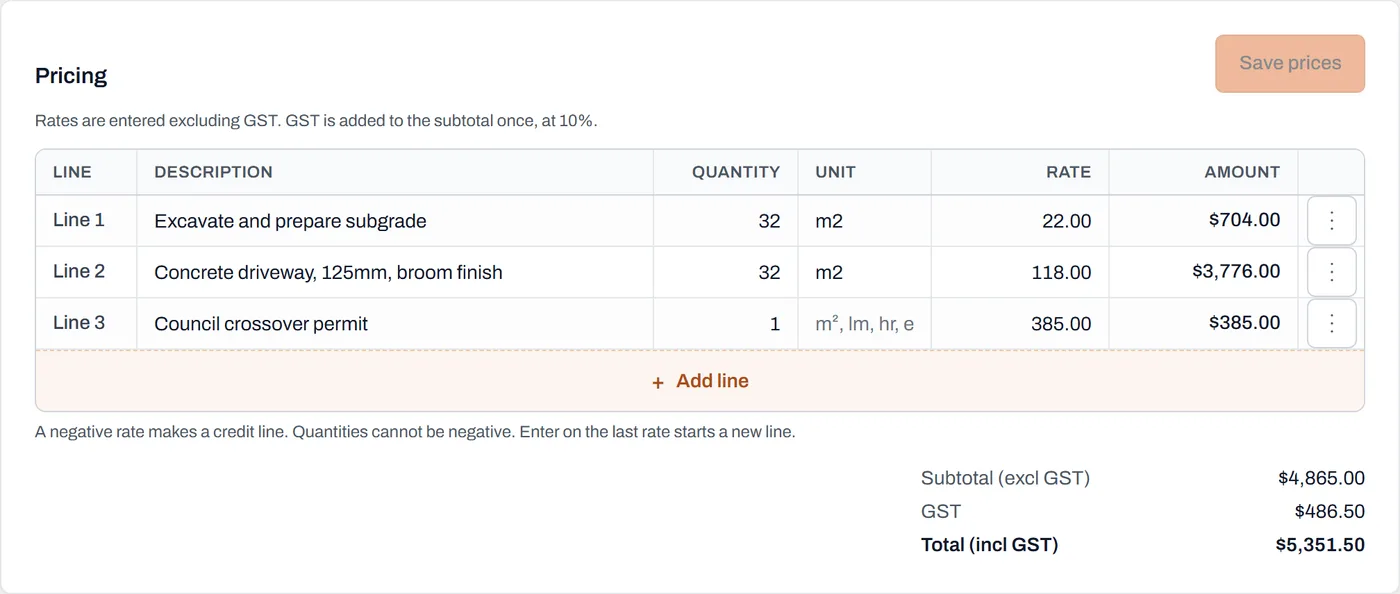
Each line shows its total as you type; the subtotal, GST and total are worked out once you save. - Fill in the details. The Details tab holds the client, the representative, the quote manager, the submission and valid-until dates and the site; anything not filled in shows a dash. Description and Exclusions are tabs of their own, between Details and Pricing, and exclusions are one per line.
- Send it, then mark it Sent. Dayboard does not write the quote document: send the one you made in your usual way, keep a copy on the Files tab, and set the status to Sent. The prices lock so the record matches what the client saw.
Worth knowing
- A credit is a negative rate. Quantities cannot be negative; a line like "Credit: topsoil retained" with a rate of -3200 takes it off the total.
- Only a draft can change. Once a quote is sent, won, lost or on hold, its details and prices lock. To re-price one the client has seen, make a revision.
- Your crew never sees quotes. Quotes and their files are for managers and admins only.
- A deadline reminds you. A draft with a submission due date shows on Home and under Notifications as the date gets close, and stays there if it is missed, until you send it.
- Two people, one draft. If someone else saved the quote while you had it open, Dayboard tells you and asks you to reload, rather than quietly writing over their change.