Guides › Timesheets
Export hours as a spreadsheet
Take the approved hours out as a CSV your bookkeeper can key in or import. Under a minute.
The short version
On Timesheets, click Export CSV. The dates start on last week. Choose one row for each day or each week, leave Approved timesheets only ticked, and click Download CSV.
- Click Export CSV at the top of Timesheets.
- Choose the dates. From and To start on last week. Up to a year at a time.
- Choose one row for each day or each week. Day gives start, finish, break, job, leave and allowances, the way hours are keyed in. Week gives each person's totals, to check against.
- Approved only, or submitted too. Approved timesheets only is ticked to begin with. Untick it to include weeks still waiting, with a Status column saying which is which. A draft is never exported.
-
Click Download CSV. It opens in Excel, Numbers or Google Sheets.
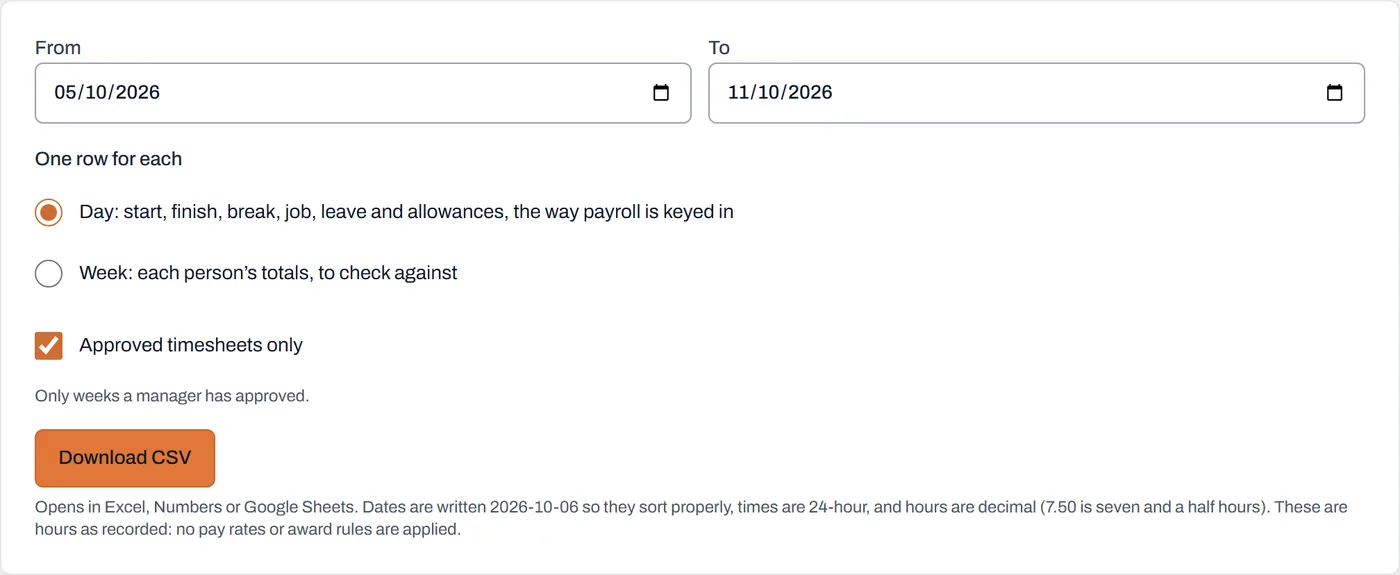
Last week, one row per day, approved only: the usual Monday export.
Worth knowing
- What is in a day's row: the worker and their position, the week and the date, the job number and title or the place, start, finish, whether it finished the next day, the break in minutes, worked hours, the leave type and hours, a full day of leave, the allowances, the note, the status, who approved it and when, and whether the office entered it.
- Written to sort and import cleanly. Dates read 2026-10-06, times are 24-hour, and hours are decimal: 7.50 is seven and a half hours.
- Hours as recorded. No pay rates, award rules or overtime are applied. That stays with your payroll software, which matches the leave and allowance names from your lists.
- The column headings never change, so an import your bookkeeper sets up once keeps working.
- Corrected a week after exporting? The office can still correct an approved week, so export that week again.
- Every week, every status, is in your full data export too, with every approval and correction and the certificates in their own folder. The export guide lists the lot.