Guides › Quotes
Revise a quote
Change a quote the client has already seen, and keep the version they saw. About two minutes.
The short version
Open the quote and click Create revision. Dayboard copies the current prices into a new draft under the same quote number. Change what needs changing, save, and mark it Sent again. The earlier revision stays on the History tab exactly as it was.
- Open the quote. It needs to be Sent or On hold: a draft is simply edited, and a quote that is won, lost or expired is decided.
- Click Create revision, then confirm. The quote goes back to Draft as revision 2, marked Rev 2 on the quotes list, with the same number, the same lines and the same submission date. The valid-until date is cleared so the new price is not born expired.
- Change the prices and details, then save. Everything on the Pricing and Details tabs is open again.
- Send it and mark it Sent. The new revision locks, just as the first one did.
-
Look back any time. The History tab lists every revision with its total and the date it was sent; View opens one. Under it, What happened records every status change, every change to the details (who the quote manager became, which date moved), every price change with the total before and after, and every note and file, each with who did it and when.
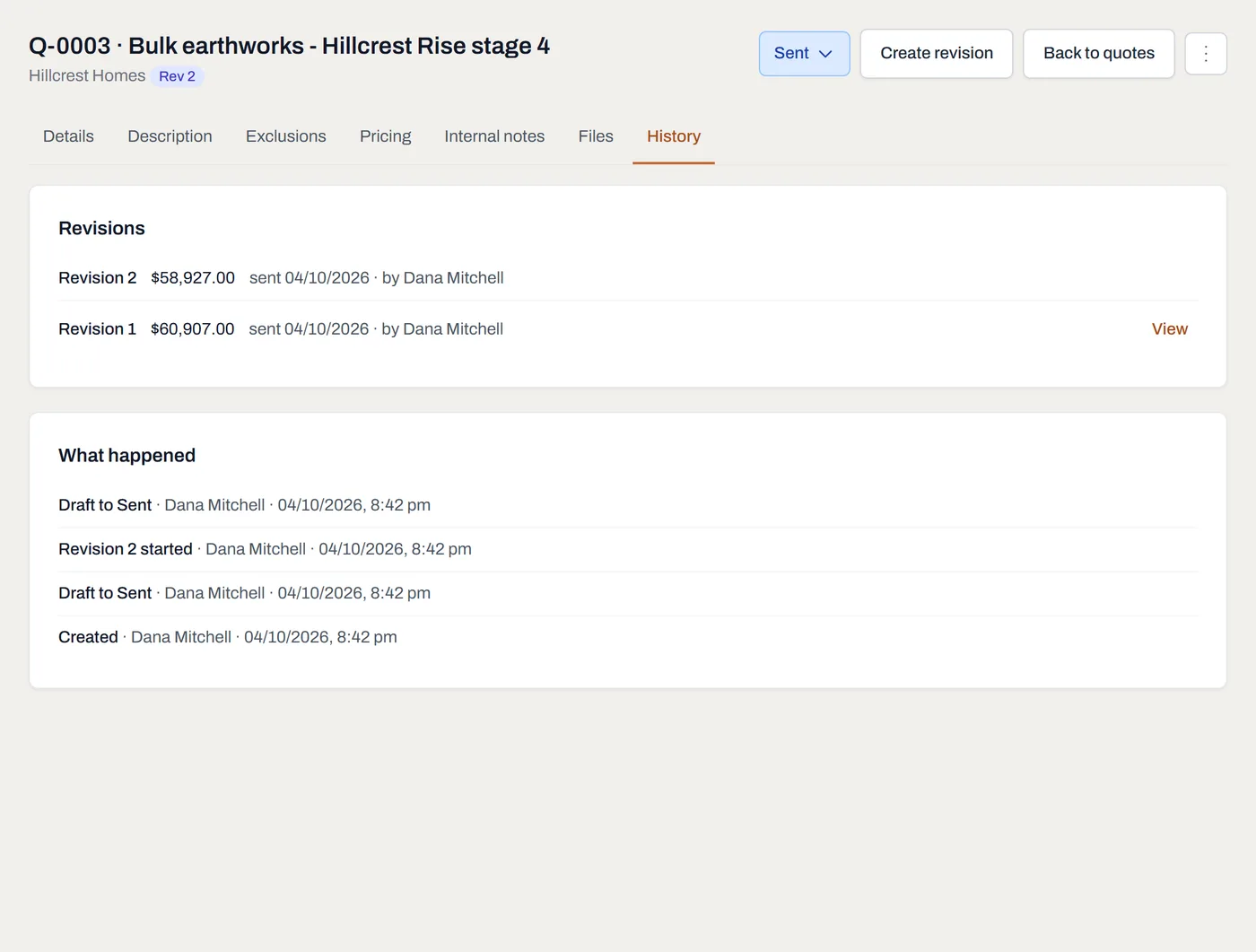
Both revisions with their totals, and what happened to the quote and who did it.
Worth knowing
- One quote, one row. The quotes list shows a revised quote once, at its latest price, so totals never count a quote twice.
- Notes and files belong to the quote, not to a revision, so nothing has to be copied across.
- Lost or expired, and the client comes back? Reopen it by setting it to Sent, then revise it.