Guides › Scheduling
The nine views, and when to use each
One schedule, nine ways to look at it. Find the view that answers the question you're actually asking. About four minutes.
The short version
The schedule is one set of bookings shown nine ways. The switcher at the top right has them all: Agenda, Week, Month, 3 month, Timeline, Crew, Plant, Vehicles and Maintenance. Click one and Dayboard remembers your pick on that device, so you only choose once.
- Open the schedule. Click Schedule in the sidebar; on a phone it's the Schedule tab at the bottom. The view switcher sits at the top right, and every booking you see is a click away from editing, whichever view you're in.
-
Plan in the grids: Month, Week and 3 month. These are the classic calendar squares.
- Month is the desktop default: the fortnight at a glance, with the day number opening everything on that day and a + on each square for a quick booking.
- Week shows one week with room for every booking's detail. On a phone it renders as a day list instead of a grid, same week, same stepping.
- 3 month is the long game: a quarter of squares for spotting the quiet patch before you promise a start date.
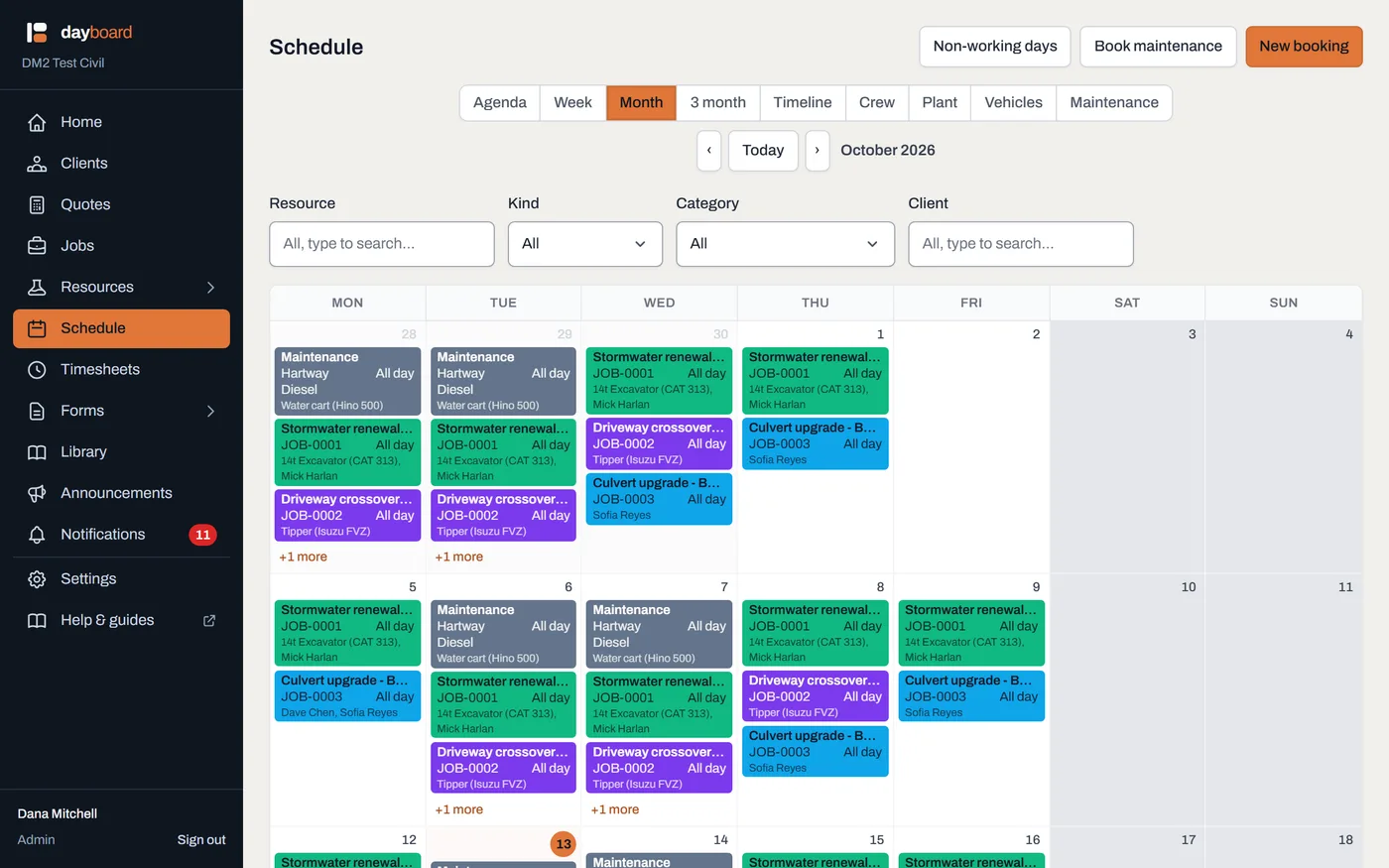
Month view. Every job keeps its own colour on every view, so the stormwater job is the same green whether it's a chip here or a bar on the Timeline. -
Ask "what's happening next?" with Agenda. It lists the next four weeks from today, one block per day, and skips empty days entirely. It's the view for the ute at 6:30am, and it's the default on a phone.
- The ‹ and › buttons are greyed out on Agenda; it always starts today, on purpose.
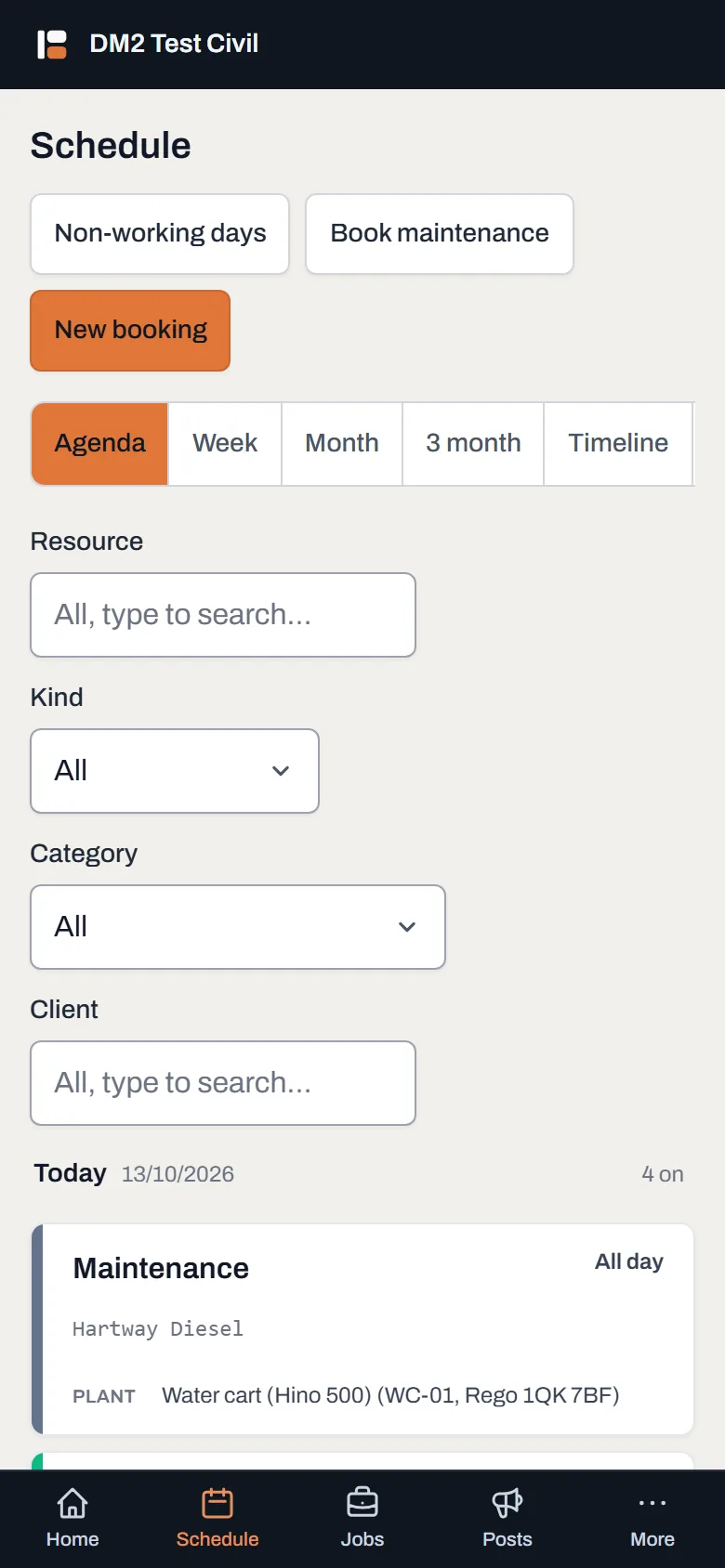
Agenda on a phone. Empty days are skipped, so it's only ever the days that matter. -
Ask "who's free Thursday?" with the boards: Crew, Plant and Vehicles. One row per person or machine, days across the top, two weeks wide. An empty cell is a free day. Click it and the booking form opens with that resource and date already filled in.
- Crew is people, Plant is machines, Vehicles is the trucks and utes.
- Days someone is away are shaded on their row, so leave reads the same way work does.
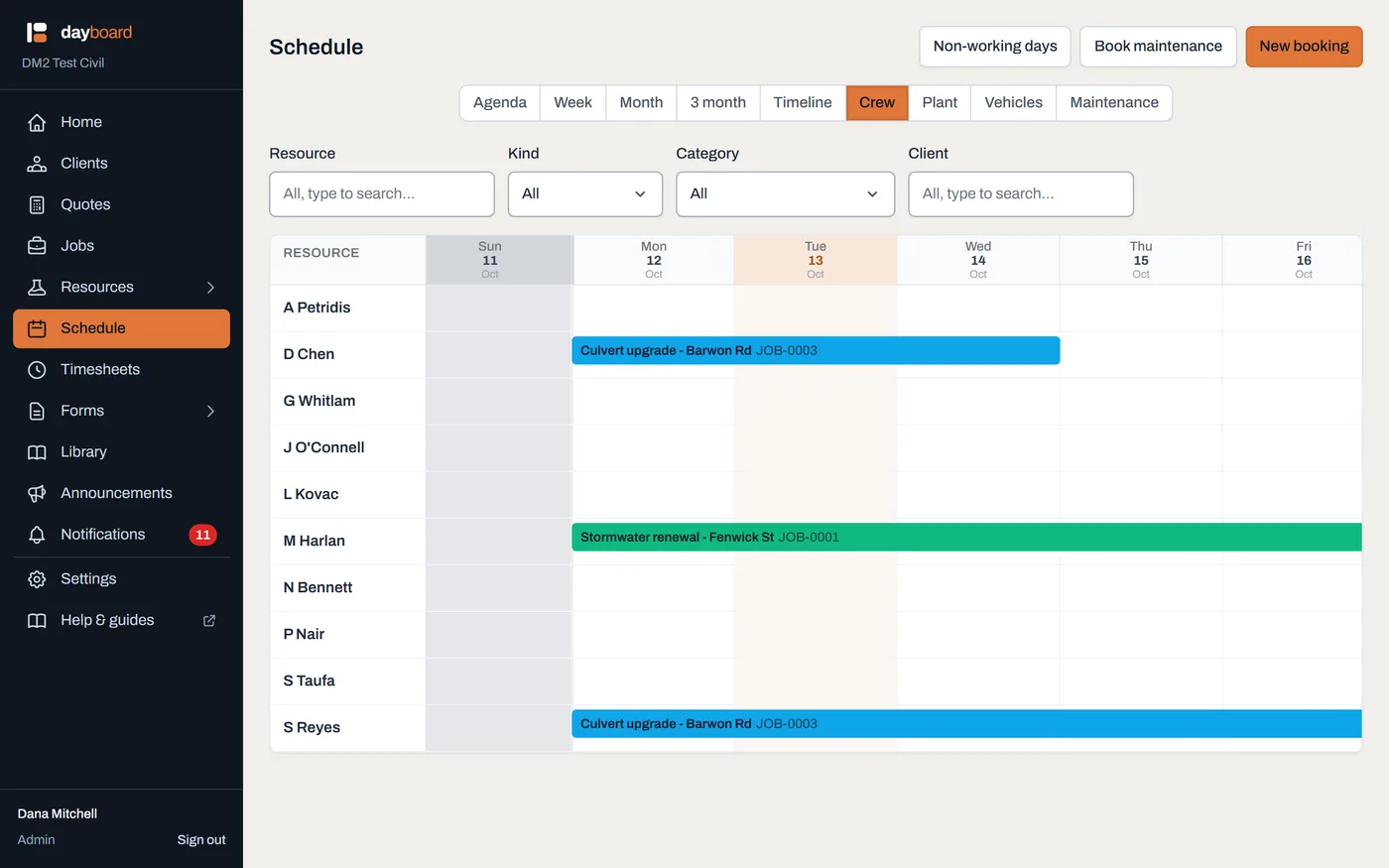
Crew view. The gap in a row is the answer: that person is free those days. -
Follow the jobs with Timeline. Four weeks of jobs as bars, so you can see each job's whole run: when it starts, when it ends, and what overlaps what.
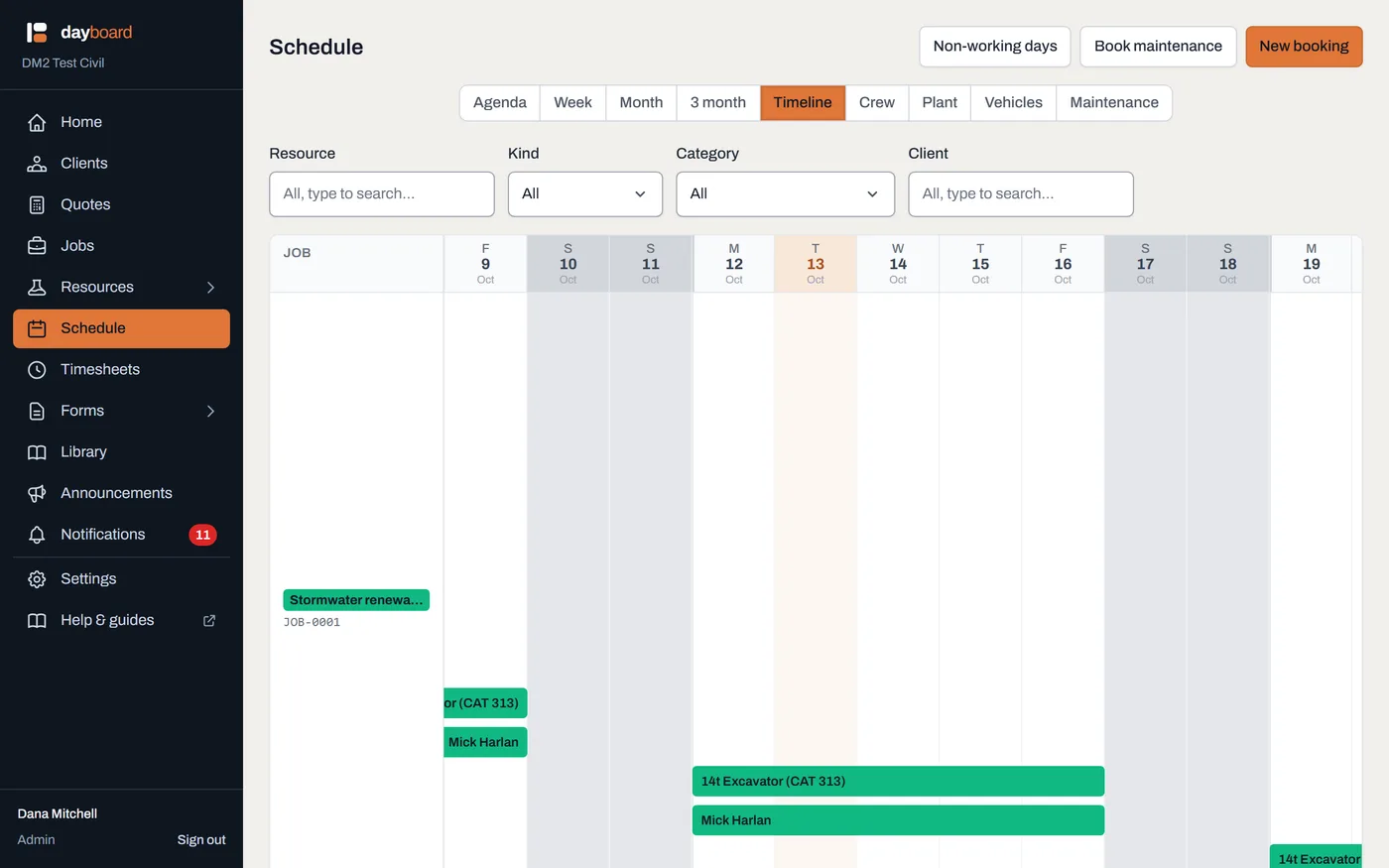
Timeline. The same bookings as Month view, arranged by job instead of by day. - See what's off the road with Maintenance. It's the Plant and Vehicles boards combined, with the job bookings filtered out, so the only bars are machines at the mechanic, and each bar names the supplier who has it. There's a guide on booking a machine in.
- Step through time and filter it down. The ‹ Today › buttons move by whatever the view shows (a week on Week, a month on Month, a fortnight on Timeline) and Today snaps you back. The four filters above the board (Resource, Kind, Category, Client) narrow every view the same way, and Clear filters puts everything back.
Worth knowing
- Your view choice is remembered on that device. The office computer can live in Month while your phone stays on Agenda; neither resets the other.
- The filters are remembered too. If the board looks strangely empty, check for a leftover filter and click Clear filters.
- Job colours never change between views. A job gets one colour and keeps it everywhere, so you can follow it from the Month grid to the Crew board without re-reading labels.
- Field workers don't see this page. They get My schedule: just their own bookings, with the job's documents attached. The nine views are for the people doing the planning.