Guides › Getting started
Invite your crew
Everyone with their own sign-in, at the right role and the right price. About a minute per person.
The short version
On the Users page, under Settings, fill in a name, an email and a role, and click Send invitation. They get an email, tap the link, set a password and land in the app. An invited person costs nothing until they do. To give a field worker their own My schedule, link their account to their person resource.
- Open Settings, then the Users tab. Settings sits at the bottom of the sidebar (under More on a phone), and Users is admin-only: this is the page where your bill changes, so it lives beside Billing.
-
Fill in Invite someone. Their Name, their Email, and a Role. The dropdown shows each seat's live price right next to the role, so there's never a surprise on the invoice. What each role means:
- Field worker, $5/month. Their own schedule and the documents on their jobs, the Library, notifications (view, acknowledge, comment), photos onto jobs they're booked on, and filling in forms. That's the complete list.
- Manager, $10/month. Runs the day: jobs, clients, resources, scheduling, posting to the crew, the Library and building forms. No billing, no user management.
- Admin, $25/month. Everything, plus Users, Billing and the data export.
Prices are per person per month, including GST, and, as the form itself says, billed for the people who were active that month.

The price sits in the role dropdown on purpose: inviting someone is the moment your bill changes, so the number is right there. - Click Send invitation. Their row appears with an Invited badge. An invited seat is free; nothing is billed until they accept and become active.
- They tap the link and set a password. The email lands as "Join your team on Dayboard": their name is pre-filled from what you typed (they can change it), they choose a password of at least 10 characters, and Get started drops them straight into the app.
-
Link them to their person resource. A sign-in and a name on the schedule are two different things until you join them. Open Resources › People, and set the person's Linked account to their new account. That's what fills their My schedule with their own bookings. The linking lives on the resource; see Add your crew, plant and vehicles.
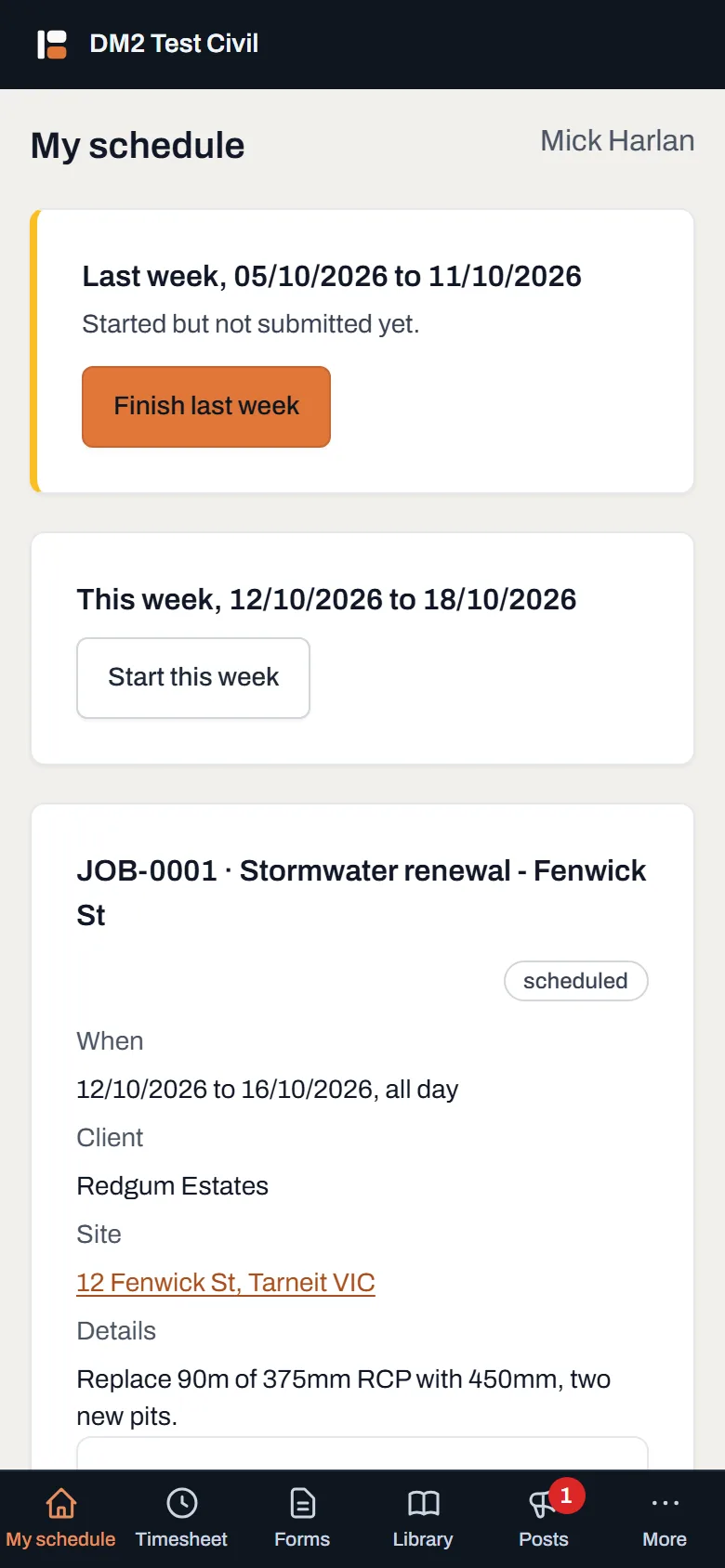
What a linked field worker sees the first time they open the app: their own week, nothing else to learn. - Change things later, from the same page. The Role dropdown on a person's row changes their role on the spot. It takes effect immediately, and so does the price from the next month's bill. Switch off ends someone's access: they can't sign in, they cost nothing from the next month, and everything they did (photos, acknowledgements, bookings) stays on the record under their name. Switch back on undoes it any time.
Worth knowing
- An invitation is free until it's accepted. Invite the whole crew today and the bill only moves as each person actually starts.
- Switching someone off keeps the history. Their acknowledgements and photos stay attributed to them, because a safety trail with people removed is not the trail.
- The last admin is protected. Dayboard won't let the only active admin be demoted or switched off, so a company can't lock itself out.
- Nobody needs an account to be scheduled. Book crew as resources from day one; accounts are for the people who should see the schedule.
- The same email can be on two companies, which is handy for a subbie. At sign-in they just pick which company they mean (see Start your trial and sign in).