Guides › Jobs
Get site photos back from the crew
Photos from site land on the job itself, dated, attributed, next to the drawings, instead of dying in a group chat. About two minutes to see how.
The short version
Anyone booked on a job can add photos to it from their phone, and only photos, and only to their own jobs. Each one lands in the job's Site photos group, dated and attributed, where the office sees it alongside the drawings and the bookings. No chasing, no "check the WhatsApp".
- Book the worker on the job. That's the whole permission model: a field worker can add photos to jobs they're booked on, and nothing else anywhere. No booking, no upload, so make sure their account is linked to their resource and they're on the schedule.
-
They take the photos on site. On their phone, the job's card on My schedule has an Add a photo button under Documents for this job: take one with the camera or pick from the gallery. The worker's-eye walkthrough is its own guide: Add photos to your job. Send it to the crew.
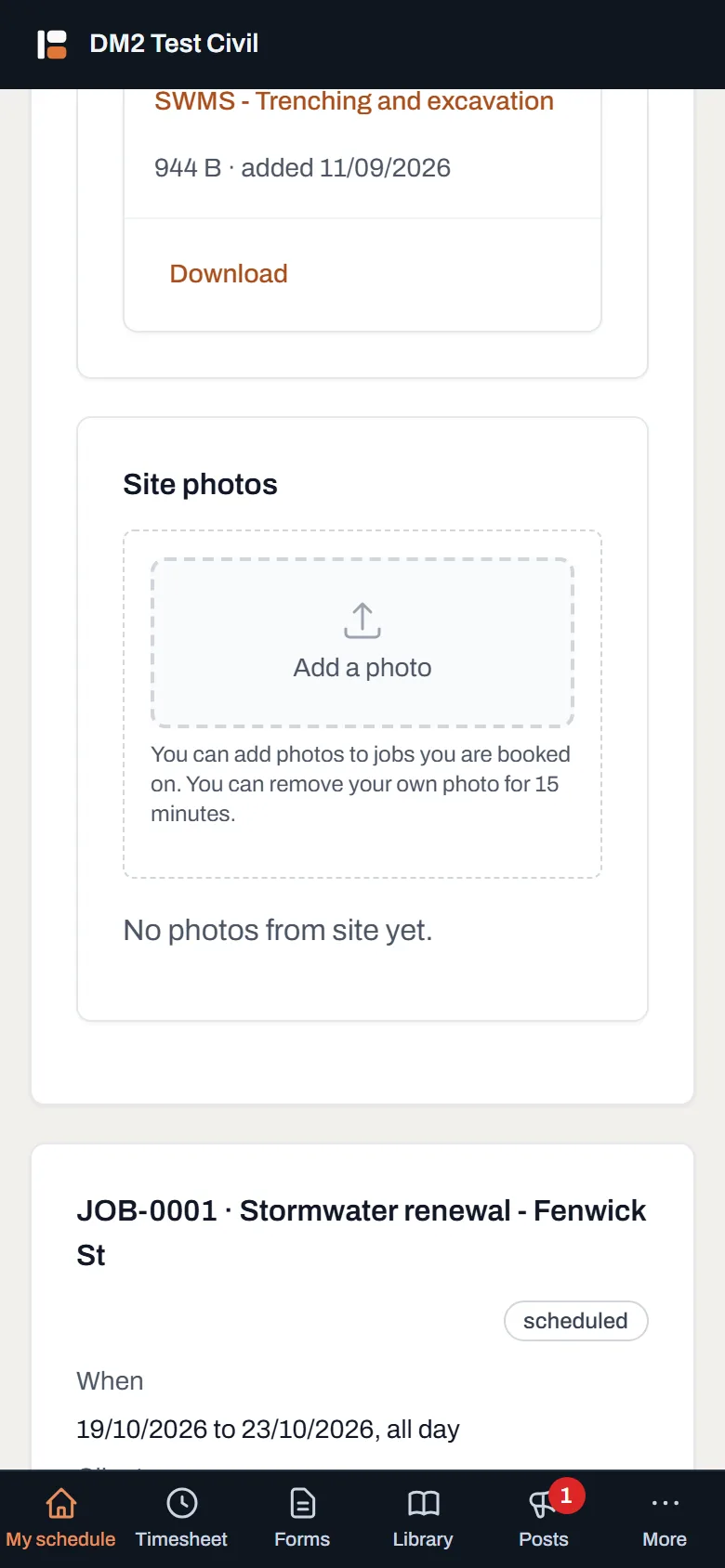
The crew's side: Add a photo, right where the job's drawings already are. -
Find the photos on the job. Open the job and scroll to Documents and site photos. Photos get their own Site photos group under the documents, each dated. That's where the crew's evidence of what was actually on the ground lives.
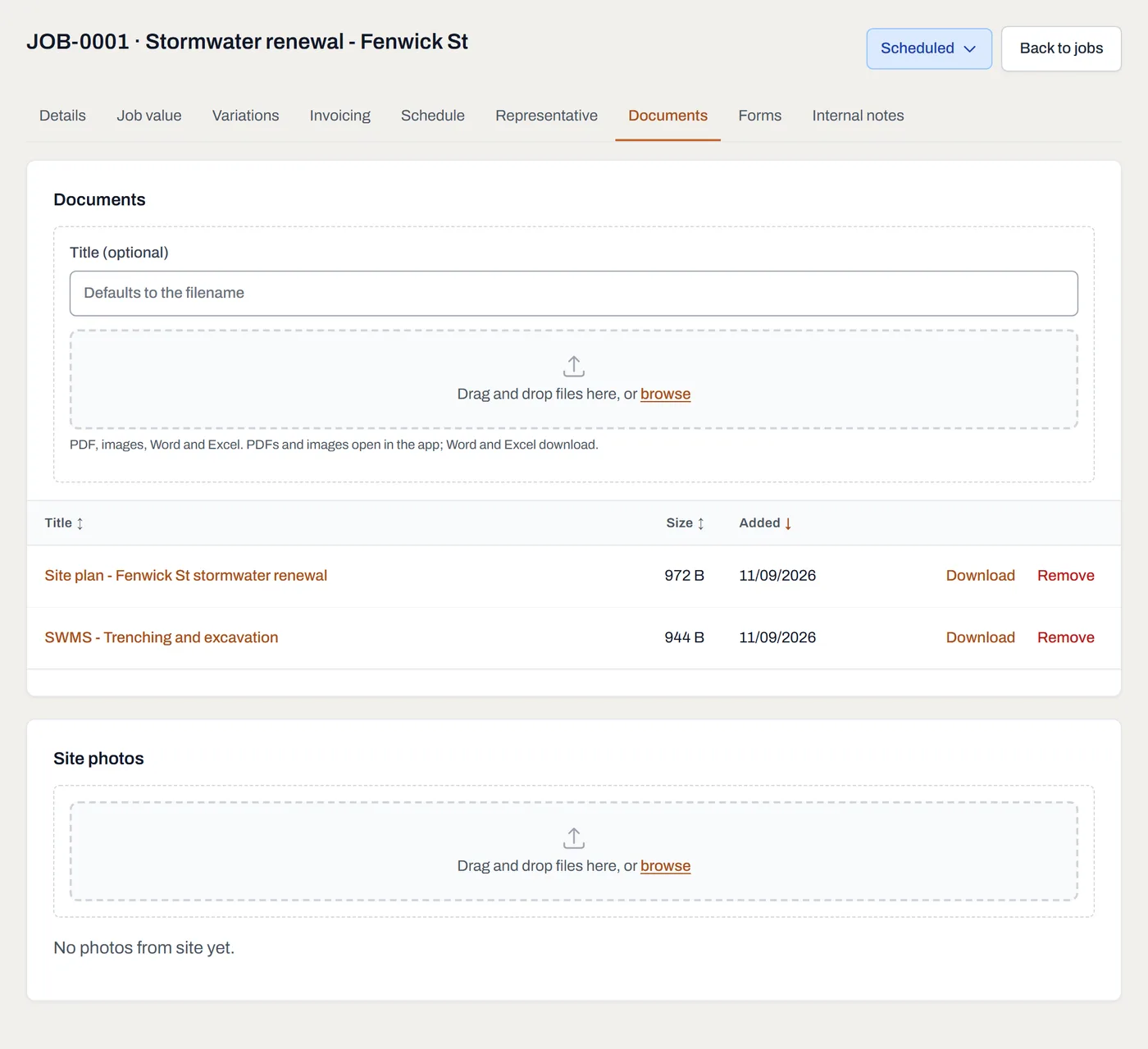
The office view: documents on top, Site photos in their own group below: one job, one record. - Open, download or remove. Click a photo to view it full size, or use Download. Managers and admins can Remove any photo; the worker who took it can remove their own for 15 minutes after upload (the fat-finger window), and after that it's manager-and-up only.
Worth knowing
- Photos only. The camera carve-out is deliberately narrow: a field worker can't upload PDFs or documents to anything, anywhere; documents are manager-and-up.
- Everyone on the job sees them. A photo is visible to anyone who can see the job, including the rest of the crew booked on it: one shared record, not a private inbox.
- The 15-minute window is for fat fingers, not editing history. After it closes, only a manager or admin can remove a photo, and a removed one can be recovered by an admin for 30 days.
- Photos are part of the job's record. They stay with the job after it's completed, and they're included when you export your data.