Guides › Plant & fleet
Add your machines
Get your plant and vehicles into Dayboard, names, fleet numbers and regos, ready to book and look after. About five minutes.
The short version
Open Resources, then Assets, which is plant and vehicles together. Click Add asset, give the machine a name, your own fleet ID, and its rego with the expiry date. Dayboard flags a rego before it lapses, and does the same for any document you attach with an expiry. The flags inform you; they never stop you booking.
-
Open Resources, then Assets. Click Resources in the sidebar and pick the Assets card: "Plant and vehicles, the things with regos, meters and services."
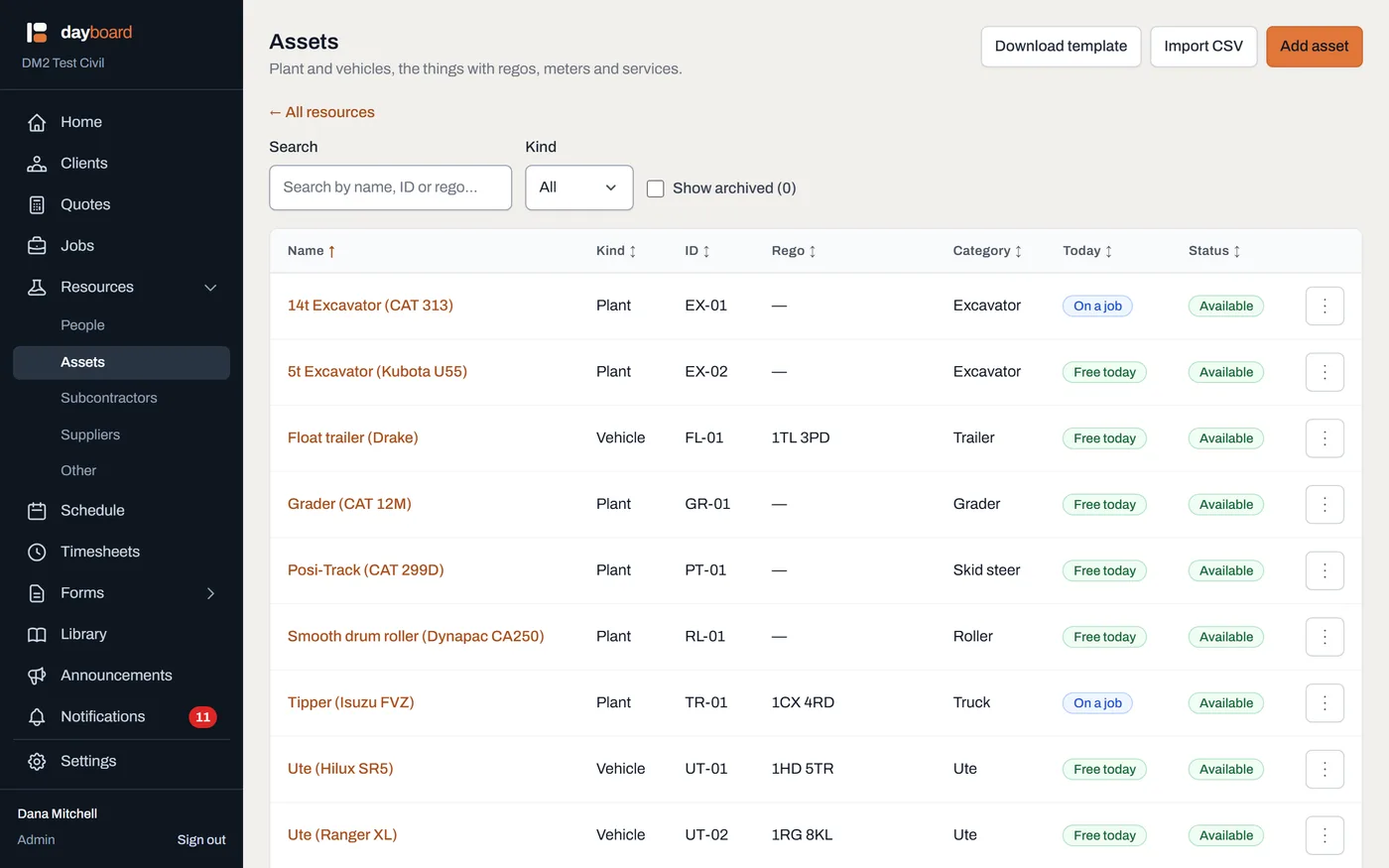
The Assets list. Today answers "where is this machine right now" (Free today, On a job or Away), and a rego past its date wears an Expired badge right next to the plate. -
Click Add asset. The Add to Assets dialog opens.
- Name is how the machine reads on the schedule: "5T Excavator (KOB-05)" beats "Excavator 2".
- Kind is Plant or Vehicle. Both live in this one list; the kind is a property of the row, not a reason to look somewhere else.
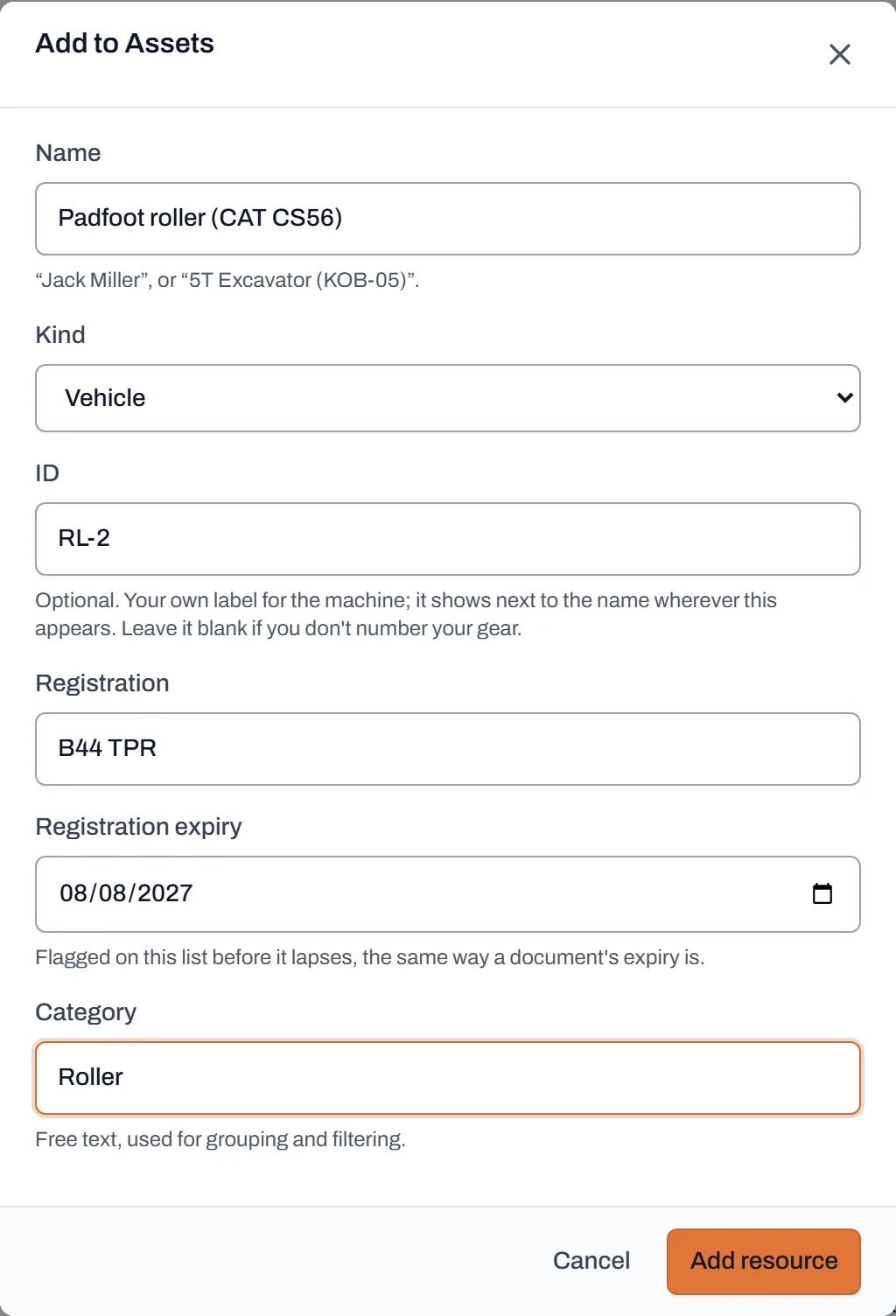
A vehicle on its way in: name, fleet ID, plate and the date the rego runs out. - Give it your fleet label in ID. "EX-3", "WC-01", whatever is painted on the side. It's optional, and it shows next to the name everywhere the machine appears, so the person standing beside it knows they're on the right page. You can also search the list by it.
- Add the rego. Type the plate into Registration and put the date it runs out in Registration expiry. The list flags it before it lapses, the same way a document's expiry is flagged.
- Click Add resource. The machine lands in the list, ready to book. The Resources landing page now counts it on the Assets card, and once anything needs attention, that card says so in plain numbers: rego expired, rego due soon, service due.
- Attach the paperwork. Open the machine from the list and scroll to Documents. Pick the Folder it belongs in (Permits & registrations, Manuals, Risk assessments, Service & repair invoices, Warranty, Photos or Miscellaneous) and choose the file. A folder only appears once there's something in it, so a new machine's Documents panel stays short. Give a document a date in Expires (optional) and it gets the same amber-then-red treatment: Expiring soon, then Expired. The flags tell you; they never block a booking. That call stays yours.
Worth knowing
- Got a spreadsheet? Import the whole fleet in one go instead of typing, using the same CSV import as the rest of your resources, covered in adding your resources. The assets template carries the ID, rego and expiry columns.
- ID and rego are both searchable. The search box on the Assets list matches name, ID or rego, so "EX-3" read off the side of the machine finds it.
- Flags inform, they never block. An expired rego or an out-of-date risk assessment shows loudly (on the list, on the machine, and in the Reminders on Home), but Dayboard will still let you book the machine. It tells you; it doesn't decide for you.
- Give each machine a type once your forms need one. Settings → Machine types holds your own list (excavators, tippers, rollers), and a machine's type is set on its Edit form. It's what lets a form say "this prestart is for excavators only".
- File an invoice against the service it paid for. On the machine's Service history, each entry has an Attach invoice link. The invoice then shows in both places: beside the work, and in the machine's Service & repair invoices folder. It's one document, filed once.
- Wrong folder? Move it. Nothing is stuck where it landed, and a document uploaded before folders existed simply reads as Miscellaneous until you move it.
- Machines aren't just booked; they're looked after. Next stop: give each one a meter, and its hours or kilometres start driving the service-due flags.